If something isn’t working the way it should, a support ticket gets your issue to the right team with all the context they need — without you having to track down who to call or send a vague email.
Overview
ProTeams allows you to submit support tickets for general inquiries or technical issues. Once submitted, your ticket will be tracked and managed through the Support section.
Steps to Create a Support Ticket
- Log in to your ProTeams account
- From the left-hand menu, click Help
- Select Support
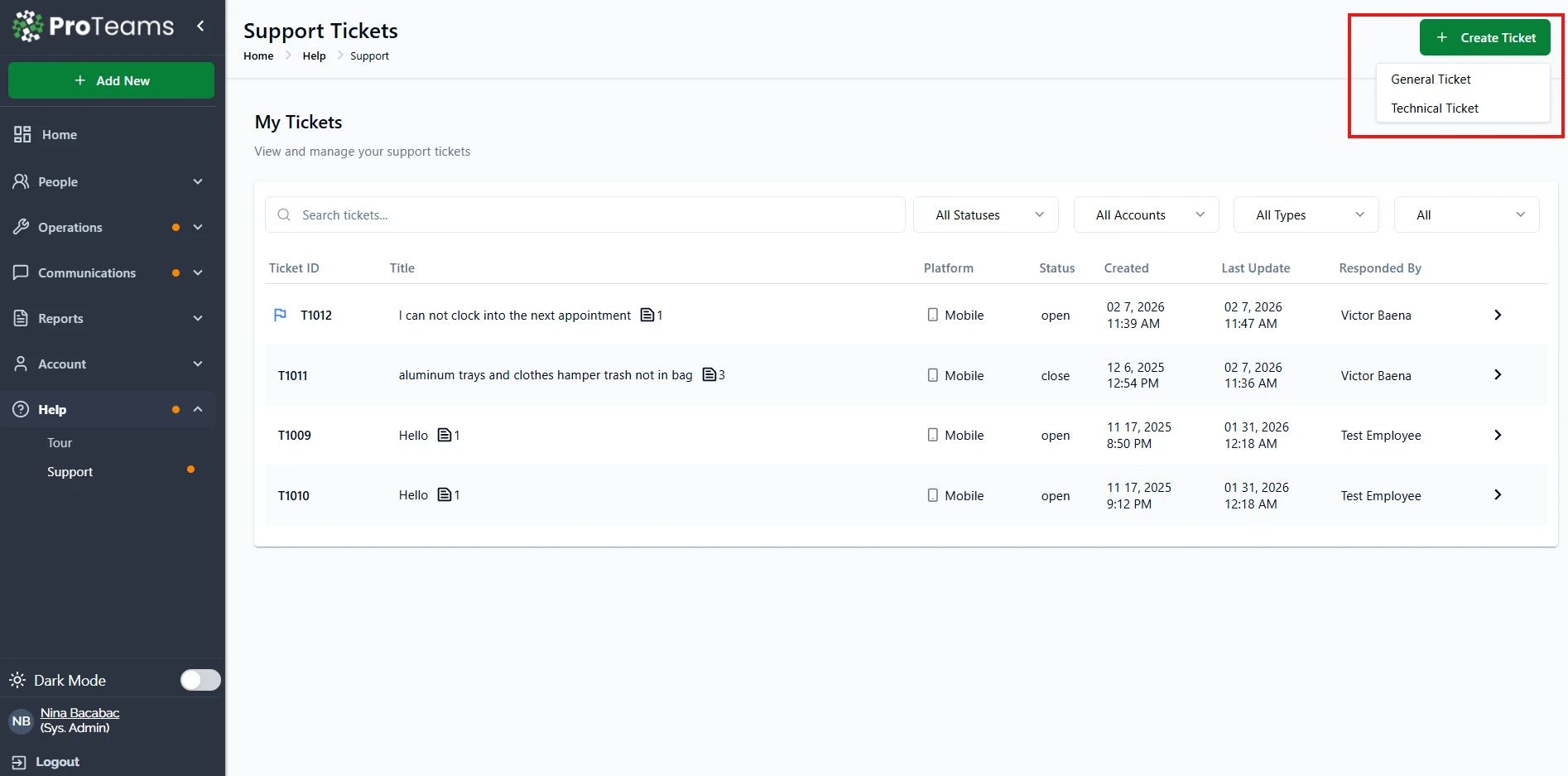
- On the Support Tickets page, click + Create Ticket (top right)
- Choose one of the following:
- General Ticket – For general questions or requests
- Technical Ticket – For system or technical issues
Filling Out the Support Form
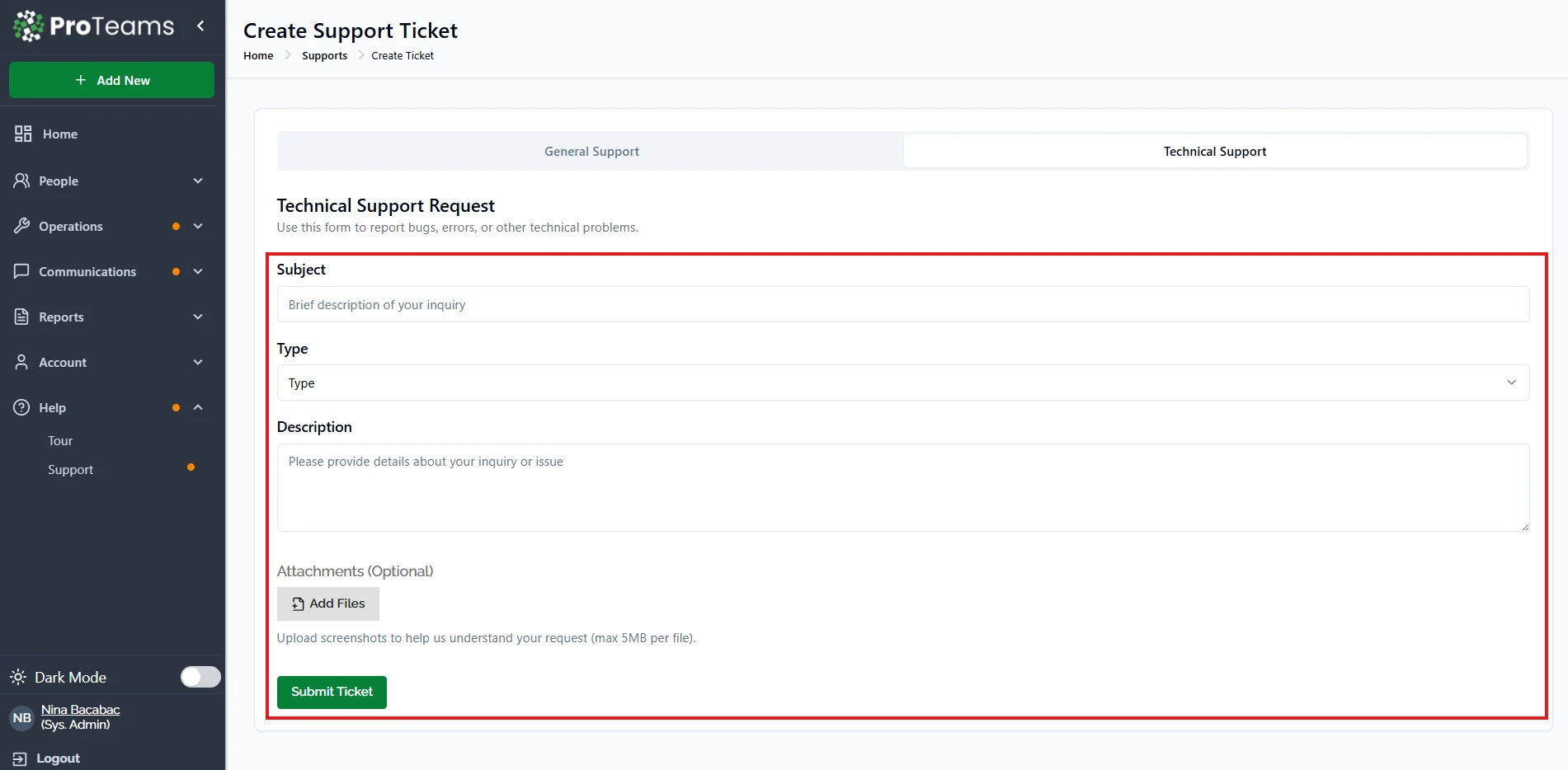
After selecting a ticket type, you will be taken to the Create Support Ticket page.
Complete the following fields:
- Subject Enter a short summary of your request
- Type Select the category that best matches your issue
- Description Provide detailed information about your request or problem
- Attachments (Optional) Upload screenshots or files to help explain the issue
Submitting Your Ticket
- Review all entered information
- Click Submit Ticket
Once submitted, your ticket will appear in the Support Tickets list.
What Happens Next
- Your ticket will be assigned to a support team member
- You can track updates under My Tickets
- You will see status changes (e.g., Open, Closed)
- You can open the ticket to view responses or provide additional details
Tips
- Be clear and specific in your description to get faster support
- Attach screenshots when reporting technical issues
- Choose the correct ticket type to ensure proper handling
- Check your ticket regularly for updates or responses
Tip
The most useful support tickets answer three questions: what I was trying to do, what happened, and what I expected to happen. Attach a screenshot when reporting a technical issue.