Submitting a ticket is only the beginning. The real value is the thread that follows — a single place where you and the support team exchange information until the issue is resolved.
Overview
ProTeams allows you to track, review, and respond to your support tickets in one place. You can open any ticket to view details, check updates, and communicate with the support team.
Steps to View and Open a Ticket
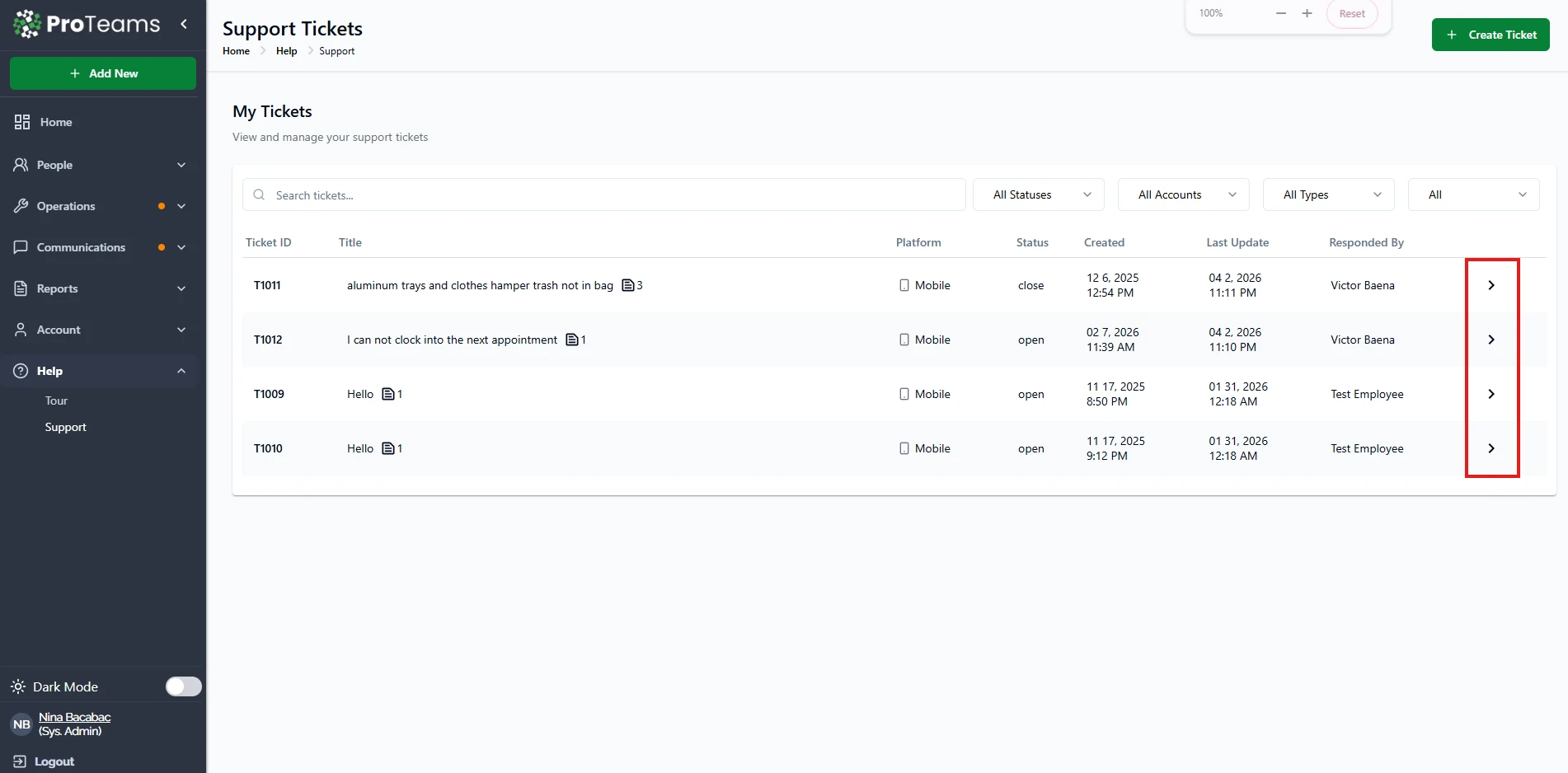
- From the left-hand menu, click Help
- Select Support
- In the My Tickets list, find the ticket you want to open
- Click the arrow icon ( > ) on the right side of the ticket
You will be redirected to the ticket details page.
Viewing Ticket Details
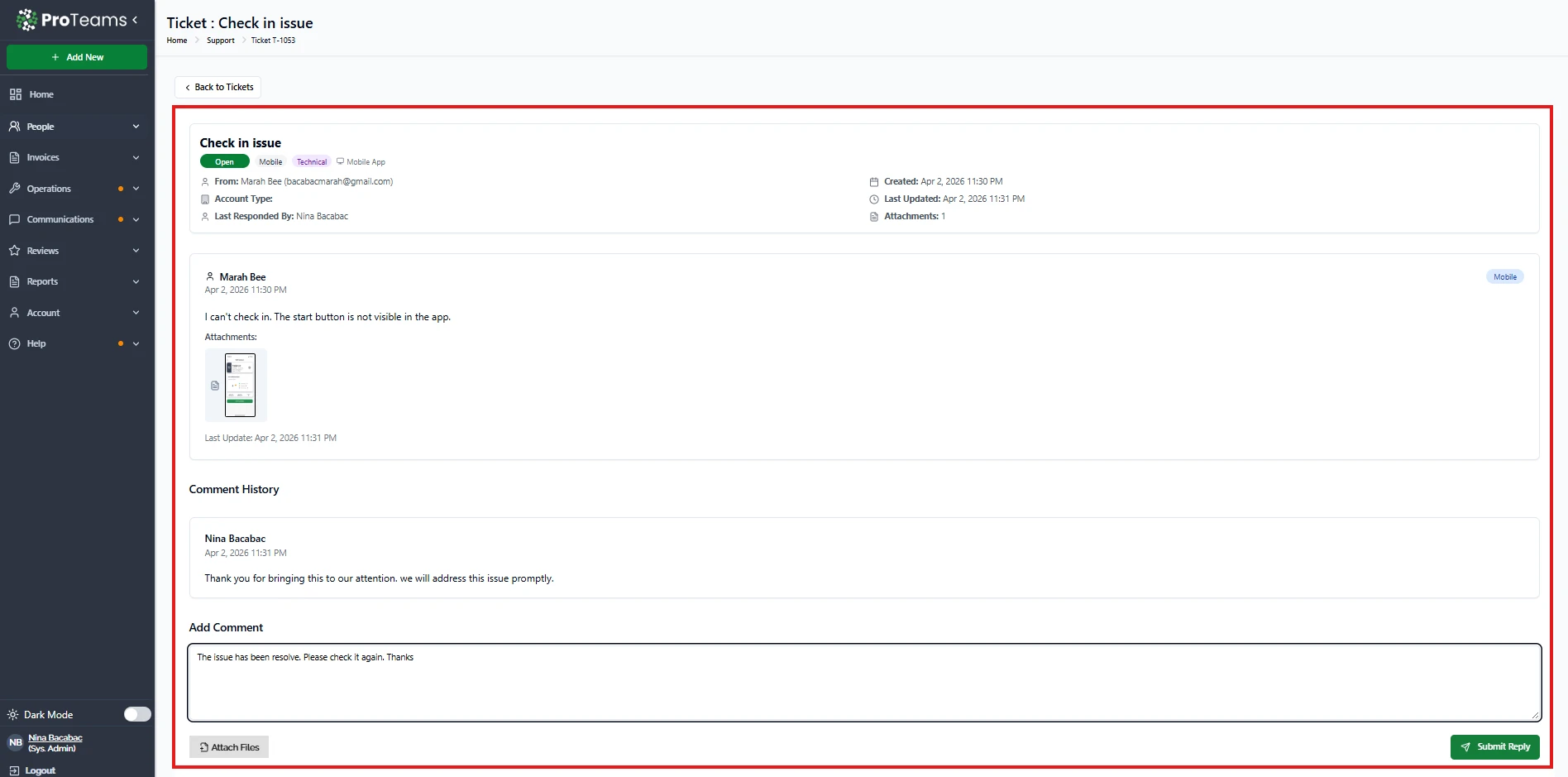
Inside the ticket, you can see:
- Ticket title and status (Open or Closed)
- Submitted details and description
- Attachments (if any were included)
- Created date and last updated date
- Responded by (assigned support staff)
Viewing Comment History
Scroll down to the Comment History section to view:
- Previous messages
- Updates from the support team
- Your past responses
Adding a Reply or Update
To respond to a ticket:
- Scroll to the Add Comment section
- Enter your message in the text box
- (Optional) Click Attach Files to upload supporting files
- Click Submit Reply
Your response will be added to the ticket conversation.
Tips
- Provide clear updates when replying to avoid delays
- Attach screenshots when explaining issues
- Check your tickets regularly for new responses
- Closed tickets may not allow further replies depending on system settings
Tip
If a ticket has been closed but your issue isn’t fully resolved, open a new ticket and reference the original Ticket ID in your description.