Your clients don’t stop having needs between shifts, and your team doesn’t stop having questions during them. The Messages tab brings all of that into one place — team conversations, client messages, and real-time shift alerts.
The Communications Channel (Message Tab), is the centralized messaging area within ProTeams. It allows users to view, manage, and respond to conversations related to daily operations, internal coordination, and client-related communication.
This section keeps all messages organized in one place, reducing missed updates and improving response time.
Where to Find the Communication Channel
- Go to the Home page.
- Scroll down below the Daily Summary section.
- You’ll see a section labeled Communication Channel.
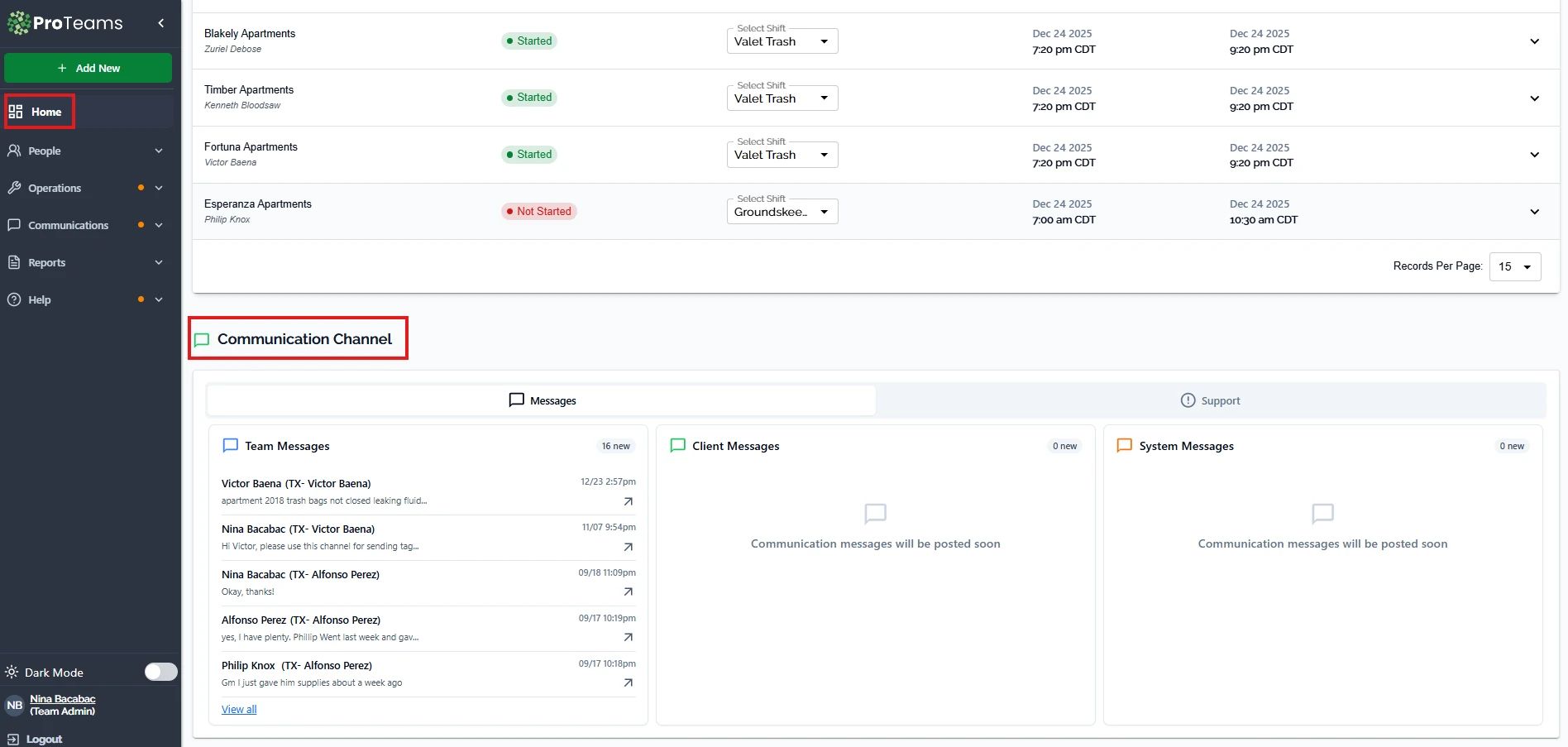
This area shows recent messages and notifications in one place.
Team Messages
The Team Messages panel displays conversations between internal team members.
What you can see:
- The name of the sender
- A preview of the most recent message
- The date and time of the last message
- A badge showing how many new or unread messages are available
- The arrow icon that lets you open the full conversation.
- The View all option at the bottom of the Team Messages section allows users to open the full list of conversations beyond the limited preview shown on the dashboard.
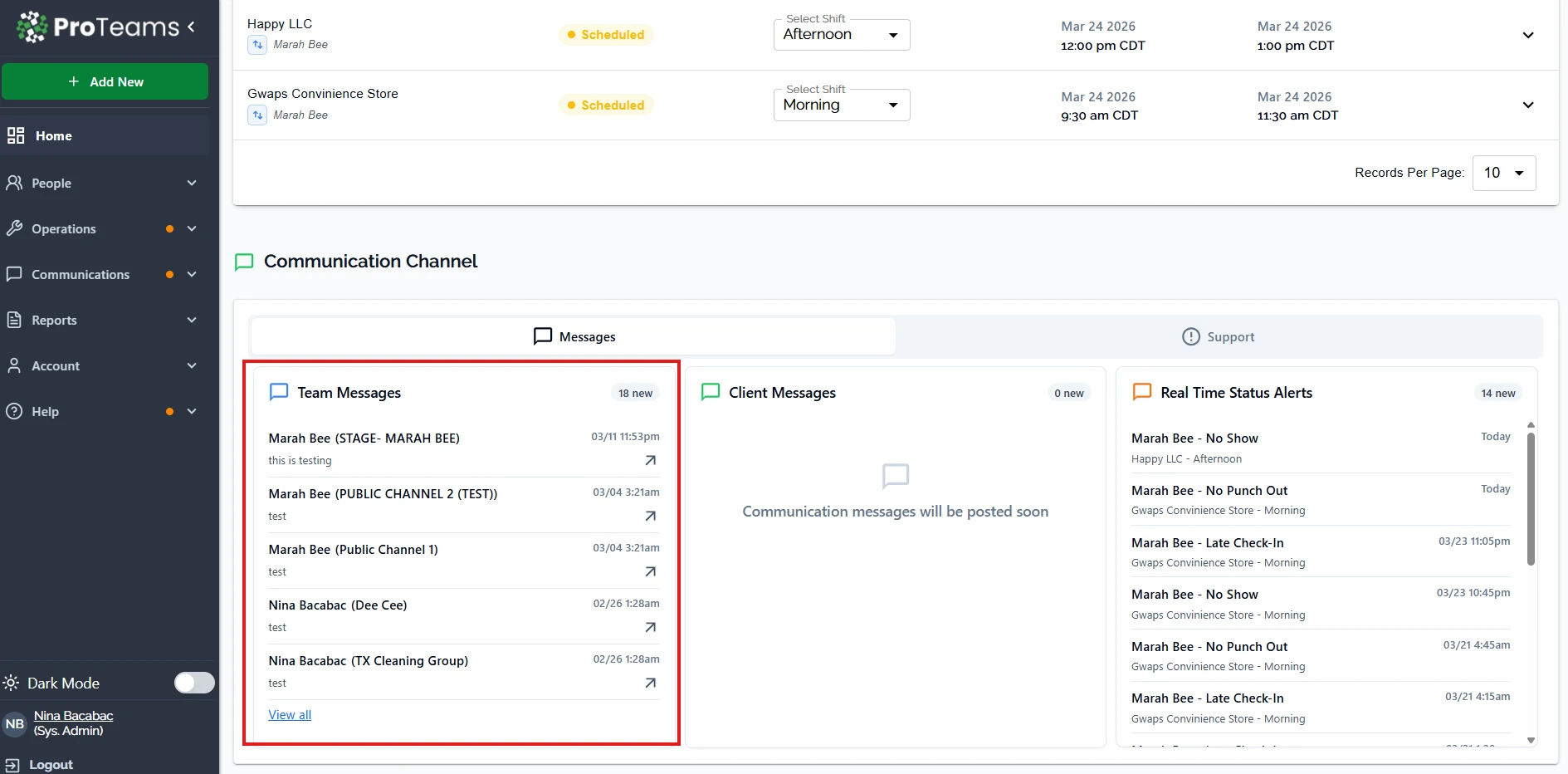
This helps you move quickly from the summary view to the detailed message view.
Client Messages
The Client Messages panel is reserved for conversations with clients.
When available, this section will display:
- Client names
- Message previews
- New message indicators
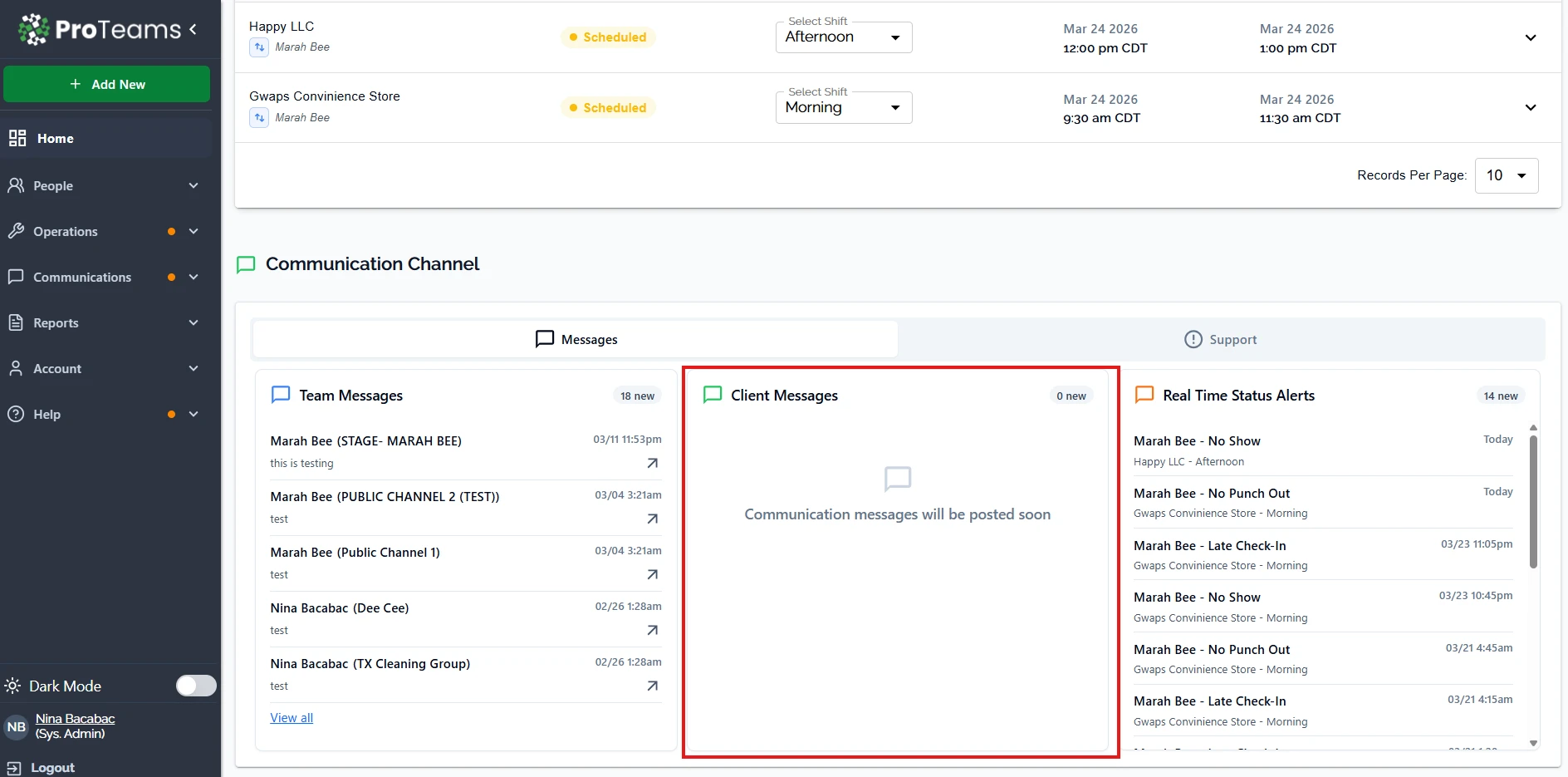
If no client messages are present, a placeholder message is shown to indicate that communication messages will appear once available.
Real-Time Status Alerts
The Real-Time Status Alerts panel provides immediate visibility into employee attendance and shift-related issues. It allows managers to quickly identify and respond to problems as they happen.
What You Will See
Each alert includes the following details:
- Employee Name – The team member involved
- Alert Type – The specific issue (for example, No Show or Late Check-In)
- Client and Shift – The assigned location and shift type
- Timestamp – When the alert occurred
A notification badge (for example, “14 new”) indicates how many new alerts have not yet been reviewed.
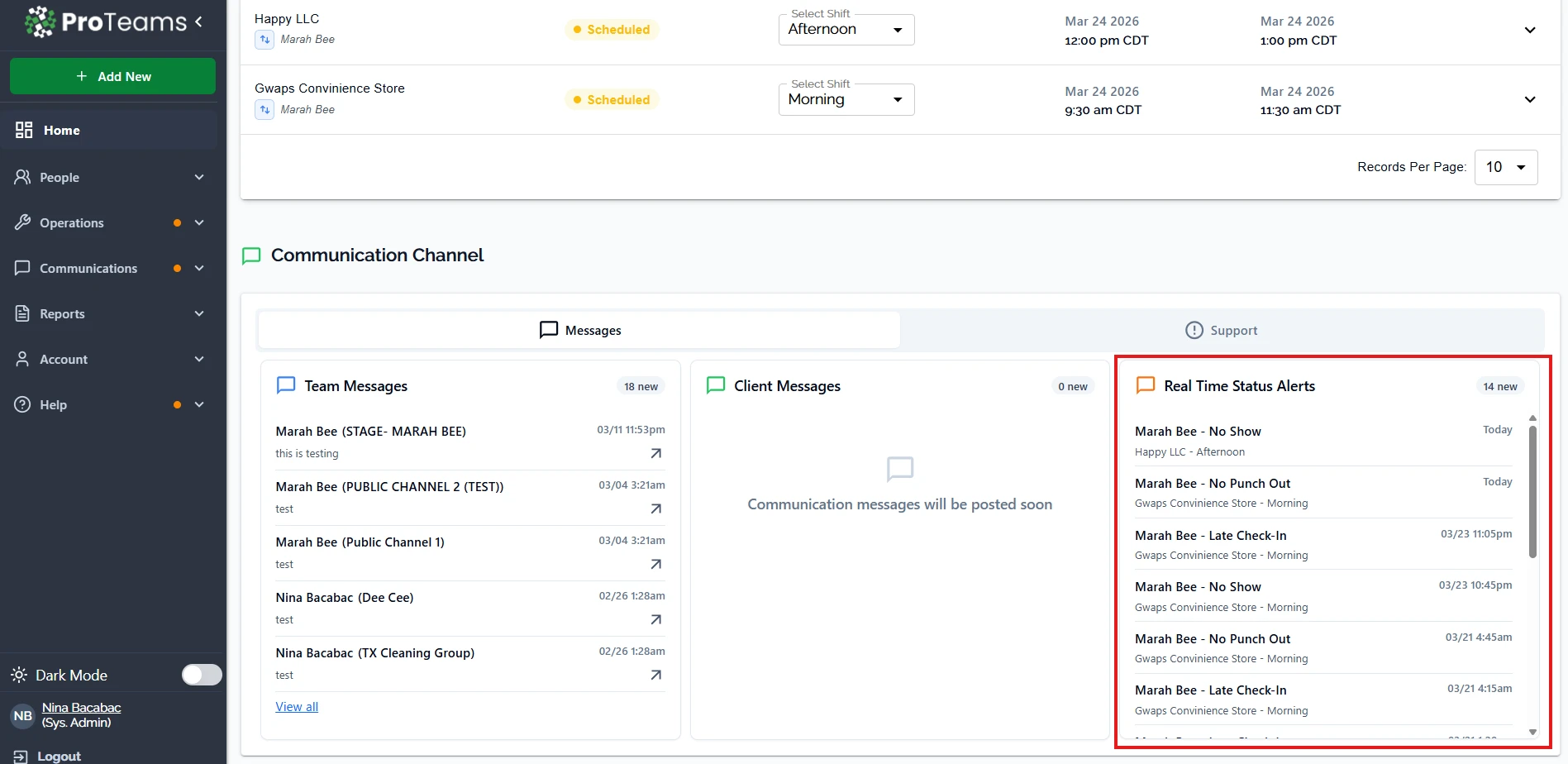
Types of Alerts
Common alerts you may see include:
- No Show – The employee did not clock in for their scheduled shift
- No Punch Out – The employee failed to clock out at the end of the shift
- Late Check-In – The employee clocked in later than scheduled
These alerts help you monitor attendance and address issues quickly.
How to Use Real-Time Alerts
- Review alerts regularly to stay updated on team activity
- Click on an alert (if available) to view more details or take action
- Use the information to follow up with employees when needed
- Monitor repeated issues to identify patterns or performance concerns.
How can I use the Communications Channel?
You can use the Communications Channel to:
- Review ongoing conversations with team members
- Track updates and issues reported by staff
- Communicate internally without switching tools
- Monitor incoming client messages when available
- Maintain clear documentation of conversation
Checking this tab regularly helps ensure timely responses and smooth coordination.
Build a habit of checking the Messages tab at the top of every hour during active shifts. Alerts that sit too long become client calls.