When you log in to ProTeams, the Overview Summary is your first stop. It gives you a live view of everything happening across your operation right now — no digging, no navigating to five different sections. Everything that needs your attention is here.
The Overview Summary section of the ProTeams dashboard gives users a real-time snapshot of what is happening across the platform. This area is designed to surface the most important operational data at a glance so users can immediately identify priorities, bottlenecks, or urgent actions.
Below is a detailed explanation of each card shown in the Overview Summary.
Appointments
The Appointments card displays a summary of scheduled appointments for a selected time range, such as Today.
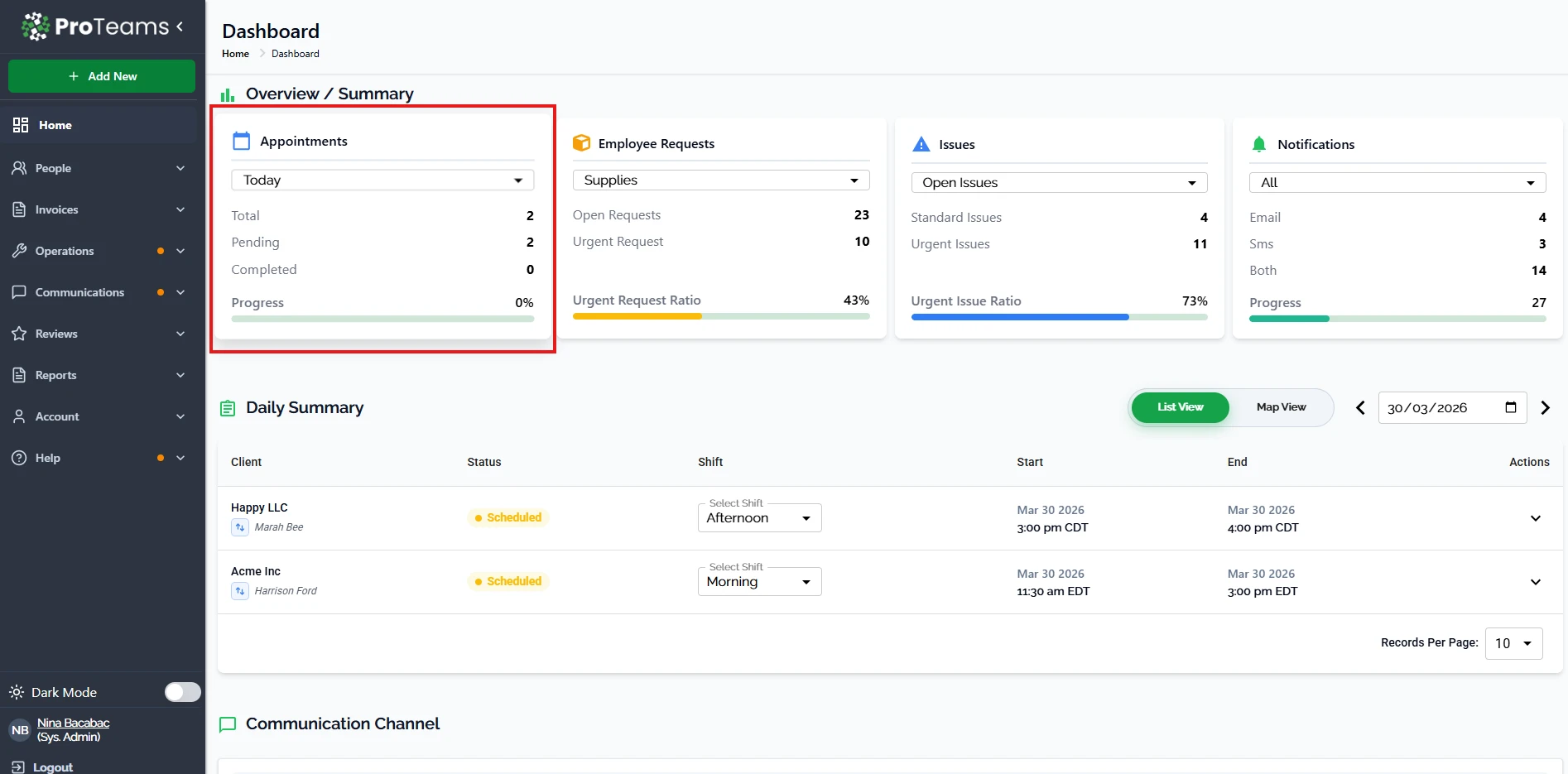
What you can see:
Appointments Filter (Today Dropdown):The Today dropdown in the Appointments card lets you control which time period the appointment data is showing.
- Total: The total number of appointments within the selected period.
- Pending: Appointments that are scheduled but not yet completed.
- Completed: Appointments that have already been finished.
- Progress Bar: A visual indicator showing the completion progress for appointments.
How this helps: This card allows managers and staff to quickly assess daily workload and appointment flow. If many appointments are still pending, it signals that action or staffing attention may be required.
Employee Requests
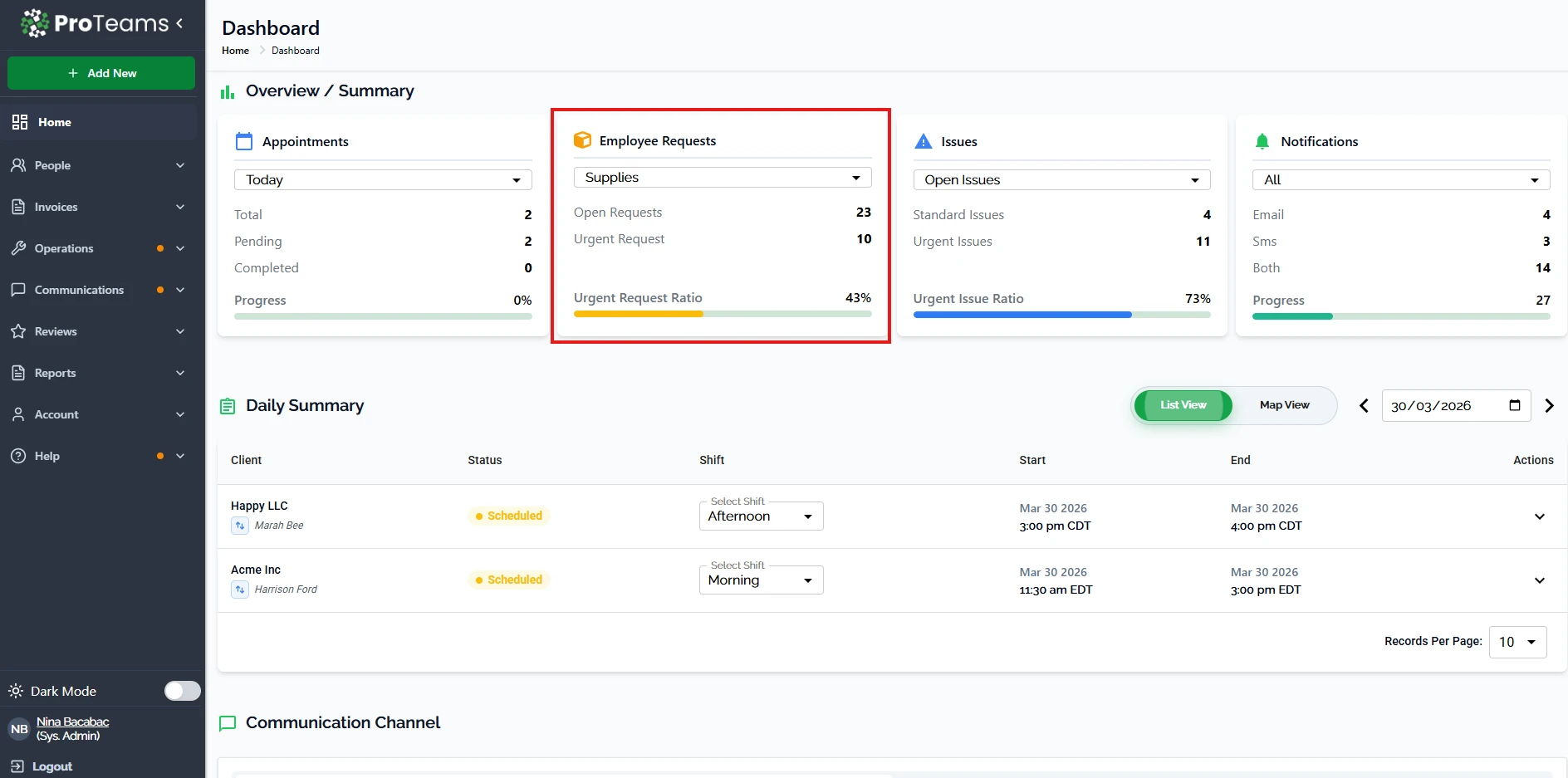
The Employee Requests card tracks internal requests submitted by team members, such as supply requests.
What you can see:
Employee Requests Dropdown: The Employee Requests dropdown lets you filter requests by category. This helps you quickly review specific types of employee needs from the dashboard.
- Open Requests: Requests that are awaiting review or action.
- Urgent Requests: Requests flagged as urgent.
- Urgent Request Ratio: The percentage of requests marked as urgent compared to the total.
How this helps: This section helps ensure that internal team needs are not overlooked. A higher urgent request ratio indicates that immediate operational attention may be needed.
Issues
The Issues card provides visibility into reported issues that require resolution.
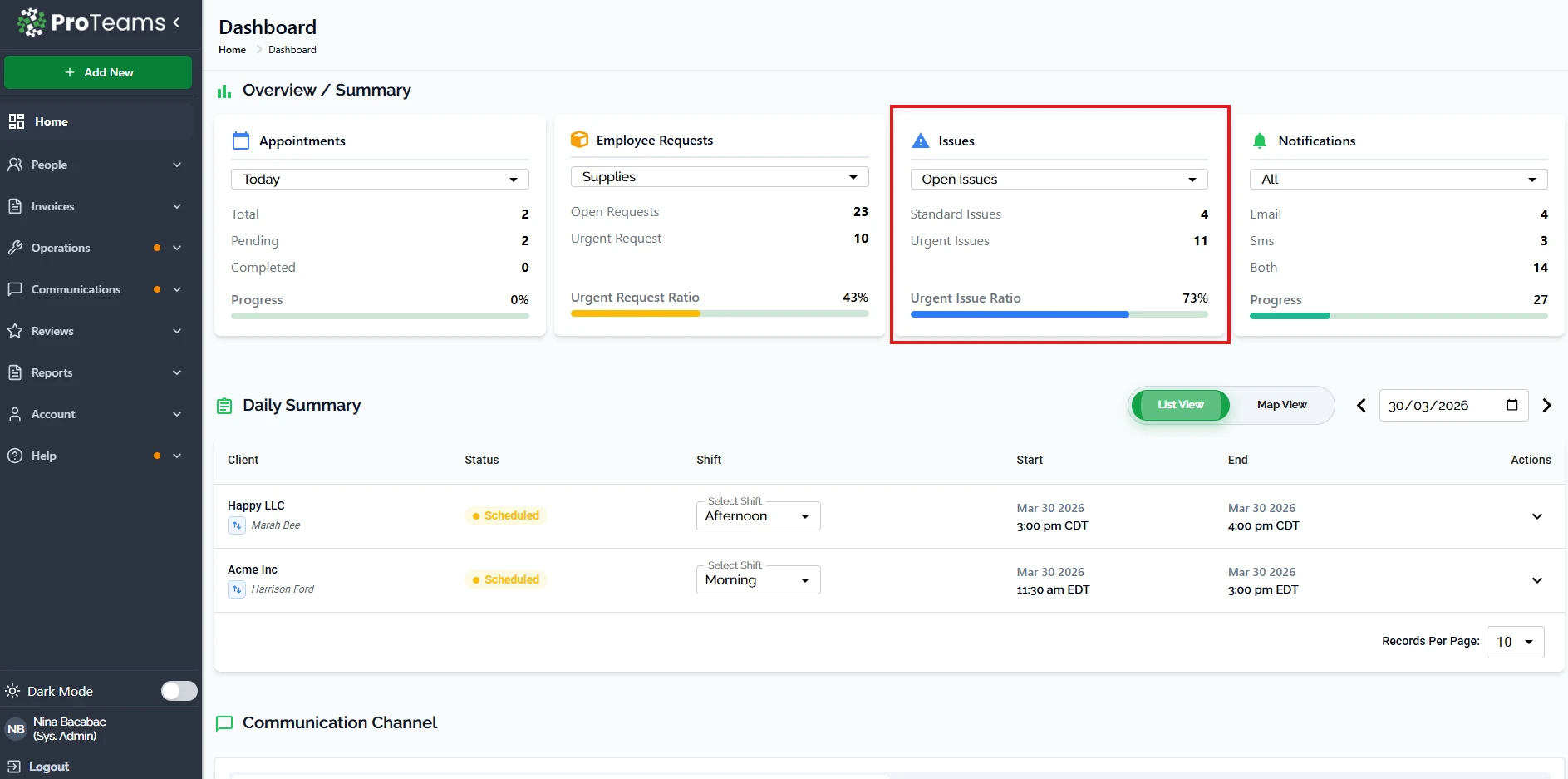
What you can see:
Issues Filter Dropdown: This dropdown filters issues by their current status.You can choose between Open Issues and Closed Issues.
- Standard Issues: Regular issues logged in the system.
- Urgent Issues: Issues marked as high priority.
- Urgent Issue Ratio: A percentage showing how many issues are urgent.
How this helps: This card allows teams to quickly identify risk areas. A higher urgent issue ratio signals potential operational problems that should be addressed promptly to avoid disruptions.
Notifications
The Notifications card summarizes outgoing system communications.
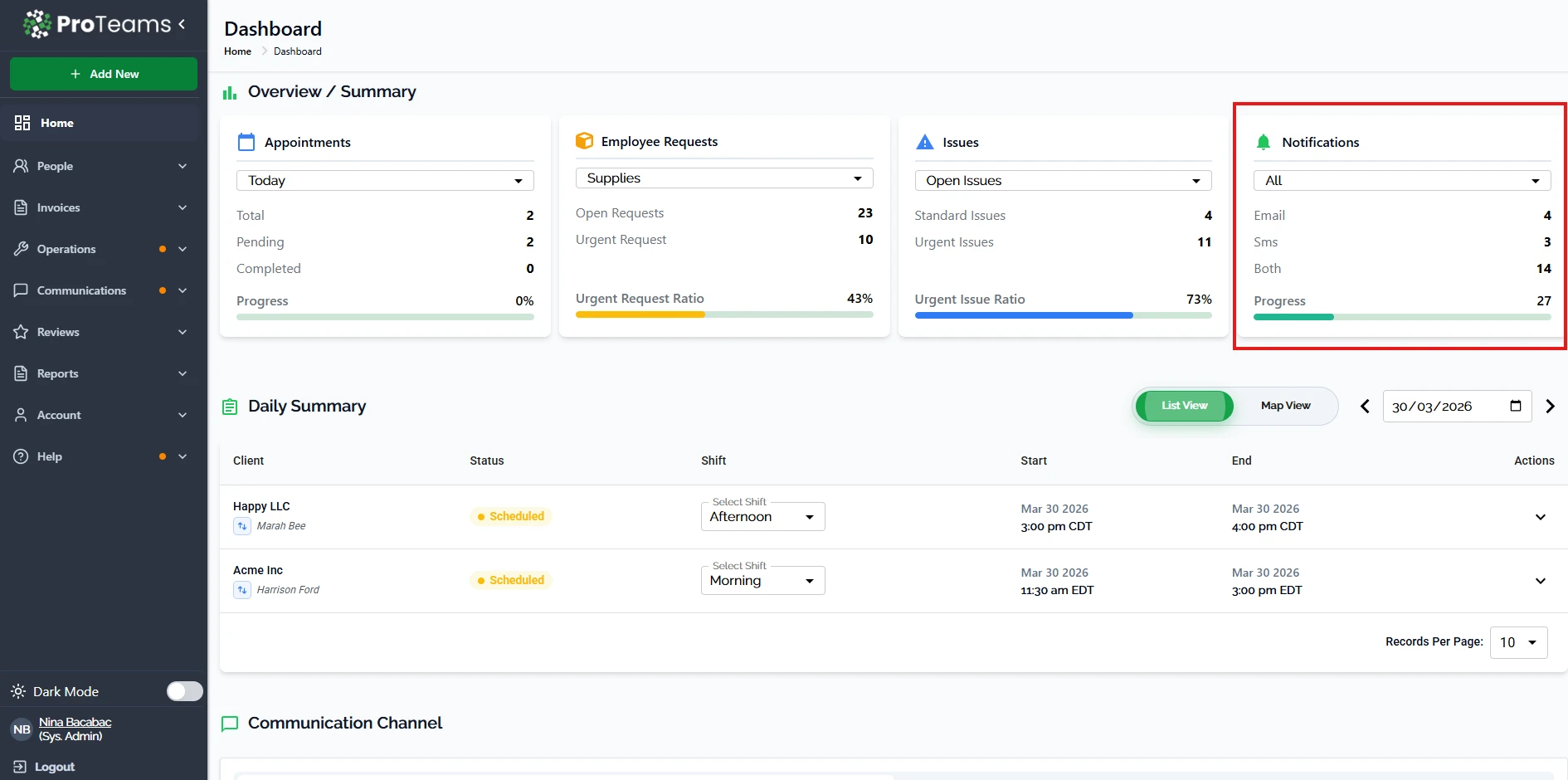
What you can see:
- Email: Number of email notifications sent.
- SMS: Number of SMS notifications sent.
- Both: Notifications sent via both email and SMS.
- Progress Bar: A visual representation of notification activity volume.
How this helps: This section gives insight into communication activity across the platform. It helps administrators confirm that notifications are being delivered and identify trends in user engagement or system messaging.
Why the Overview Summary Matters
The Overview Summary is designed to reduce friction and save time. Instead of navigating through multiple sections, users can instantly:
- Monitor daily operations
- Spot urgent issues or requests
- Track appointment progress
- Verify communication activity
This makes the dashboard an effective control center for managing teams, tasks, and system activity efficiently.
Make the Overview Summary the first thing you open each morning. Two minutes here keeps you ahead of what your crew is dealing with in the field.