The Overview Summary tells you what’s happening. The Daily Summary tells you where it’s happening — a ground-level view of every shift scheduled for today, who’s assigned, and what’s been completed.
Overview
The Daily Summary gives you a clear view of all scheduled work for a selected day. It shows who is assigned, where they are going, and when each job starts and ends. You can switch between List View and Map View depending on how you
want to manage your team.
List View (Schedule Overview)
This view shows your schedule in a table format.
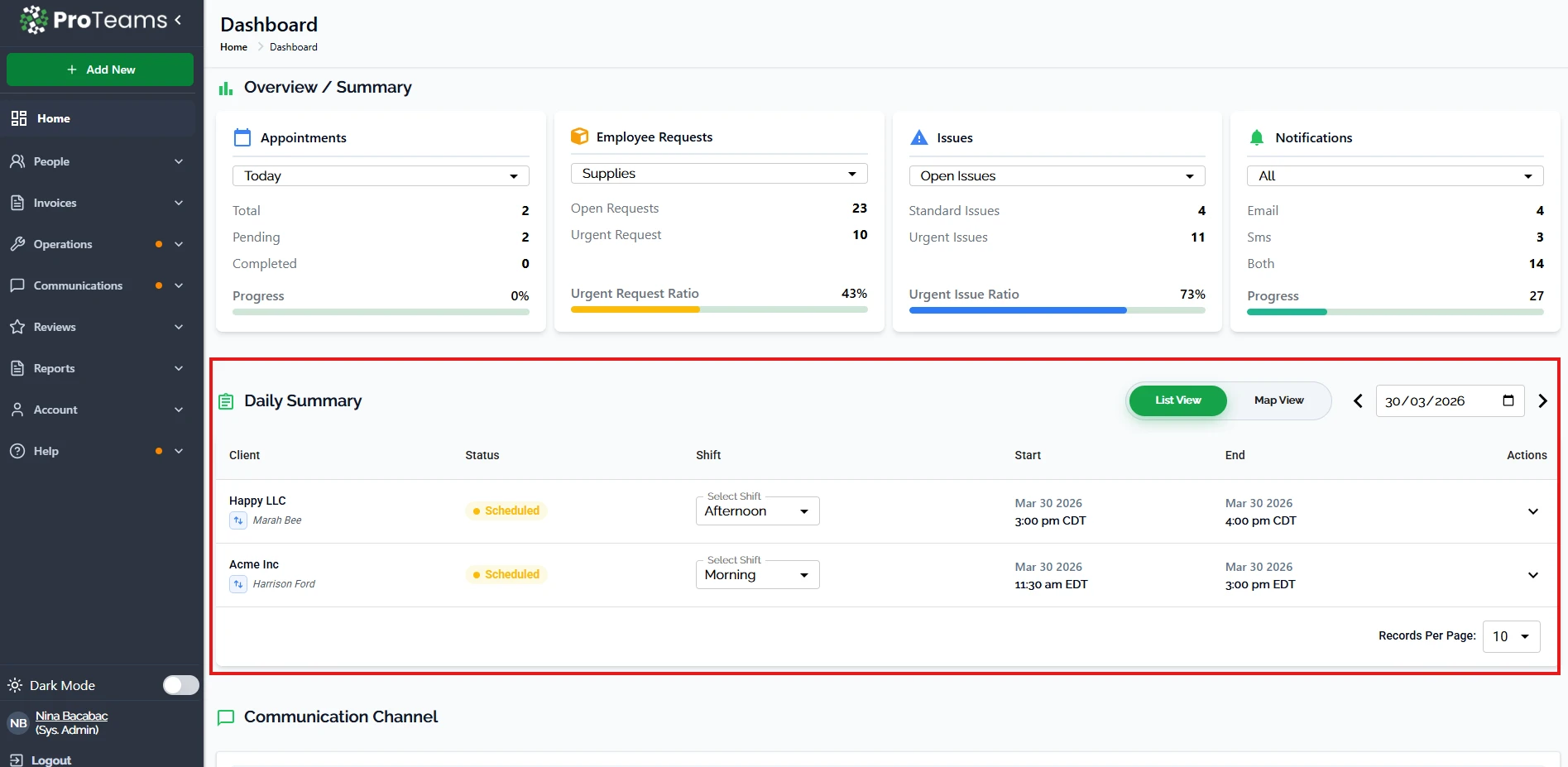
What you’ll see:
- Client – The customer or job location
- Assigned Staff – Team member handling the task
- Status – Scheduled, in progress, or completed
- Shift – Morning, afternoon, or custom shift
- Start & End Time – Job timing
- Actions – Options to update or manage the job
How to use it:
- Review all jobs for the day in one place
- Assign or update shifts quickly
- Check job status at a glance
- Make quick schedule changes
Map View (Location Overview)
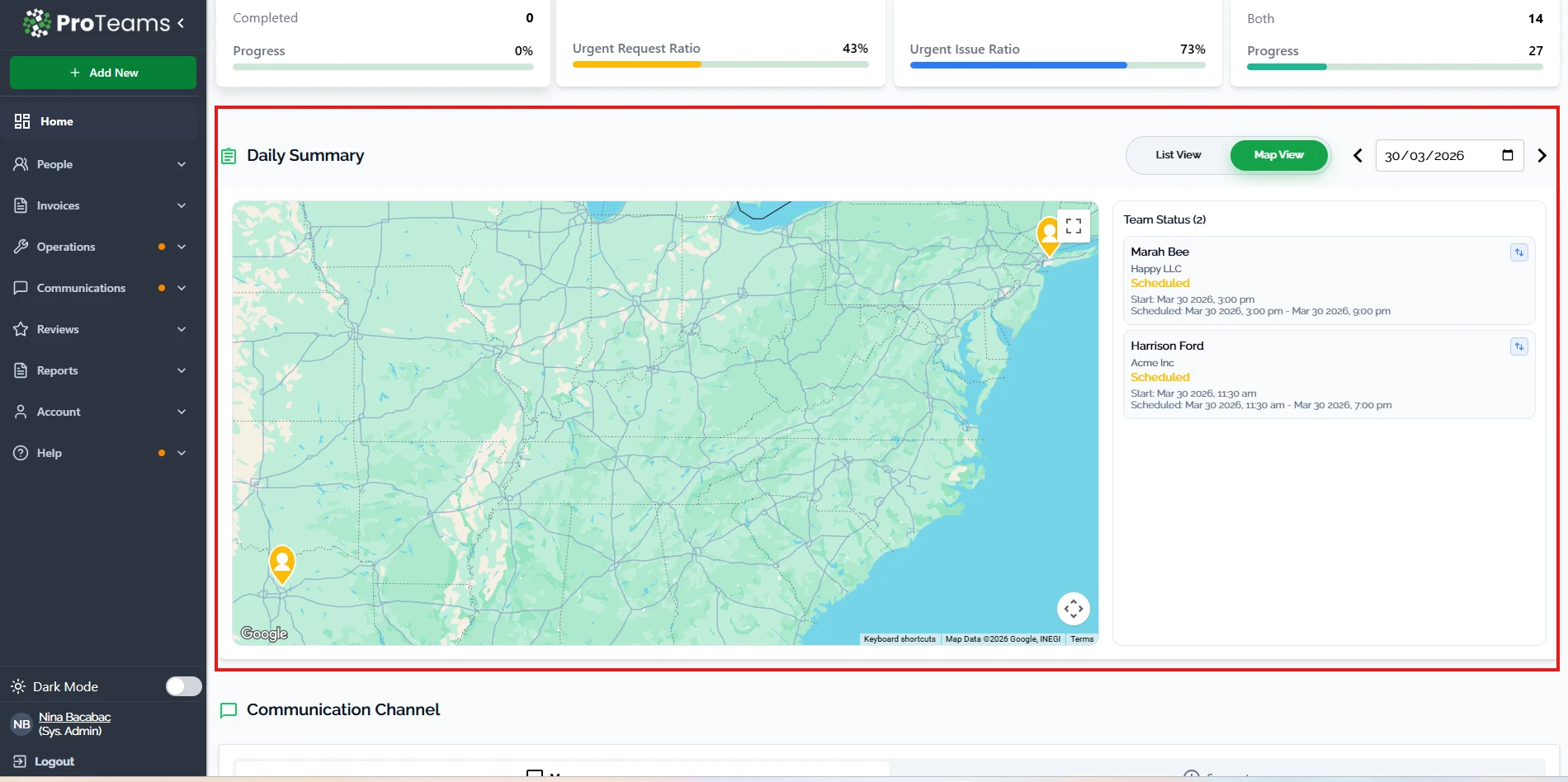
This view shows all jobs plotted on a map.
What you’ll see:
- Map pins – Each job location
- Team Status panel – Assigned staff with job details
- Schedule details – Start and end times
How to use it:
- See where your team is assigned
- Plan routes more efficiently
- Spot gaps or overlaps in coverage
- Balance workload across locations
Switching Between Views
- Use the List View / Map View toggle at the top
- Choose based on your task:
- List View for detailed scheduling
- Map View for location planning
Changing the Date
- Use the date selector to move between days
- Check past, current, or upcoming schedules
When to Use the Daily Summary
Use this feature when you need to:
- Plan your team’s daily work
- Track job progress
- Adjust schedules quickly
- Get a quick snapshot of team activity
Check the Daily Summary at the start of your day to confirm coverage, and again mid-afternoon to catch anything that’s gone off-track before end of shift.