Your team changes. People get promoted, move locations, change phone numbers, take leave. The Manage Employees page is where you keep all of that current so your scheduling and communication stay accurate.
Once employees are added to ProTeams, you can manage their access, roles, and status from the Manage Employees page.
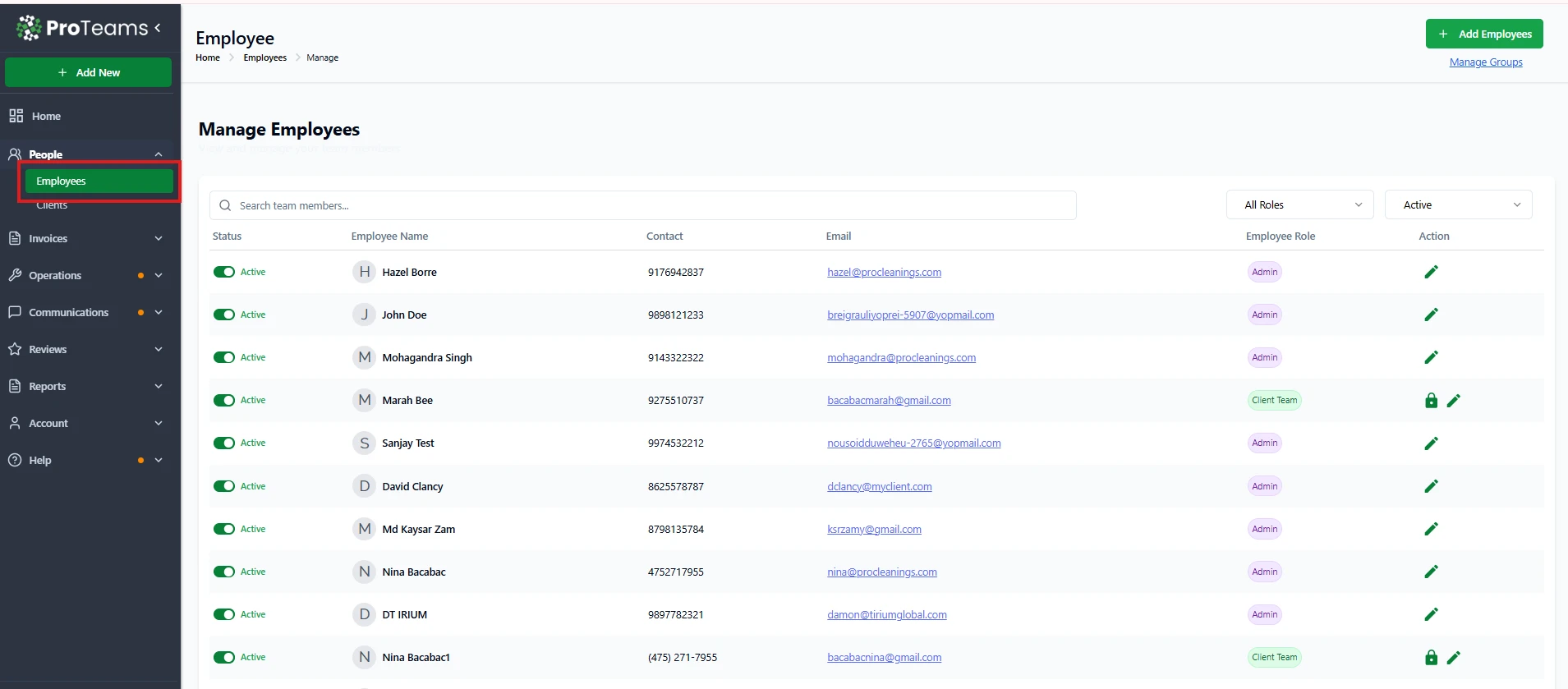
How to Access Employee Management
- Go to People in the left sidebar.
- Click Employees.
- You will land on the Manage Employees page.
This page gives you a full overview of all team members in your organization.
What You Can Manage on the Employee List
View Employee Details
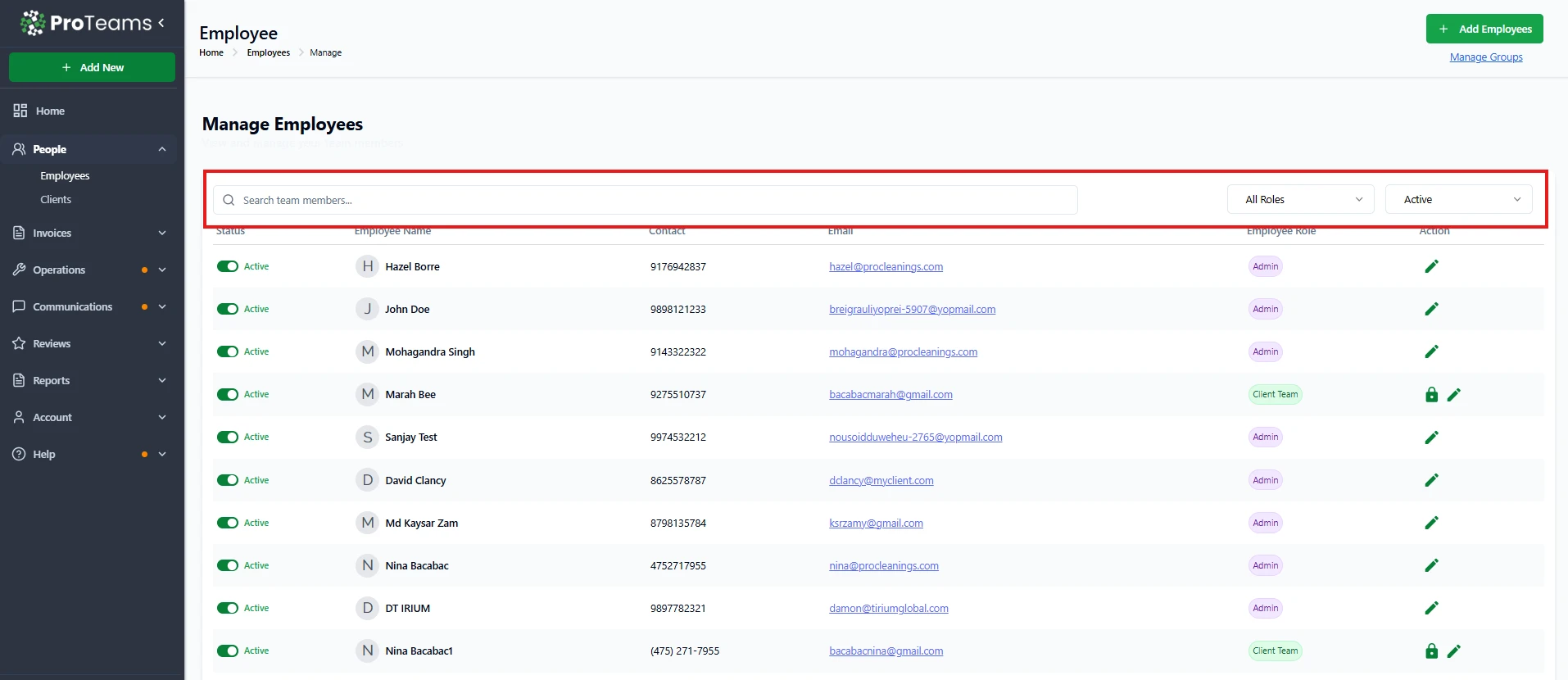
For each employee, you can see:
- Status (Active or Inactive)
- Employee name
- Contact number
- Email address
- Assigned role (Admin, Client Team, etc.)
Search and Filter Employees
Use the tools at the top of the page to:
- Search employees by name
- Filter by Role
- Filter by Status (Active or Inactive)
Activate or Deactivate Employees
- Use the status toggle to activate or deactivate an employee.
- Deactivating an employee immediately prevents system access without deleting their record.
Edit Employee Information
Click the edit (pencil) icon to:
- Update contact details
- Change email address
- Modify assigned role
- Adjust permissions if applicable
Manage Employee Access
Click the lock icon to:
- Control login access
- Restrict or enable system features based on role
- Ensure employees only access what they need
Assign and Manage Roles
Employee roles define what they can access inside ProTeams, such as:
- Admin access
- Client Team access
- Operational permissions
Manage Employee Groups
Click Manage Groups (top right) to:
- Organize employees into groups
- Simplify assigning shifts, notifications, or permissions
- Manage teams more efficiently
Summary
The Manage Employees page allows you to:
- Control access and permissions
- Keep employee information updated
- Monitor active vs inactive team members
- Organize your team for smoother operations
This ensures your ProTeams account stays secure, organized, and easy to manage as your team grows.
Deactivating an employee doesn’t cancel their scheduled appointments. Review and reassign any upcoming shifts before deactivating.