When an employee tells you something isn’t working in their app, the fastest way to understand the problem is to see exactly what they’re seeing. The Lock Action lets you do that from the web portal — no phone sharing, no back-and-forth describing screenshots.
Overview
ProTeams provides administrators with built-in tools to support employees who are experiencing issues with the mobile app. Instead of relying on screenshots or guesswork, admins can directly view the employee’s mobile app experience and guide them accurately.
The primary tool used for this is the Lock Action found in the Manage Employees section.
Access the Employee List
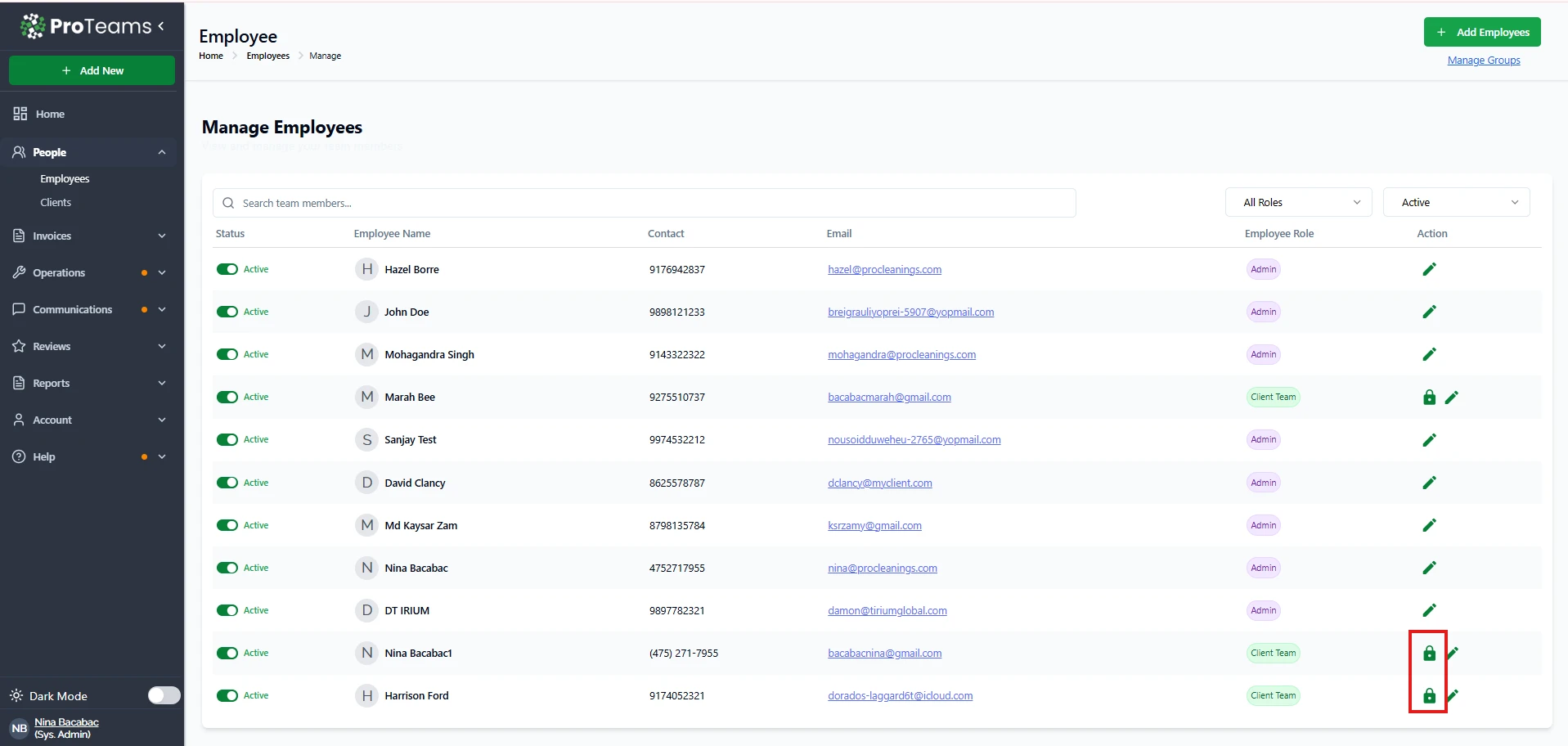
- Go to People → Employees
- Locate the employee who is experiencing the issue In the Action column, click the Lock icon
This opens a live preview of the employee’s mobile application view.
Step 2: View the Employee’s Mobile App Experience
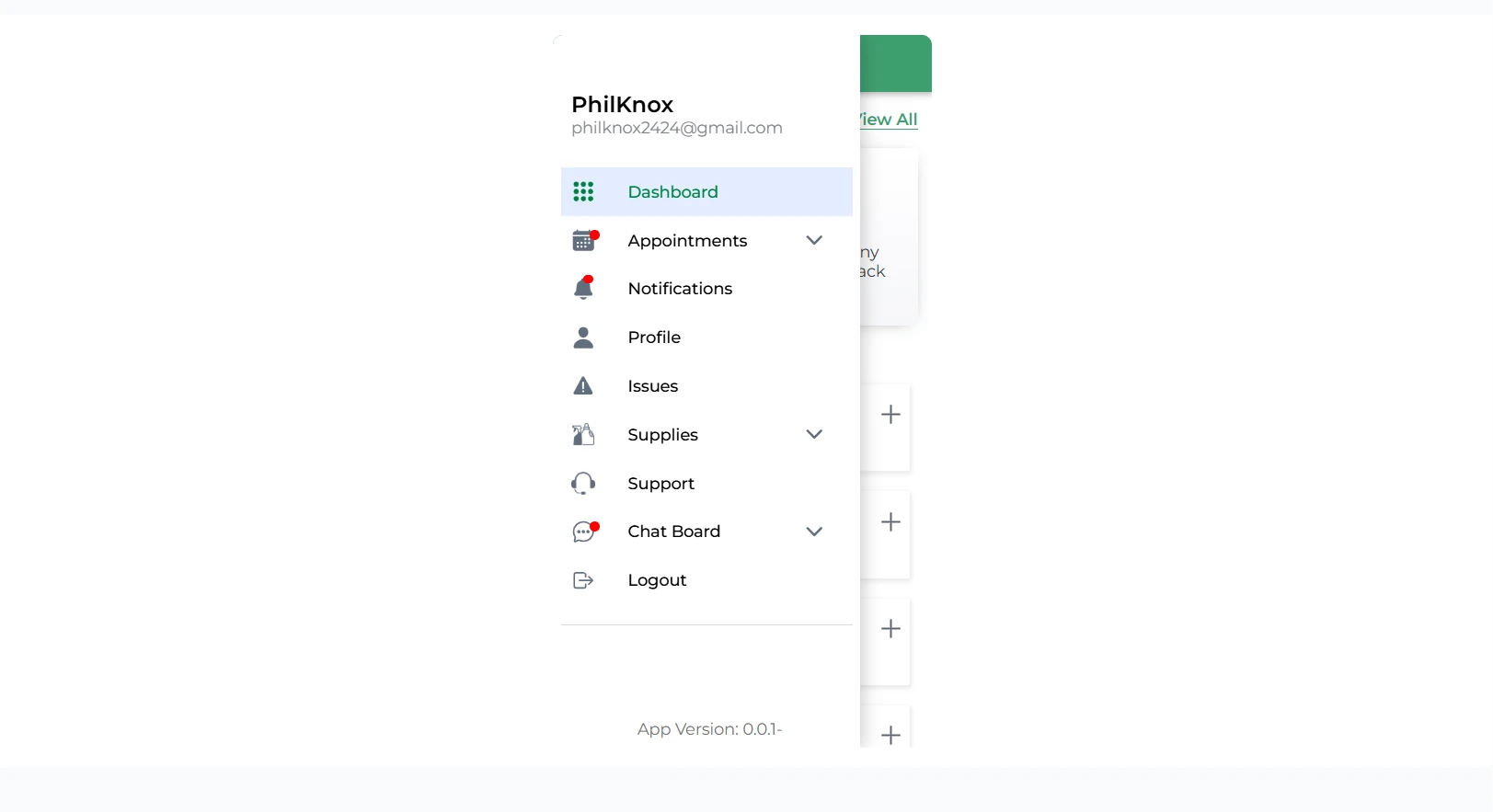
When the Lock Action is selected, admins can see the employee’s mobile dashboard exactly as the employee sees it.
What can you see:
- Dashboard
- Appointments
- Notifications
- Issues
- Supplies
- Support
- Chat Board
Identify and Resolve Common Issues
Using the mobile view, admins can quickly diagnose common problems such as:
- Incorrect timezone settings
- Missing schedules
- Role or permission limitations
- Notification misunderstandings
- Incomplete task reminders
If needed, admins can return to the Edit Employee page to update:
- Timezone
- Role
- Access permissions
Contact details
Summary
When employees experience problems with the ProTeams mobile app, administrators can quickly assist them by using the Lock Action to view the employee’s mobile interface. This ensures accurate troubleshooting, faster resolution, and better communication without needing physical access to the employee’s device.
Use Lock Action any time an employee says ‘I can’t see my shift’ or ‘my tasks are wrong.’ Nine times out of ten you’ll spot the issue in under 30 seconds.