Getting a new employee into ProTeams takes a few minutes and sets them up for everything: shift scheduling, mobile app access, GPS check-ins, and team communication. Do it right once and they’re operational from day one.
Overview
ProTeams allows administrators to easily add, manage, and organize employees from the Employees section. This area serves as the central hub for maintaining employee records, assigning roles, and controlling access within the platform.
Where to Add Employees
To access employee management:
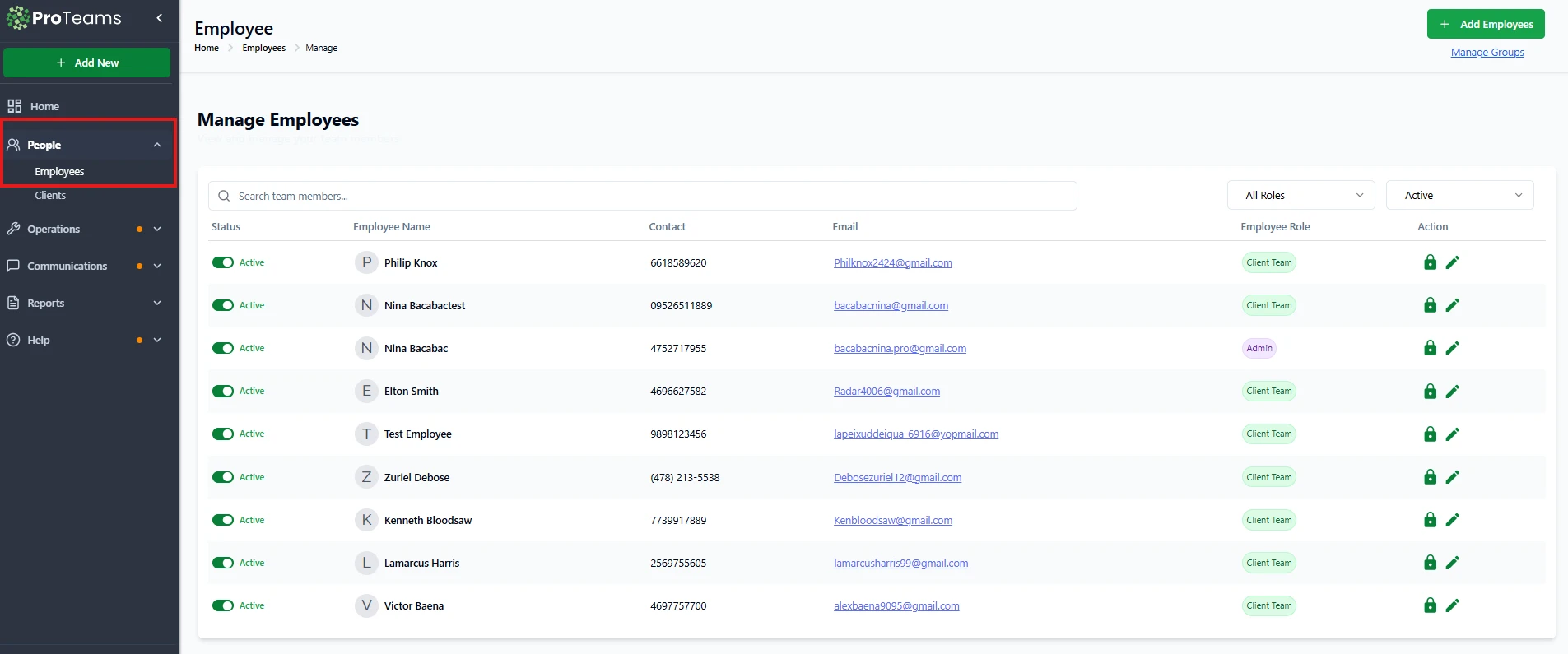
- Navigate to People in the left-hand menu
- Select Employees
- You will land on the Manage Employees page
This page displays all existing employees and provides tools to add and manage team members.
How to Add a New Employee
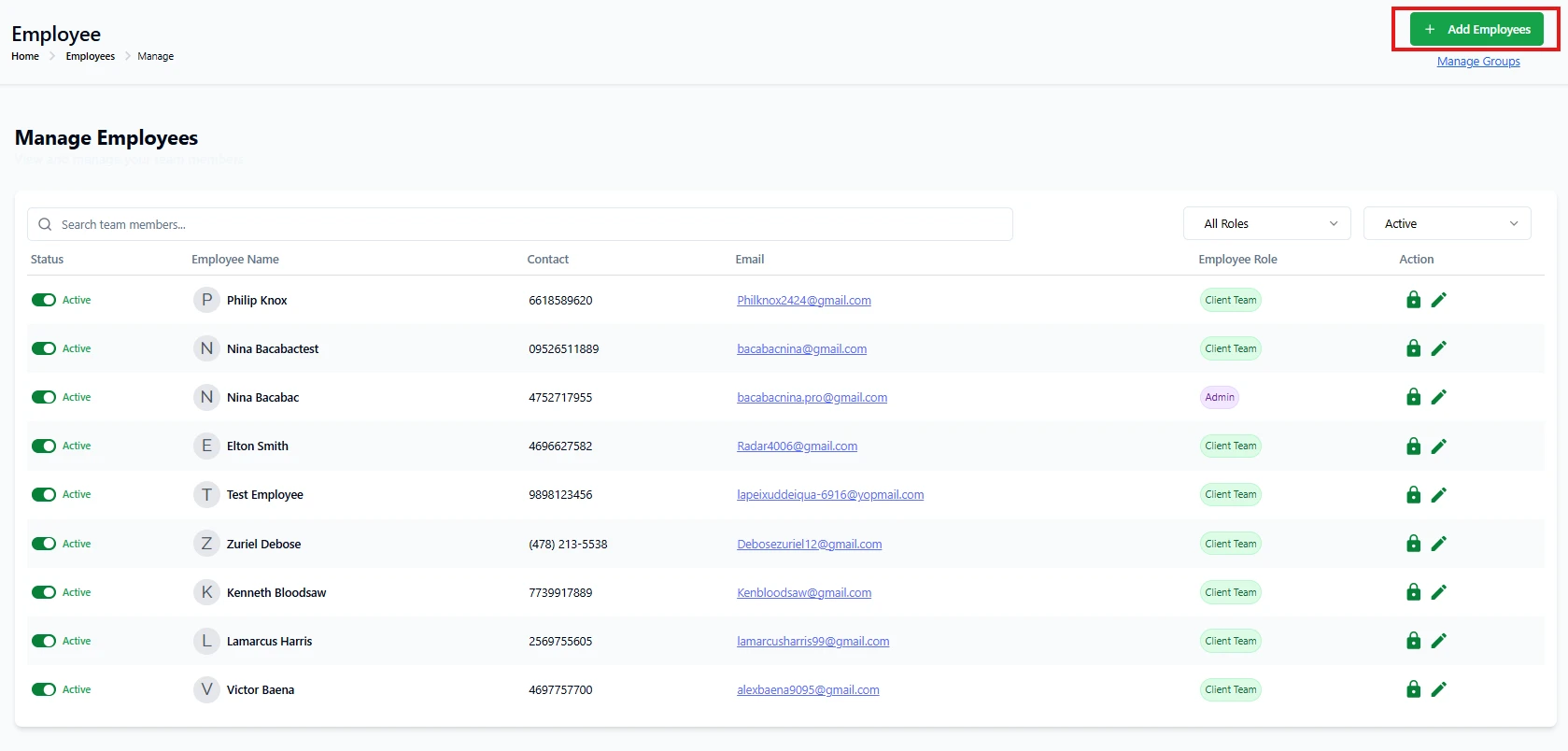
On the Manage Employees page, click the Add Employees button located at the top right
- Click Profile and enter the required employee information in the form.
- Assign the appropriate role and permissions
- Save the employee record.
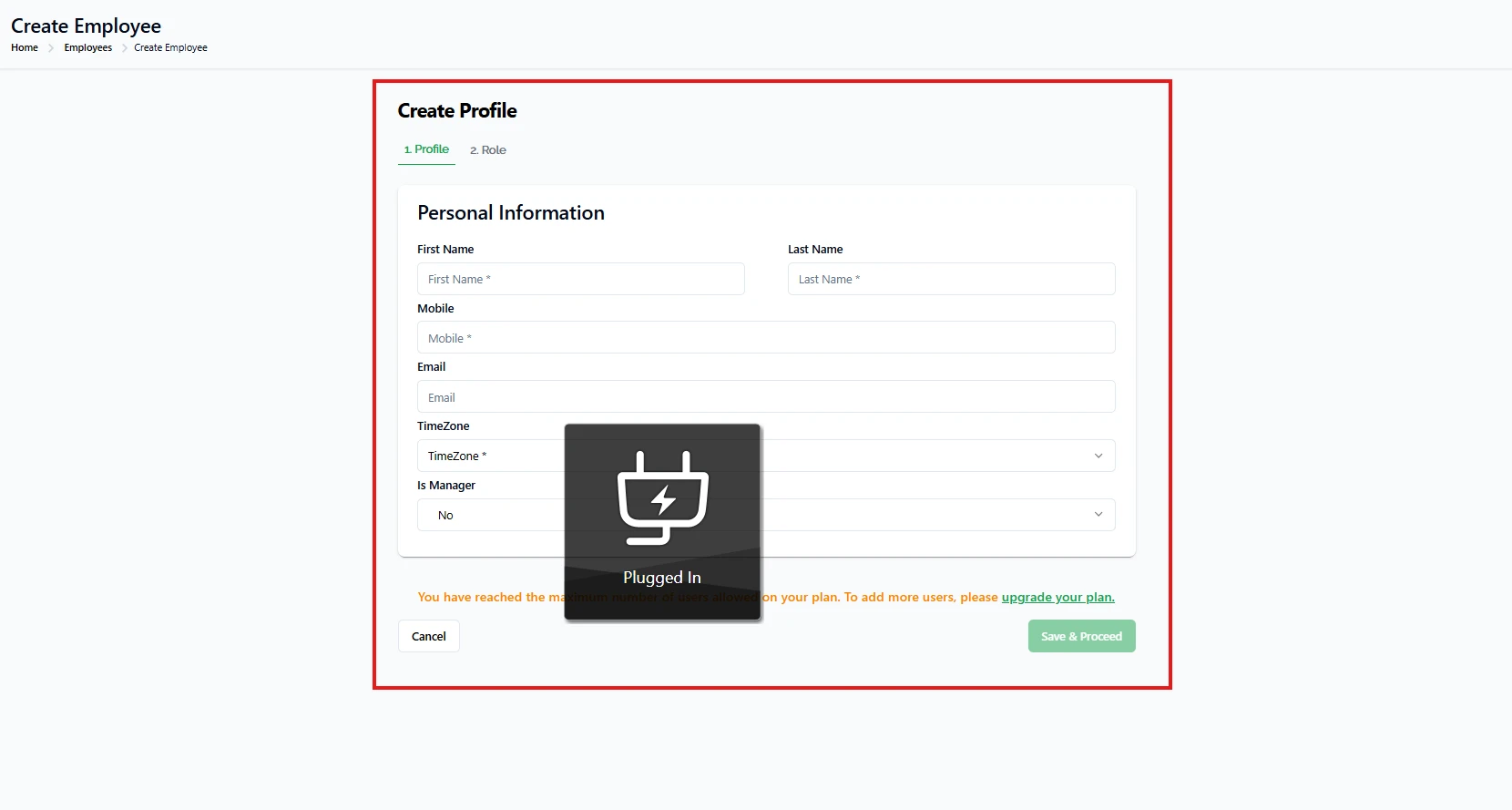
Once added, the employee will appear in the employee list and can immediately be managed or assigned to work.
Walk new employees through the mobile app on their first day. Five minutes of orientation means fewer ‘how do I…’ calls during their first week.