At a certain scale, managing employees one at a time gets unwieldy. Employee groups let you organize your team the way you actually think about them — by site, by shift type, by specialty — so scheduling, communication, and permissions work at the group level.
Overview
Employee groups in ProTeams help administrators organize, manage, and scale teams more efficiently. Instead of managing employees individually, groups allow you to structure your workforce based on roles, services, or responsibilities.
Creating employee groups improves visibility, simplifies assignments, and reduces administrative overhead.
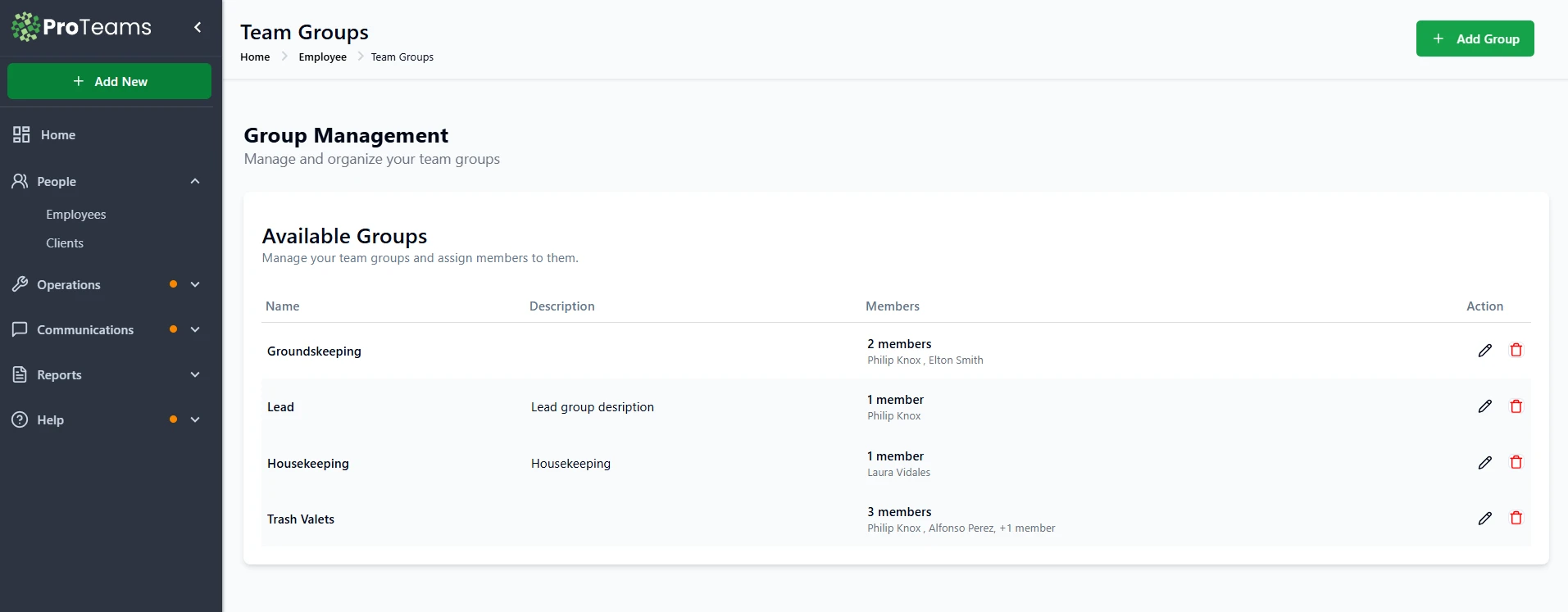
Why creating employee groups is important
Better team organization
Groups allow you to categorize employees by function or responsibility. This makes it easier to understand who is responsible for specific types of work and prevents confusion as your team grows.
Faster employee management
With groups, administrators can:
- Quickly identify team members
- Assign or review responsibilities
- Manage team structures without editing employees one by one
This saves time and reduces manual work.
Improved operational visibility
Employee groups provide a clear view of:
- How many employees belong to each team
- Who is assigned to which role Team distribution across services
This helps with planning, staffing decisions, and workload balancing.
Easier scaling as your business grows
As your operations expand, groups help maintain structure. Instead of tracking employees individually, you can manage teams as units, making it easier to onboard new hires and reorganize teams.
Reduced errors in assignments
Groups help prevent:
- Assigning the wrong employee to a task
- Overlooking available staff
- Miscommunication between teams
Having clearly defined groups ensures tasks are assigned to the right team every time.
6. Cleaner reporting and accountability
When employees are grouped properly, it becomes easier to:
- Track team performance
- Identify workload gaps
- Hold the correct group accountable for tasks or issues
Managing Team Groups in ProTeams
1. Go to Team Groups
From the left sidebar:
- Click People
- Select Employees
- Click Manage Groups (top right)
This opens the Group Management page where all your existing groups are listed.
Create a New Group
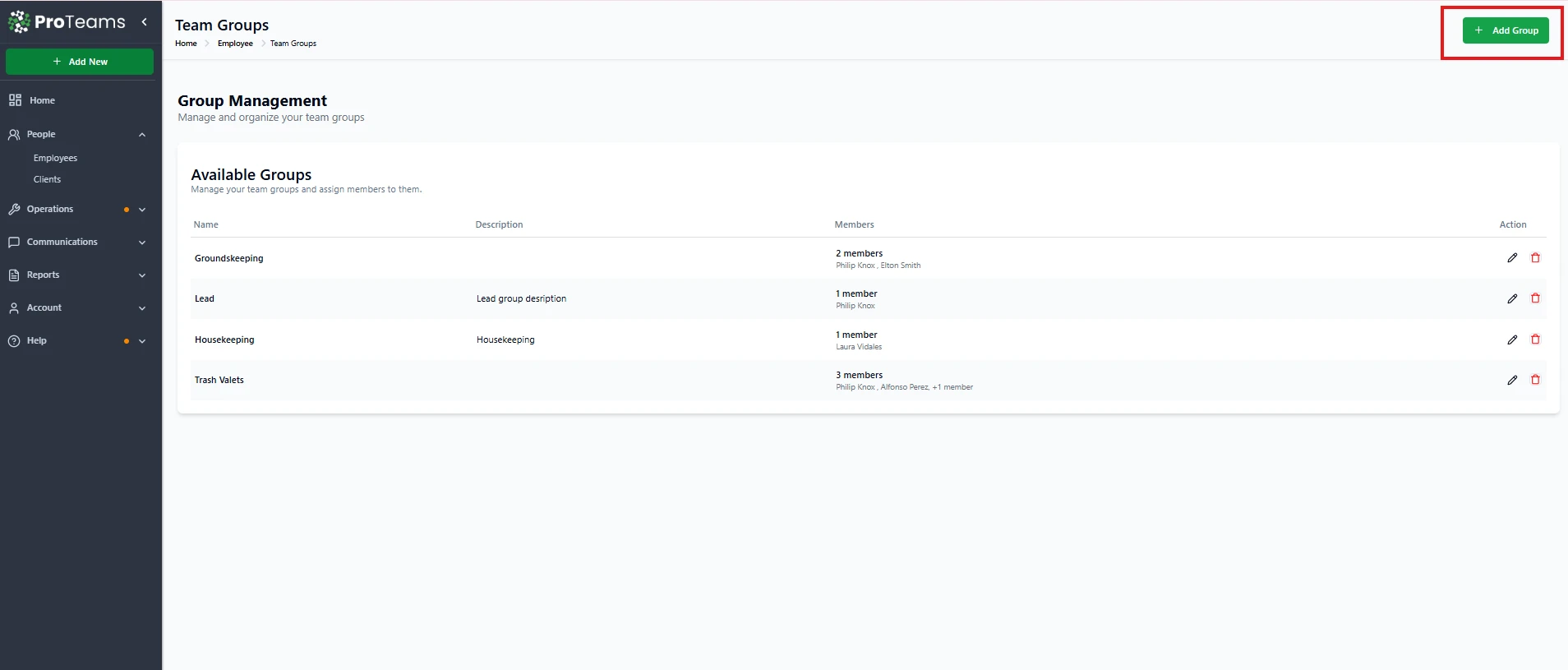
To add a new group:
- Click + Add Group
- Enter the Group Name (for example: Housekeeping, Groundskeeping, Trash Valets)
- Add an optional Description
- Select employees to include in the group
- Click Save
Your new group will now appear in the list with assigned members.
Edit an Existing Group
To update a group:
- Click the Edit (pencil) icon next to the group
- You can:
- Rename the group
- Update the description
- Add or remove members
- Click Save to apply changes
This is useful when team roles change or new employees are added.
Remove a Group
If a group is no longer needed:
- Click the Delete (trash) icon
- Confirm the action
This removes the group but does not delete the employees inside it.
Summary
Creating employee groups in ProTeams helps streamline team management, improve clarity, and support scalable operations. Groups allow administrators to work smarter by organizing employees into functional teams, reducing errors, and maintaining structure as the organization grows.
Group names should be specific enough that you know exactly who’s in them. ‘Dallas Night Crew’ tells you everything. ‘Team A’ tells you nothing.