The issue summary tells you what was reported. The issue detail view tells you everything else — who reported it, when, what exactly happened, what’s been done about it, and where it stands right now.
You can view full details of any reported issue directly from the Issue Management page. This allows you to review the concern, understand its context, and decide on next steps.
Step-by-Step: Viewing Issue Details
- Go to the Issue Management page.
- Locate the issue you want to review in the issues table.
- Move to the Action column on the far right of that issue row.
- Click the View icon (eye symbol).
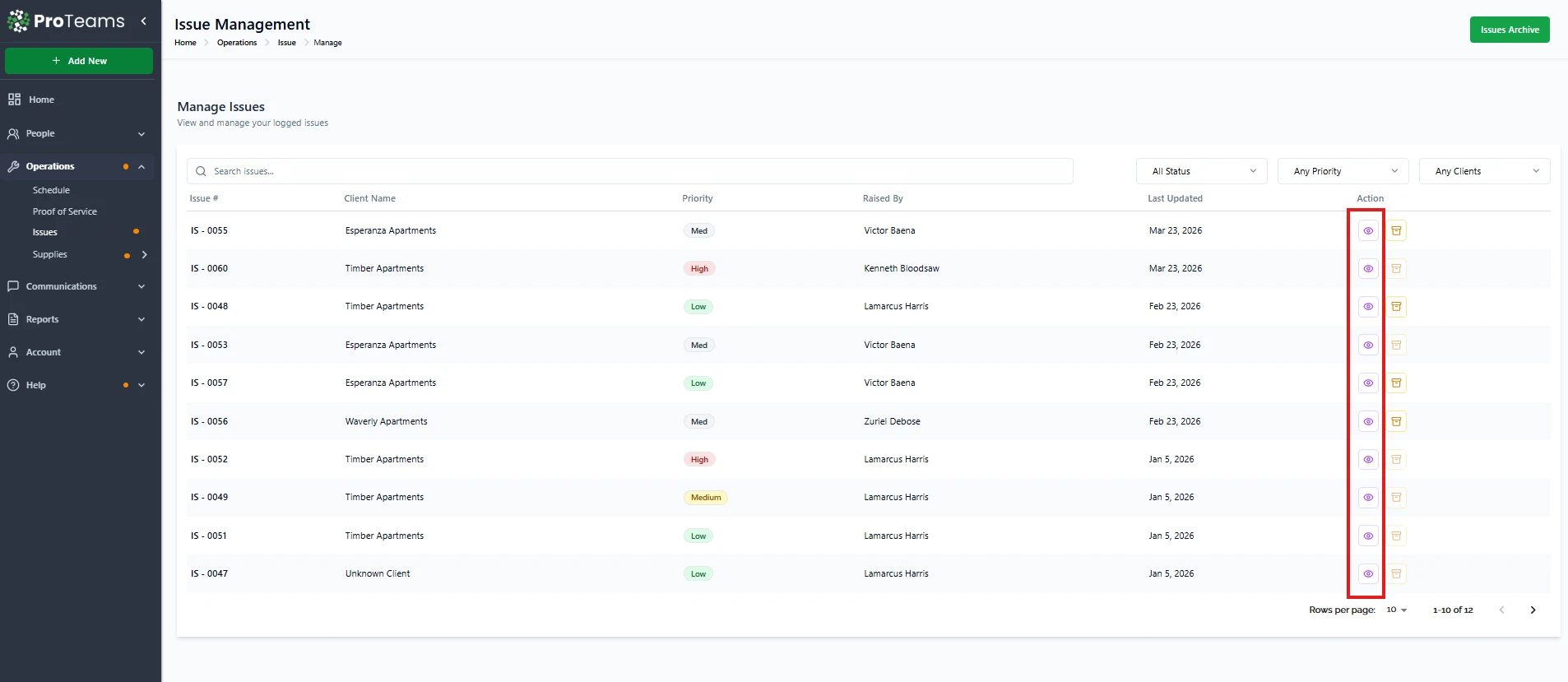
This action opens the issue’s detailed view.
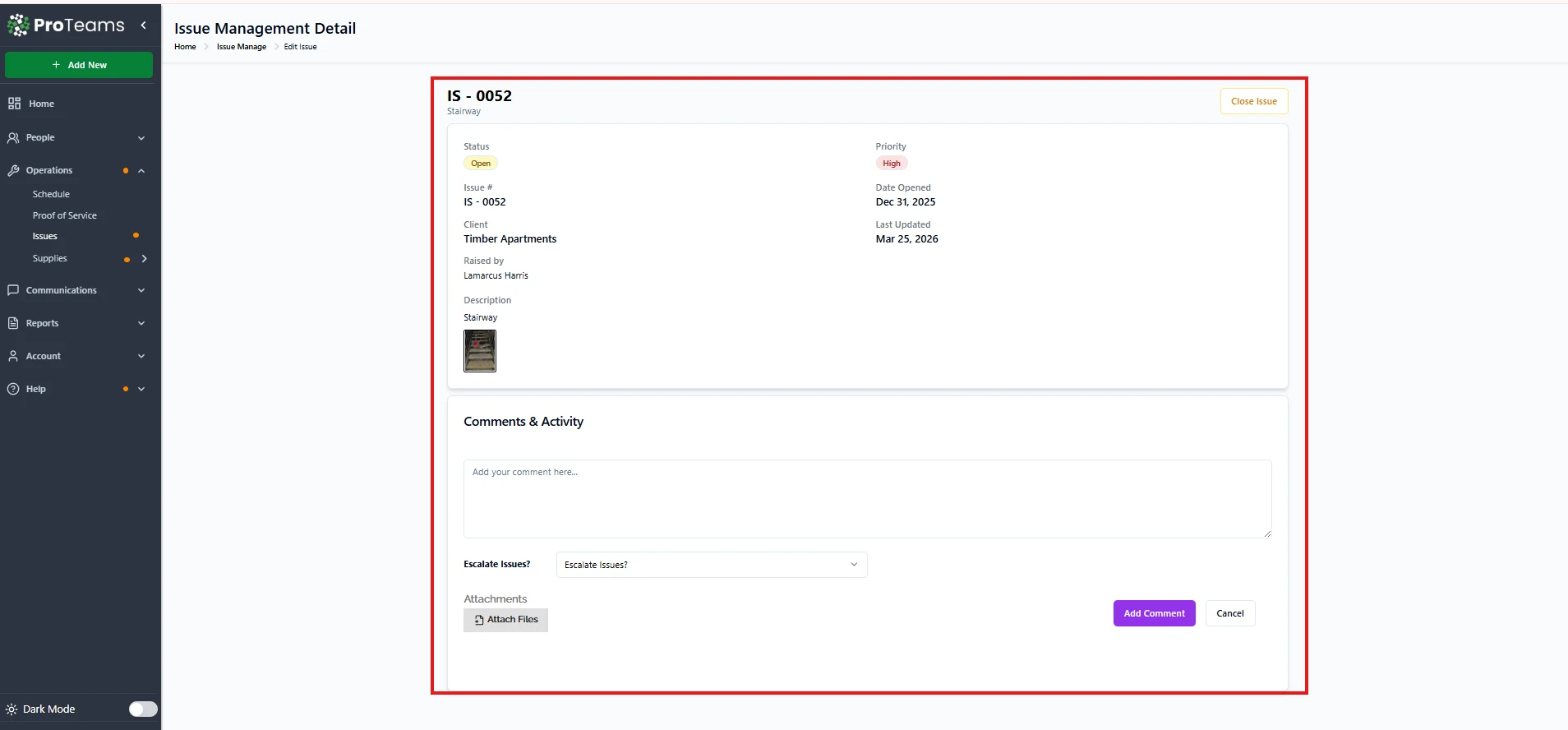
Header Section (Top of the Page)
Issue Number
- Displayed at the top as IS-0044.
- This is the unique identifier for the issue.
- Used for tracking, reporting, and internal communication.
Escalated Label
- A red Escalated badge appears next to the issue number when the issue has been flagged as serious.
- Indicates the issue requires higher attention or priority handling.
- Helps managers quickly identify sensitive or critical cases.
UnArchive Issue Button
- Located on the upper-right side.
- Appears when viewing an archived or closed issue.
- Clicking this returns the issue to the active Issues list.
- Does not edit or change issue details, only its status visibility.
Issue Information Panel (Main Details)
Status
- Displays the current state of the issue (example: Closed).
- Indicates whether the issue still needs attention or has already been resolved.
Priority
- Shows the urgency level (example: High).
- Color-coded to help issues stand out visually.
- Helps managers decide what needs immediate action.
Issue
- Repeat the issue ID for clarity within the details view.
- Ensures consistency across reports and exports.
Client
- Displays the client or location connected to the issue.
- Useful for identifying where the issue occurred.
Raised By
- Shows the name of the employee who submitted the issue.
- Helps with follow-ups or clarification if needed.
Closed By
- Displays the name of the admin or manager who closed the issue.
- Adds accountability and tracking.
Description
- Displays the written explanation provided by the employee.
- This is the main context for understanding the issue.
Date Opened
- Shows when the issue was first reported.
- Helps measure response and resolution time.
Last Updated
- Indicates the most recent activity on the issue.
- Useful for spotting inactive or recently updated cases.
Date Closed
- Shows when the issue was officially closed.
- Confirms resolution timing for records and audits.
Comments & Activity Section
Comments & Activity Panel
- Displays internal comments, updates, or actions taken on the issue.
- Helps track communication and decisions over time.
- Acts as a timeline for issue handling.
Why This View Is Important
- Gives complete visibility into the issue.
- Keeps all details, evidence, and history in one place.
- Supports clear decision-making before reopening, archiving, or escalating.
- Maintains accountability across employees and managers.
Tip
The Comments & Activity section is your audit trail. If a client ever questions how an issue was handled, this is what you show them.