Some issues need more than one person to resolve. Whether it’s looping in a client contact, getting a second manager involved, or notifying a vendor — collaboration on an issue keeps everyone in the same thread so nothing gets lost in a separate email chain.
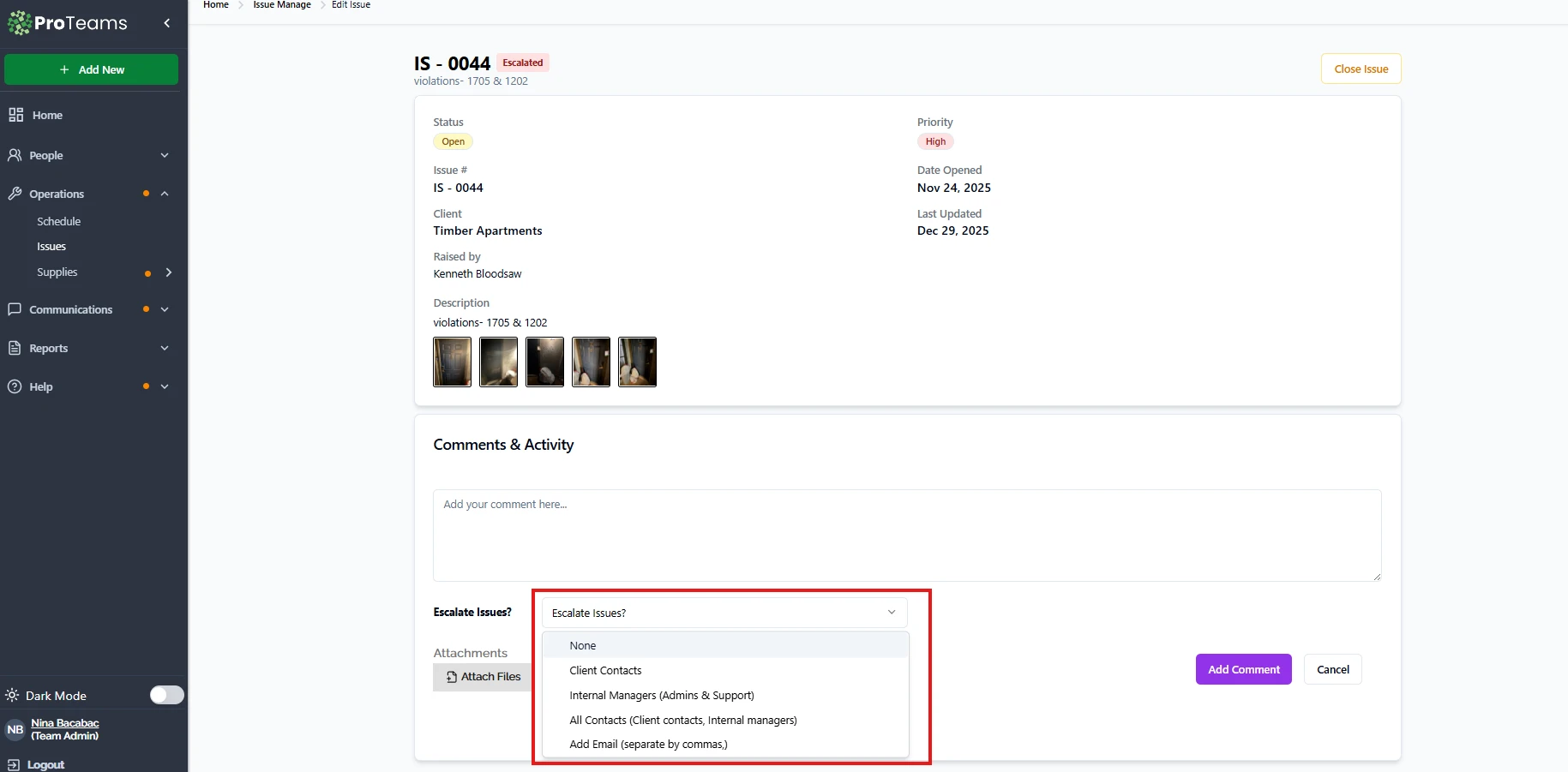
ProTeams allows you to invite both internal team members and external contacts to collaborate on an issue directly from the Issue Details view. This is done using the Escalate Issues? option inside the Comments & Activity section.
Where Collaboration Happens
Inviting users happens in the Issue Details page, under Comments & Activity. This area lets you:
- Add comments
- Attach files
- Notify specific people about the issue
Step-by-Step: Inviting Users to an Issue
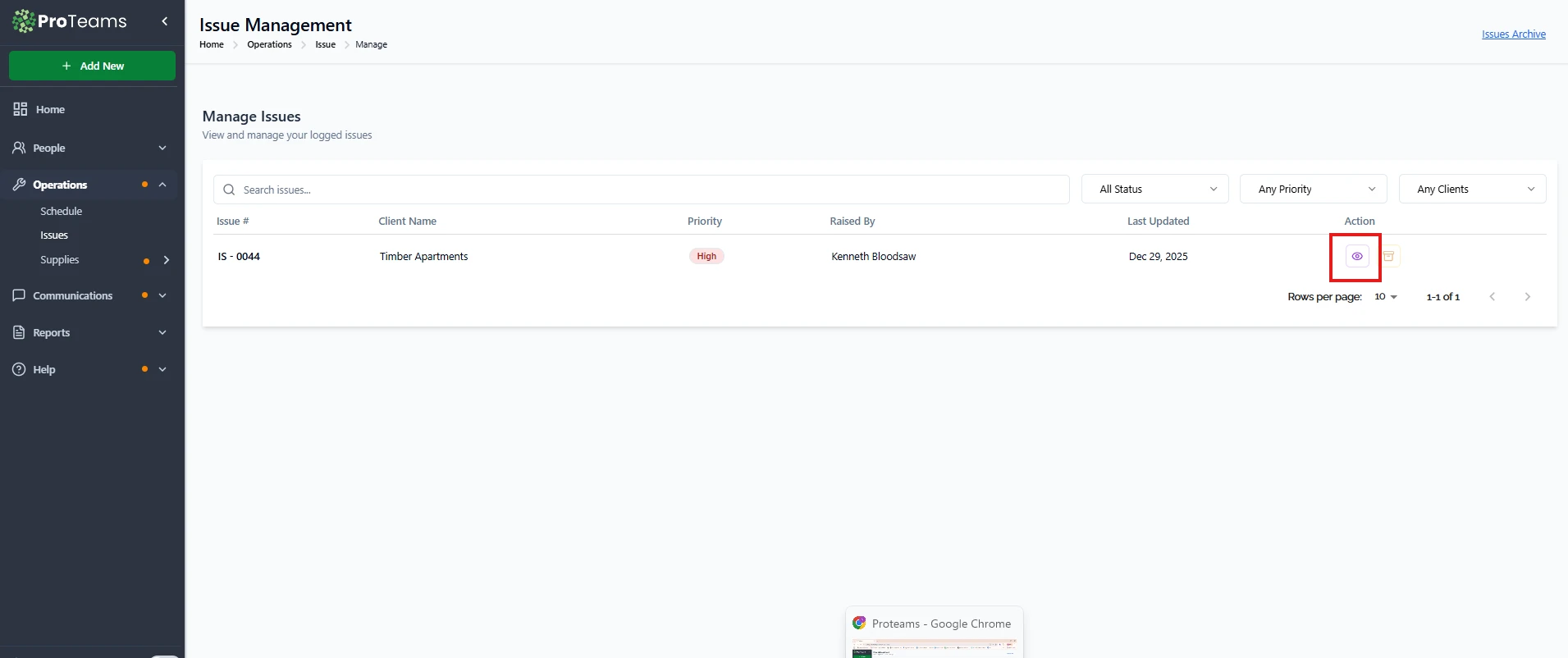
- Open the issue from Issue Management by clicking the View (eye) icon.
- Scroll down to the Comments & Activity section.
- Enter a comment explaining what help or input is needed.
- Click the Escalate Issues? dropdown.
- Choose who you want to invite or notify.
- (Optional) Attach files for context.
- Click Add Comment.
The selected users will receive notifications and can collaborate on the issue.
Collaboration Options Explained
Client Contacts (External Users)
- Notifies client-side contacts linked to the issue.
- Use this to involve property managers, client reps, or external stakeholders.
- Use when the issue impacts the client directly.
Internal Managers (Admins & Support)
- Notifies internal ProTeams users such as admins and support staff.
- Best for internal review, approvals, or operational follow-up.
- Keep collaboration inside your organization.
All Contacts (Internal & External)
- Notifies both client contacts and internal managers.
- Ideal for issues that require shared visibility and coordination.
- Useful for serious or time-sensitive issues.
Add Email (Separate by Commas)
- Allows you to invite people who are not saved as contacts in ProTeams.
- Enter one or more email addresses, separated by commas.
- Useful for vendors, inspectors, or temporary collaborators.
None
- Adds a comment without notifying anyone.
- Useful for internal notes or documentation.
What Invited Users Can Do
Invited users can:
- View issue details
- Review comments and attachments
- Stay informed about updates
Their level of access depends on their role and system permissions.
Best Practice
Always include a clear comment when inviting others. This helps collaborators understand:
- Why they are being included
- What action or feedback is needed
- Any deadlines or urgency
Always write a clear comment when you invite a collaborator. Tell them why they’re being included, what you need, and any deadline. A vague invite slows resolution down.