When something goes wrong at a client site, your crew reports it. The Issues section is where those reports land — organized, prioritized, and ready for you to act on before the problem reaches the client.
Viewing and Managing Employee Issues
The Issues section lets you track, review, and manage concerns reported by your employees. This helps your team stay organized and respond quickly to important matters.
How to Access Issues
- Log in to your ProTeams admin dashboard.
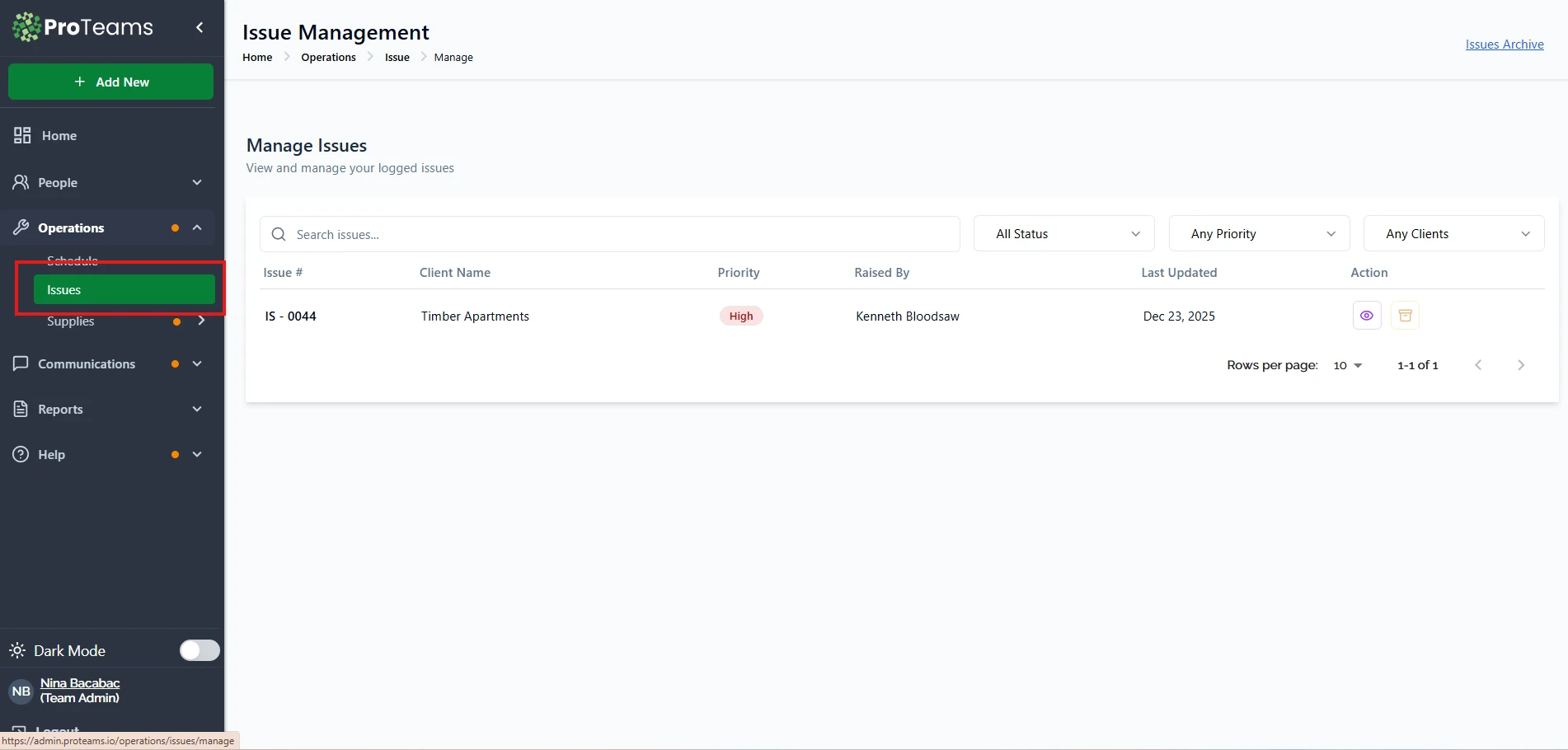
- From the left sidebar, click Operations.
- Select Issues.
You will land on the Issue Management page, where all reported issues are listed.
Understanding the Issues List
Each issue includes key details so you can quickly assess the situation:
- Issue #: A unique reference number for tracking.
- Client Name: The client or location connected to the issue.
- Priority: Shows how urgent the issue is, such as Low, Medium, and High
- Raised By: The employee who reported the issue.
- Last Updated: The most recent activity date.
- Action: Icons to view or manage the issue.
Searching and Filtering Issues
Use the tools at the top of the page to narrow results:
- Search bar: Find issues by issue number or keyword.
- Status filter: View issues by current status.
- Priority filter: Focus on urgent or low-priority issues.
- Client filter: See issues tied to a specific client.
These filters help you find what you need faster, especially when managing multiple reports.
Managing an Issue
- Click the view icon to open an issue and review full details.
- Update or follow up as needed based on priority and urgency.
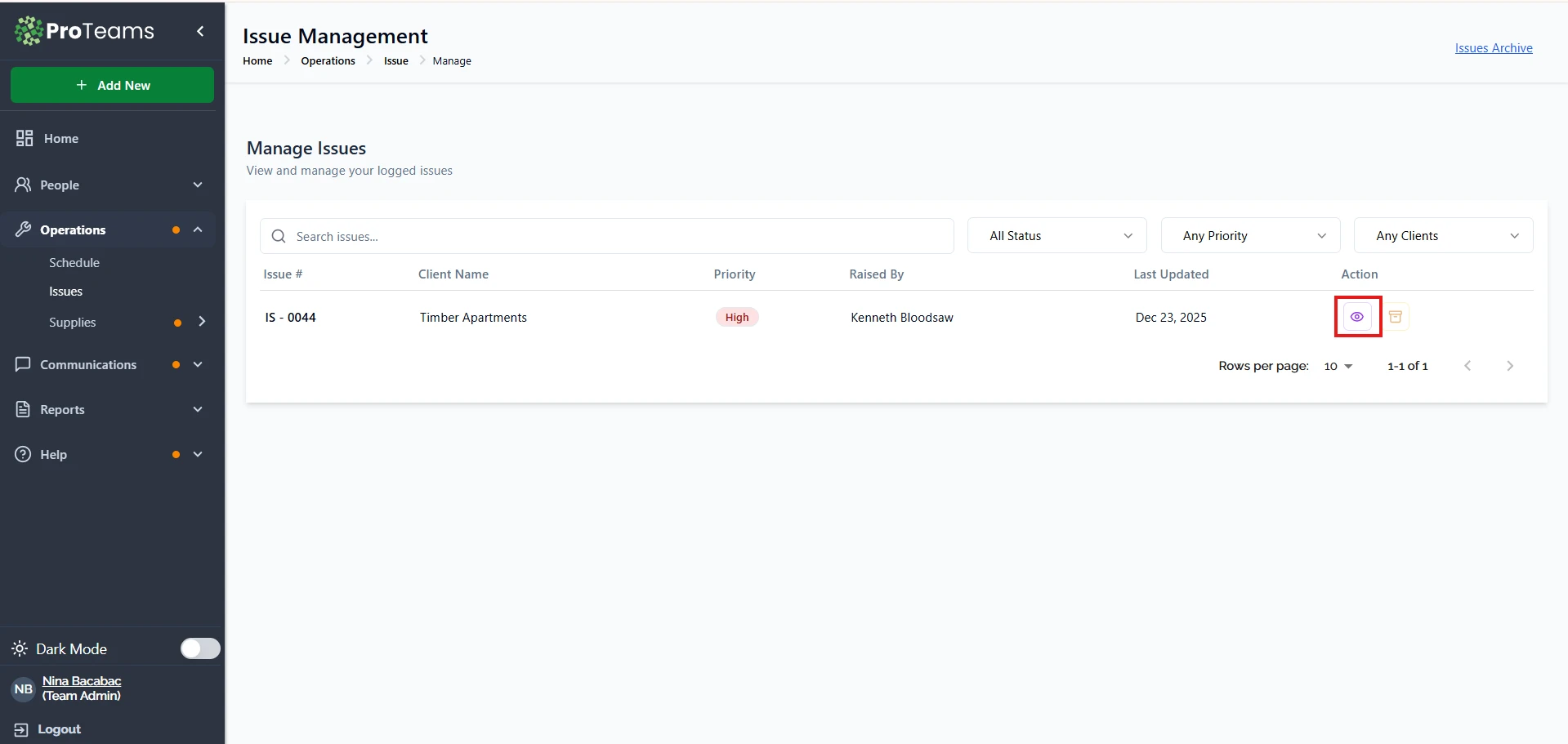
Use the archive option to view older or resolved issues when needed.
Why This Matters
The Issues section gives you clear visibility into employee concerns, helping you respond faster, stay organized, and keep operations running smoothly.
Check Issues before every client call. If something is open at their site, you want to know about it before they bring it up.