Some issues need to move faster than the normal flow allows. Escalation is how you signal that — flagging an issue for immediate attention and notifying the right people without having to send separate messages or make phone calls.
An escalated issue is a reported problem that requires immediate attention or review by a manager or administrator. This feature is used when an issue is urgent, high risk, or cannot be resolved at the current level.
Escalation helps ensure critical issues are visible to the right people and addressed without delay.
When should an issue be escalated?
You should escalate an issue when:
- The issue impacts safety, compliance, or operations
- The issue has remained unresolved for an extended period
- The issue requires management review or approval
- The issue is blocking work or affecting multiple teams
How to escalate an issue in ProTeams
From the Issue Management Detail screen:
- Open the issue (eye icon)
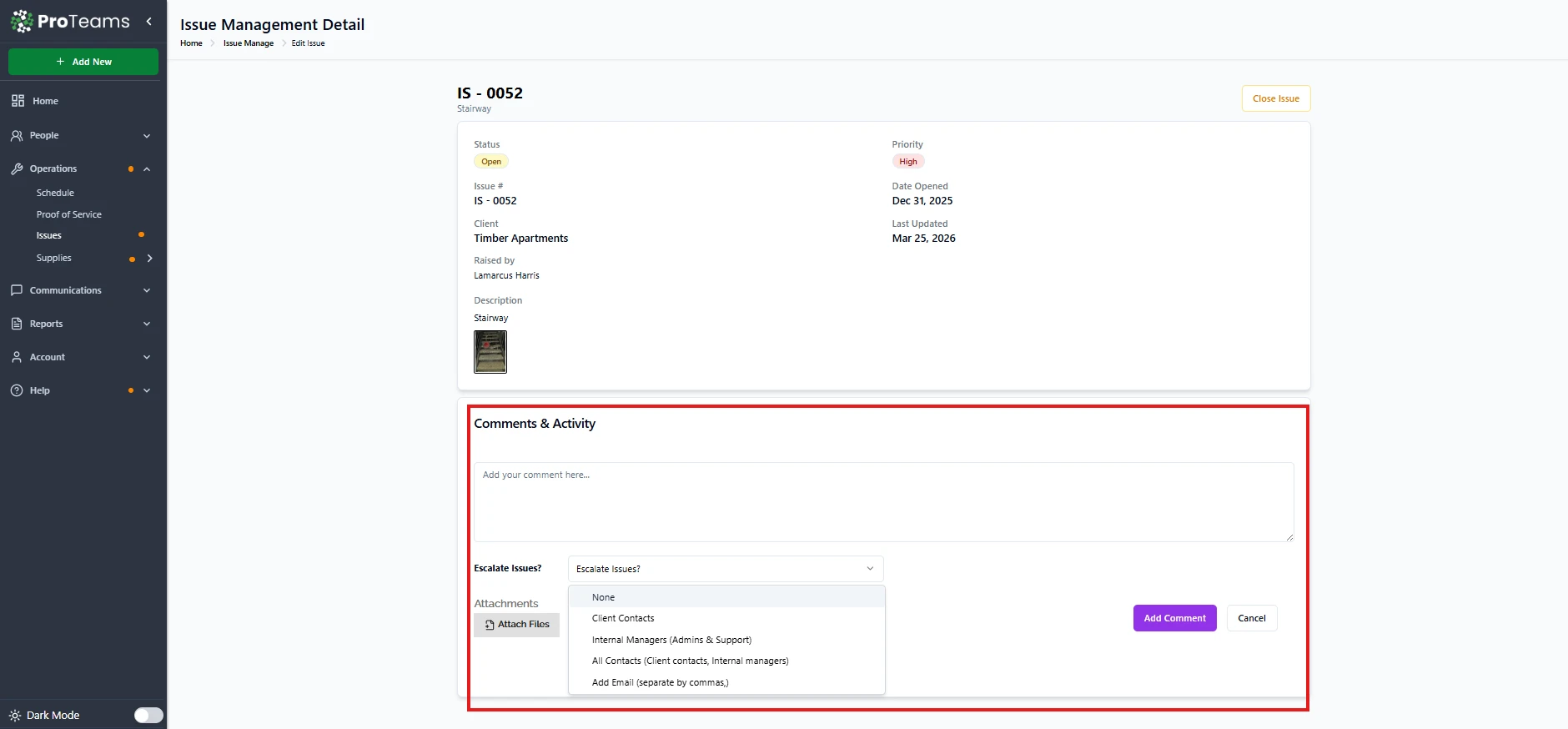
- Go to the Comments & Activity section
- Enter a clear comment explaining the reason for escalation
- Select Yes from the Escalate Issues? dropdown
- Attach any supporting files, if applicable
- Click Add Comment to submit
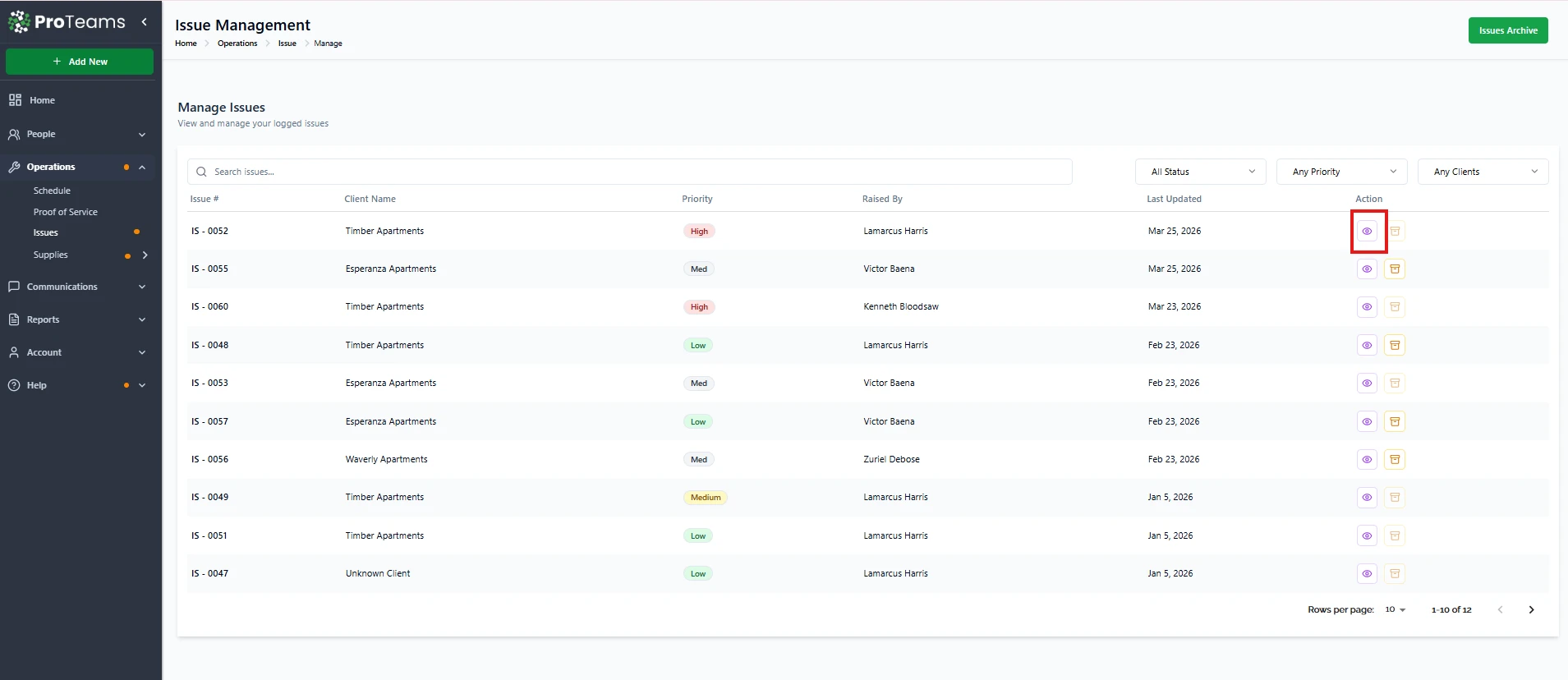
Once escalated, the issue is clearly labeled as Escalated and highlighted for priority attention.
What happens after escalation?
- The issue is marked as high priority
- Managers and administrators are notified
- All updates and actions are logged in the activity history
- The issue remains escalated until it is resolved or closed
Escalate Issues Dropdown Options
The Escalate Issues? dropdown controls who receives notification when an issue is escalated. Each option serves a specific purpose.
None
- Escalates the issue without sending notifications.
- Useful when you want to flag the issue internally but notify people later.
- The issue will still show the Escalated label.
Client Contacts
- Sends escalation notifications to client-side contacts only.
- Use this when the issue directly affects the client and requires their awareness or action.
- Ideal for site issues, service concerns, or client-reported violations.
Internal Managers (Admins & Support)
- Sends notifications to internal ProTeams managers, admins, and support staff.
- Best for operational, compliance, or employee-related issues. Keeps escalation internal without involving the client.
All Contacts (Client Contacts + Internal Managers)
- Sends notifications to both client contacts and internal managers.
- Use this for serious issues that require transparency and coordinated response.
- Recommended for high-risk, safety, or repeat violations.
Add Email (Separate by Commas)
- Allows you to manually enter specific email addresses.
- Useful for notifying people who are not listed as contacts in the system.
- Multiple emails can be added by separating them with commas.
What Escalation Does
Escalating an issue:
- Flags the issue as high attention.
- Adds a clear visual label to the issue. Signals that the issue needs review by senior staff or management.
- Keeps a documented record of why escalation was required.
Escalation does not:
- Close the issue automatically.
- Remove or change existing details. Archive the issue.
- Resolve the issue on its own.
Best Practice
Always:
- Choose the correct escalation audience.
- Add a clear comment explaining the reason for escalation.
- Attach supporting images or files when available.
This ensures faster response and clear accountability.
Summary
The escalation feature in ProTeams is designed to help teams respond quickly to important issues. By escalating only when necessary and providing clear context, you ensure that urgent matters are reviewed promptly and handled by the appropriate team members.
Choose the escalation audience deliberately. Sending an internal operations issue to client contacts creates unnecessary alarm. When in doubt, start with Internal Managers.