Client Reports give you the data side of your client relationships — appointment history, task completion, issue trends, supply usage, and communication logs. Before a contract renewal or a client review meeting, this is what you pull to tell the story of the account.
Overview
Client Reports in ProTeams allow you to track client activity, appointments, tasks, issues, and more. You can access them from both Standard Reports and Advanced Reports depending on the level of detail you need.
Steps to Access Client Reports
- Log in to your ProTeams account
- From the left-hand menu, click Reports
- Choose one of the following paths:
Option 1: Standard Client Reports
- Click Standard Reports
- Select Client Reports
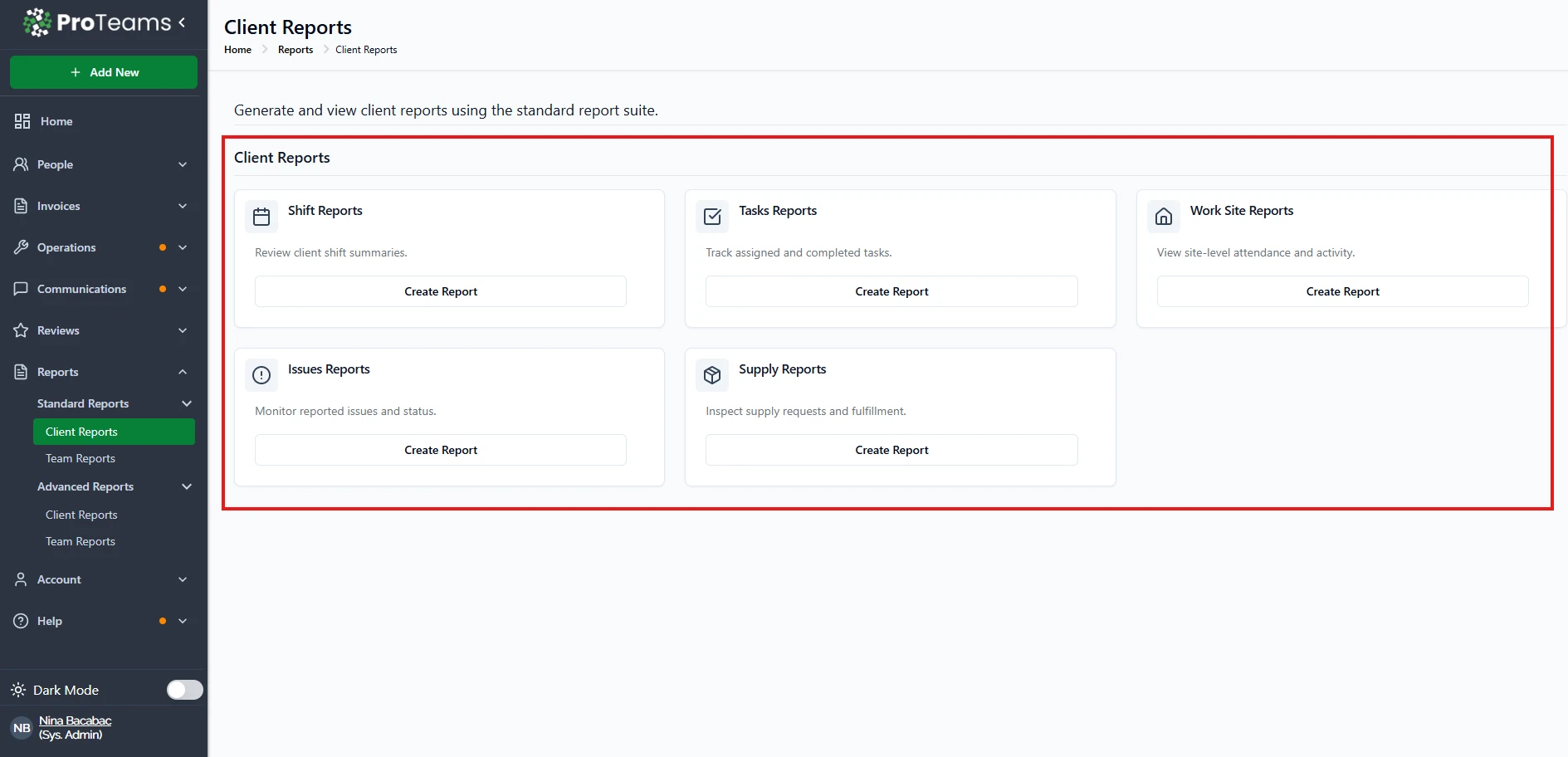
You will see a list of basic report options such as:
- Shift Reports
- Tasks Reports
- Work Site Reports
- Issues Reports
- Supply Reports
Click Create Report on any option to begin.
Option 2: Advanced Client Reports
- Click Advanced Reports
- Select Client Reports
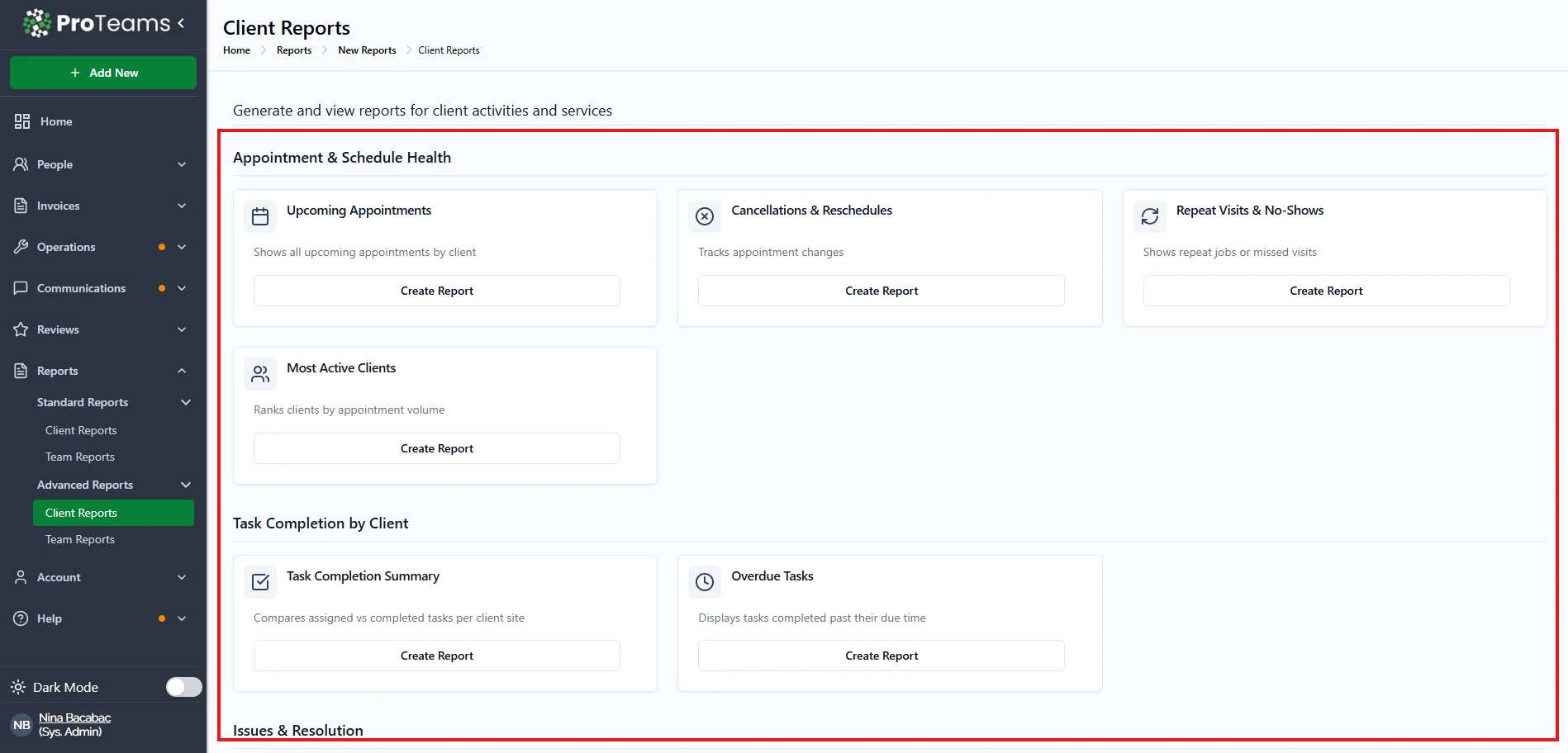
This section includes more detailed reporting grouped by category:
Appointment & Schedule Health
- Upcoming Appointments
- Cancellations & Reschedules
- Repeat Visits & No-Shows
- Most Active Clients
Task Completion by Client
- Task Completion Summary
- Overdue Tasks
Issues & Resolution
- Client Issue Trends
- Average Resolution Time
Supply Requests per Client
- Supply Usage Report
- Urgent Requests Summary
Communication Logs
- Client Notification Log
- Delivery Issues
Invoicing / Billing Reports
- Invoice Summary (Coming Soon)
- Revenue by Client (Coming Soon)
Click Create Report on any card to generate a report.
What Happens After You Click “Create Report”?
After clicking Create Report, you will be taken to the Report Parameters page.
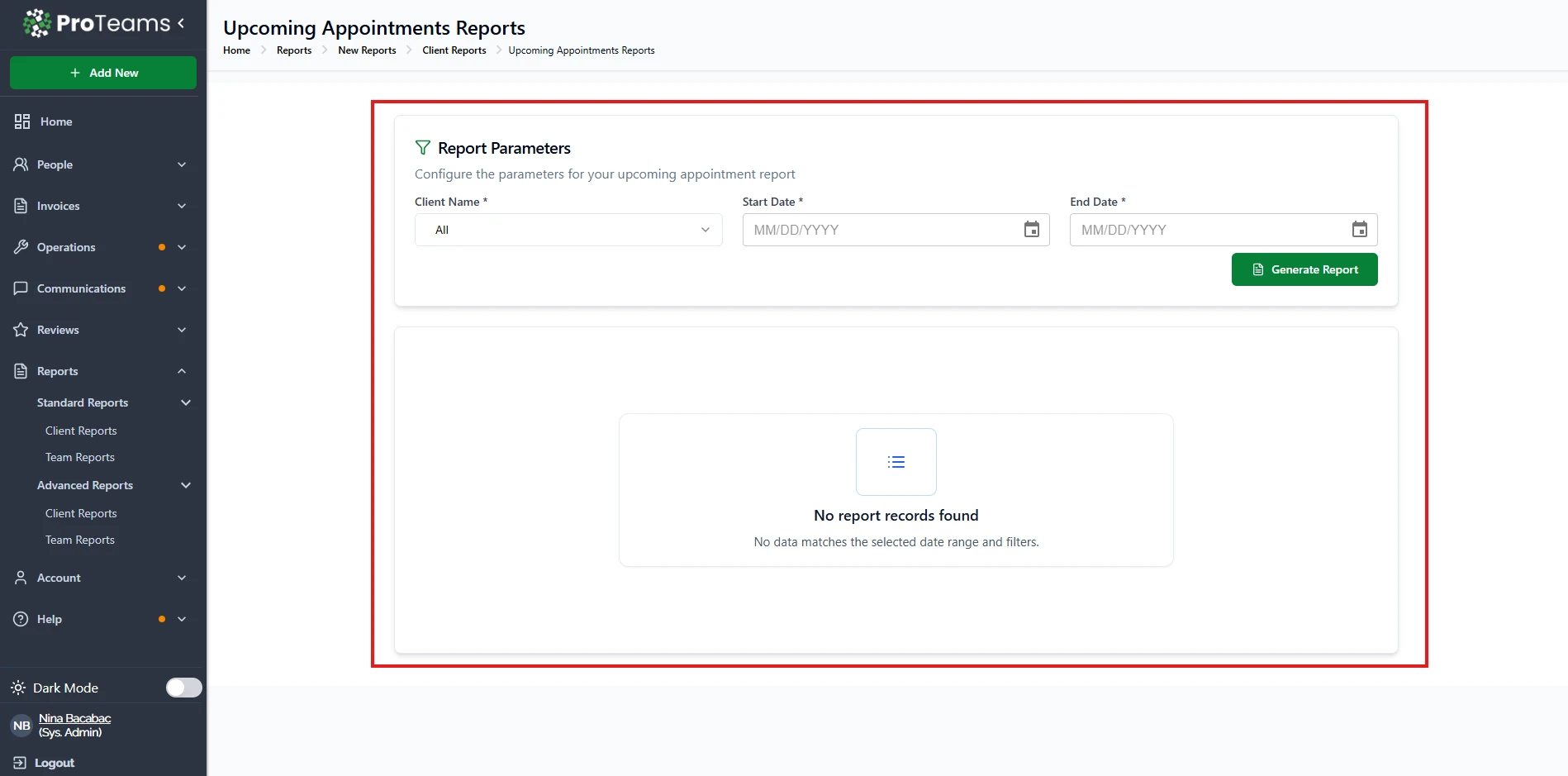
Here, you can:
- Select a specific client or choose All
- Set a Start Date and End Date
- Apply filters based on the report type
Once your parameters are set, click Generate Report to view the results.
If no data matches your selected filters, you will see a message indicating that no records were found.
Tips
- Use Standard Reports for quick, basic insights
- Use Advanced Reports when you need deeper data and breakdowns
- If you don’t see Client Reports, check your user permissions
Pull Client Reports at the end of each month before client billing. They tell you the full story of what was delivered.