Team Reports are your window into how your crew is performing — who’s showing up on time, how many hours are being worked, and whether there are patterns worth investigating. Run them weekly for routine checks and before every payroll period.
Overview
Team Reports in ProTeams help you track employee attendance, work hours, and activity. You can access them from both Standard Reports and Advanced Reports depending on your needs.
Steps to Open Team Reports
- Log in to your ProTeams account
- From the left-hand menu, click Reports
- Choose one of the following options:
Option 1: Standard Team Reports
- Click Standard Reports
- Select Team Reports
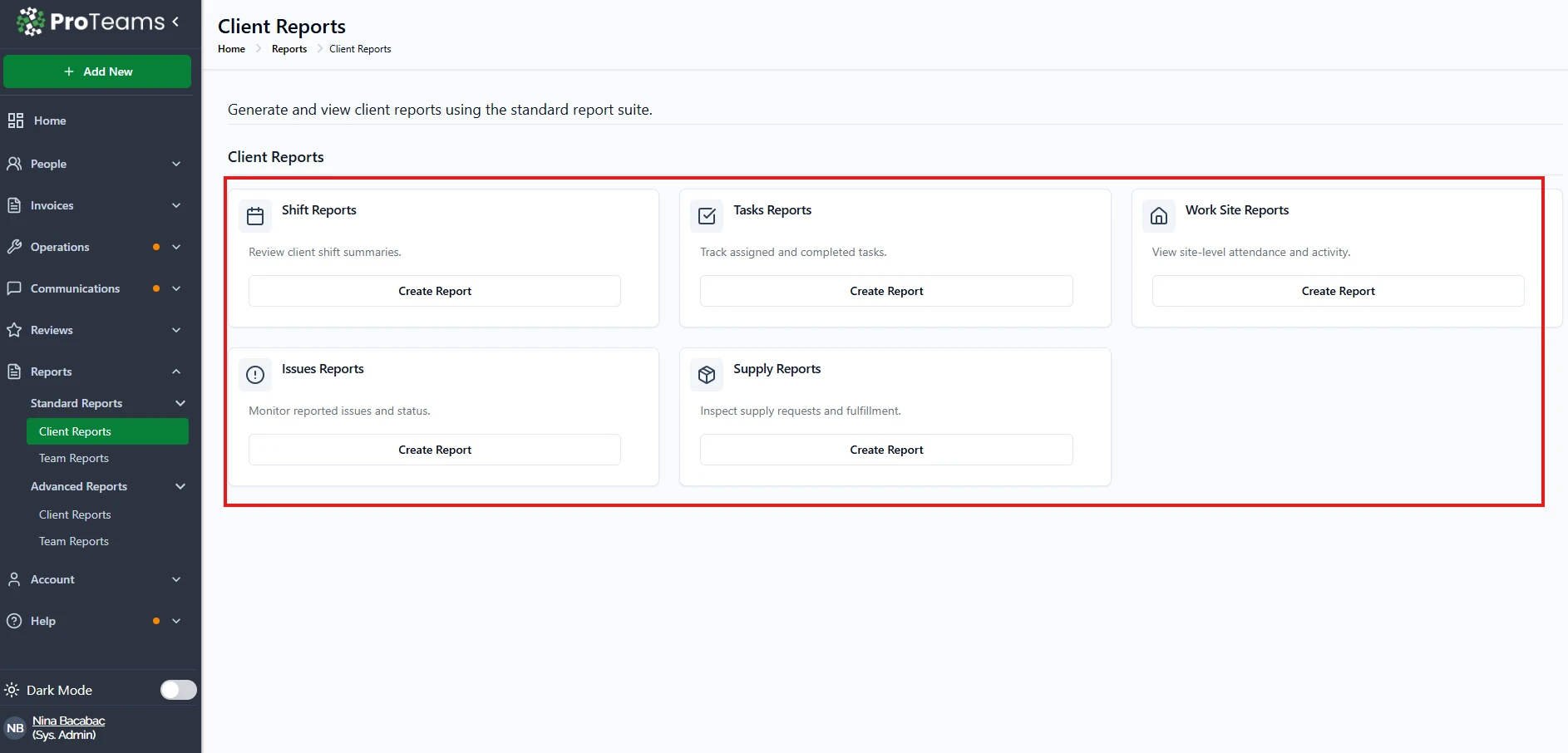
You will see report options such as:
- Check In / Check Out
- Timesheet Reports
- Activity Reports
Click Create Report on any report to continue.
Option 2: Advanced Team Reports
- Click Advanced Reports
- Select Team Reports
Click Create Report on any report to proceed.
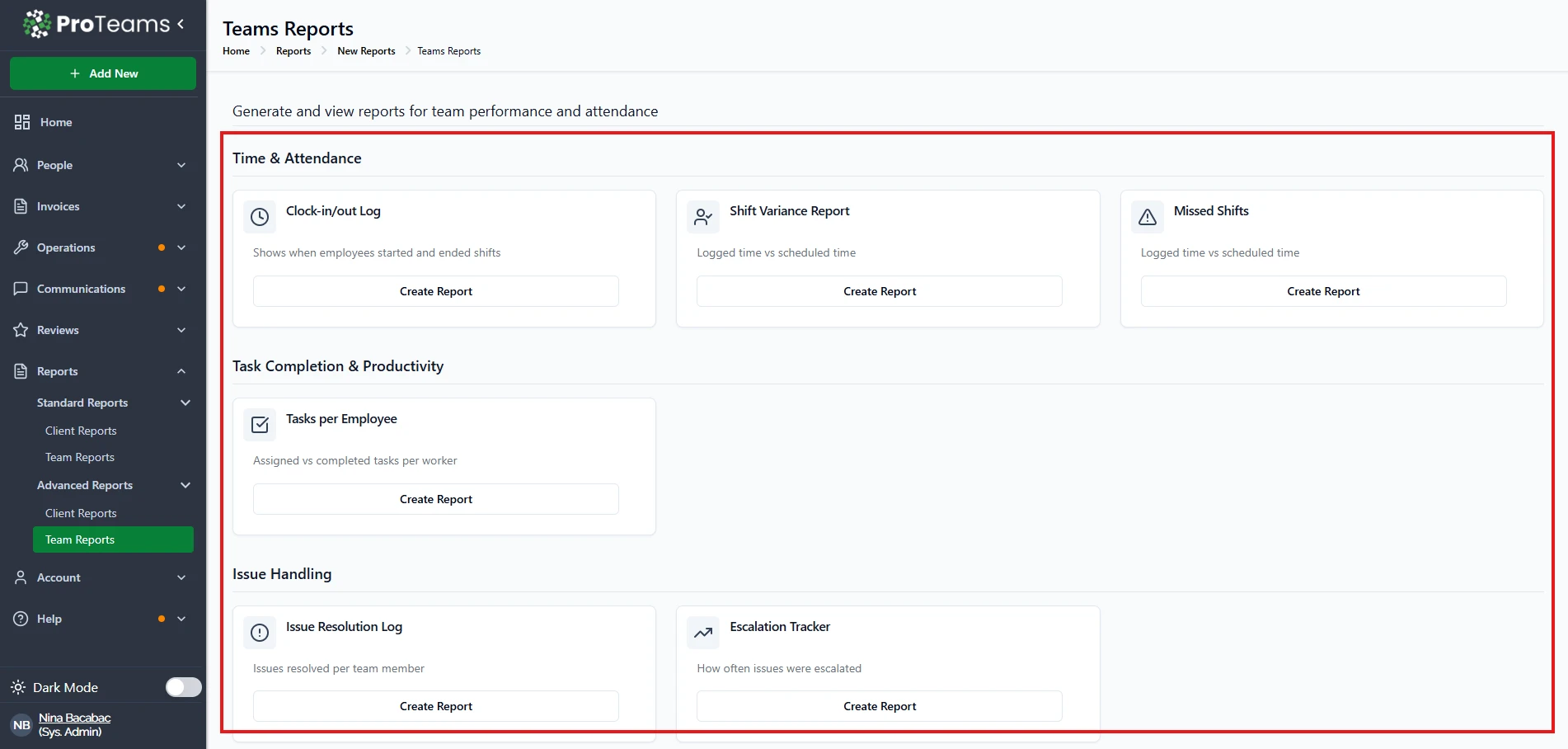
What Happens After You Click “Create Report”?
After clicking Create Report, you will be taken to the Report Parameters page.
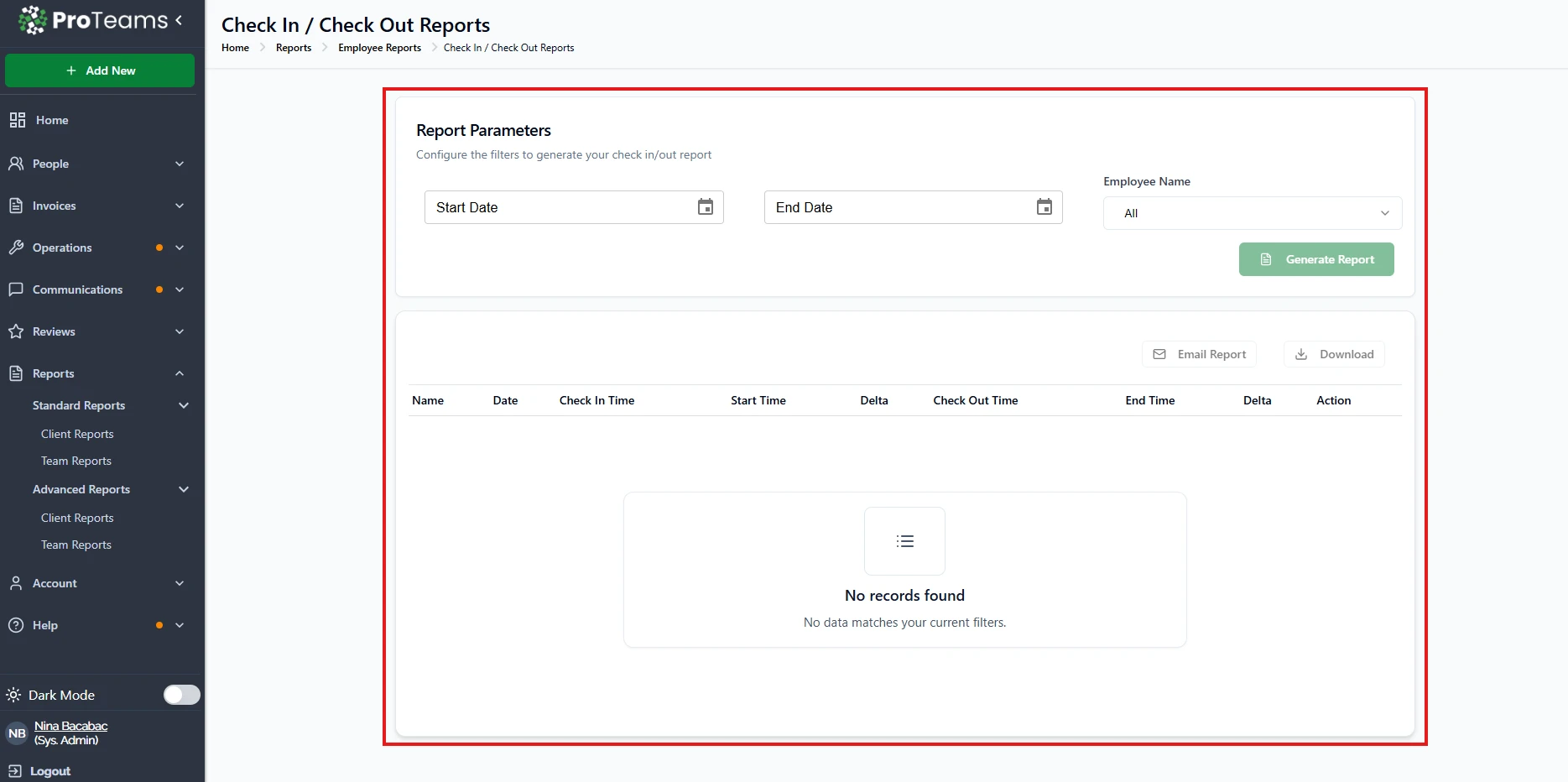
Here, you can:
- Select a Start Date and End Date
- Choose a specific employee or select All
- Apply filters based on the report type
Click Generate Report to view the results.
Viewing Your Report Results
Once generated, your report will appear in a table format showing details such as:
- Employee name
- Date
- Check-in and check-out times
- Shift start and end times
- Time differences or variances
If no data matches your selected filters, you will see a “No records found” message.
You may also have options to:
- Download the report
- Send the report via email
Tips
- Double-check your date range if no data appears
- Select a specific employee to narrow down results
- Use Standard Reports for quick checks and Advanced Reports for deeper insights
- Access may vary based on your user role
Run a Timesheet Report at the close of every pay period before processing payroll. Cross-reference check-in times against scheduled shifts to catch discrepancies.