Channels that were useful six months ago might be cluttering your team’s view today. Channel Management is where you create new channels when you need them, clean up old ones when you don’t, and keep your communication structure organized.
ProTeams allows you to manage all Live Chat channels from the Channel Management page. This is where admins can create new channels, control access, and maintain existing conversations.
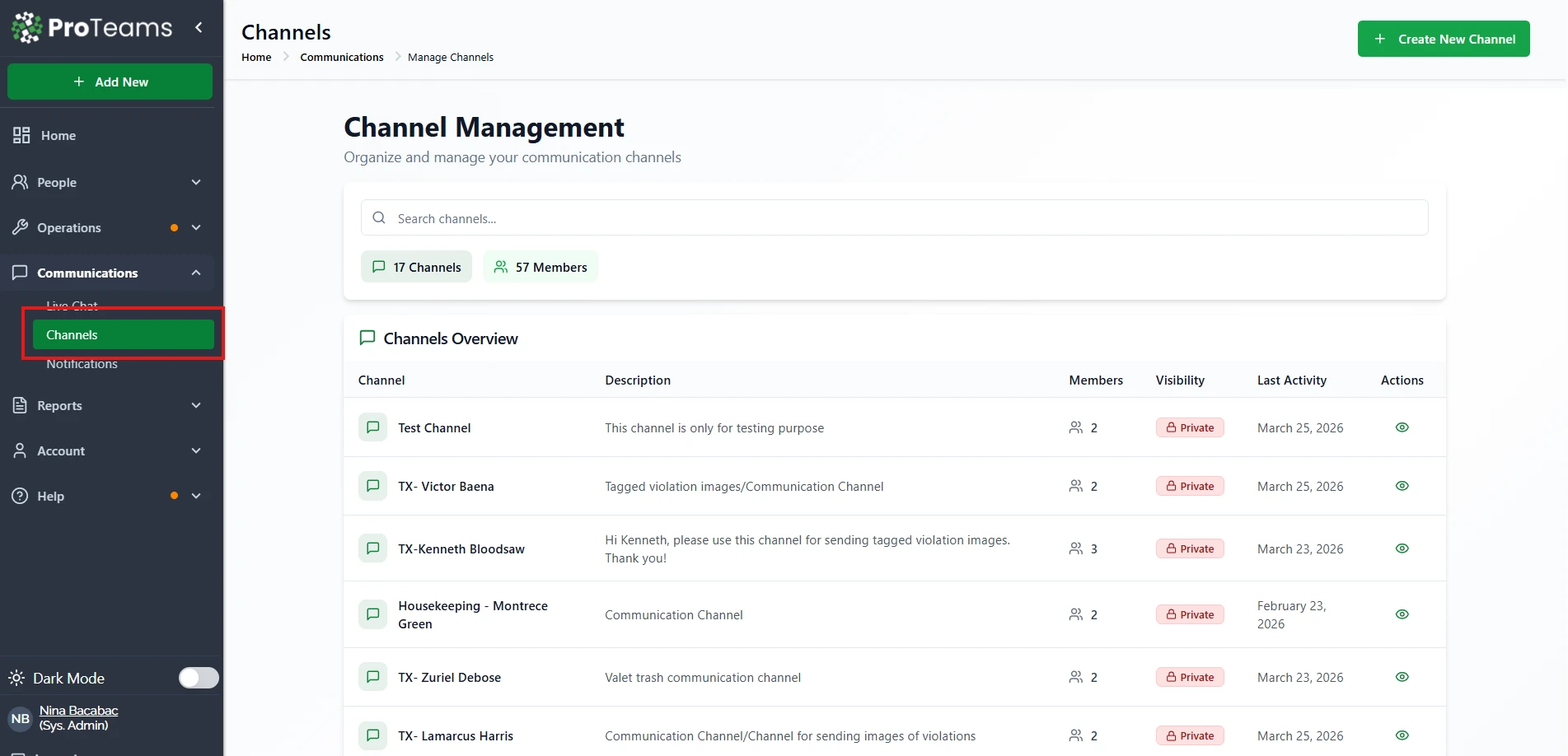
Accessing Channel Management
To manage channels:
- Go to Communications in the left sidebar
- Click Channels
- You will land on the Channel Management page
This page shows:
- Total number of channels
- Total number of members across channels
- A searchable list of all channels
- Each channel’s visibility, members, and last activity
- Create New Channel button
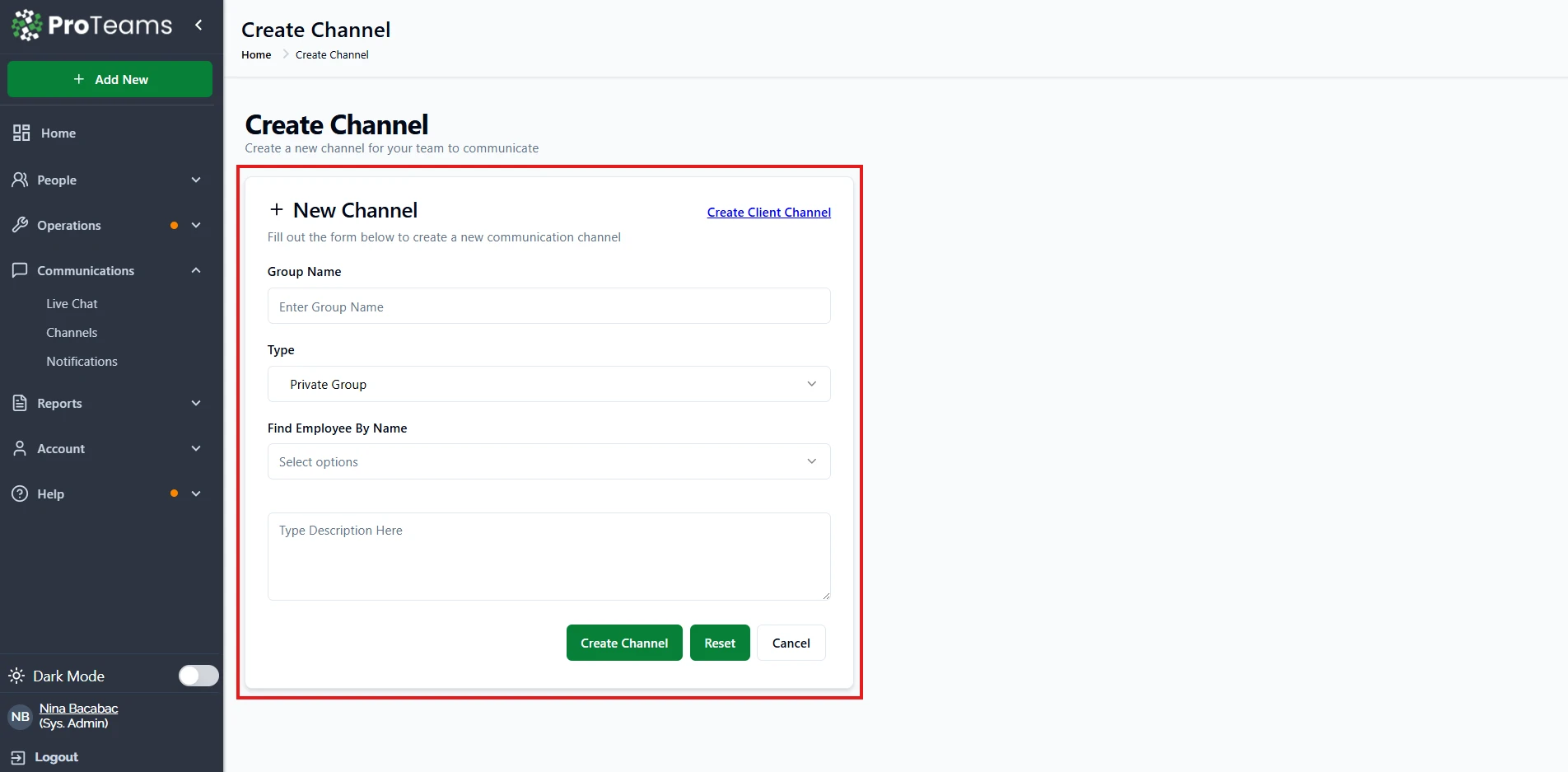
How to Create a New Channel (For Employee)
From the Channel Management page, click Create New Channel (top-right)
Enter the required channel details:
- Channel Name
- Visibility: Private or Public
- Description (optional but recommended)
Assign members to the channel
Click Create Channel
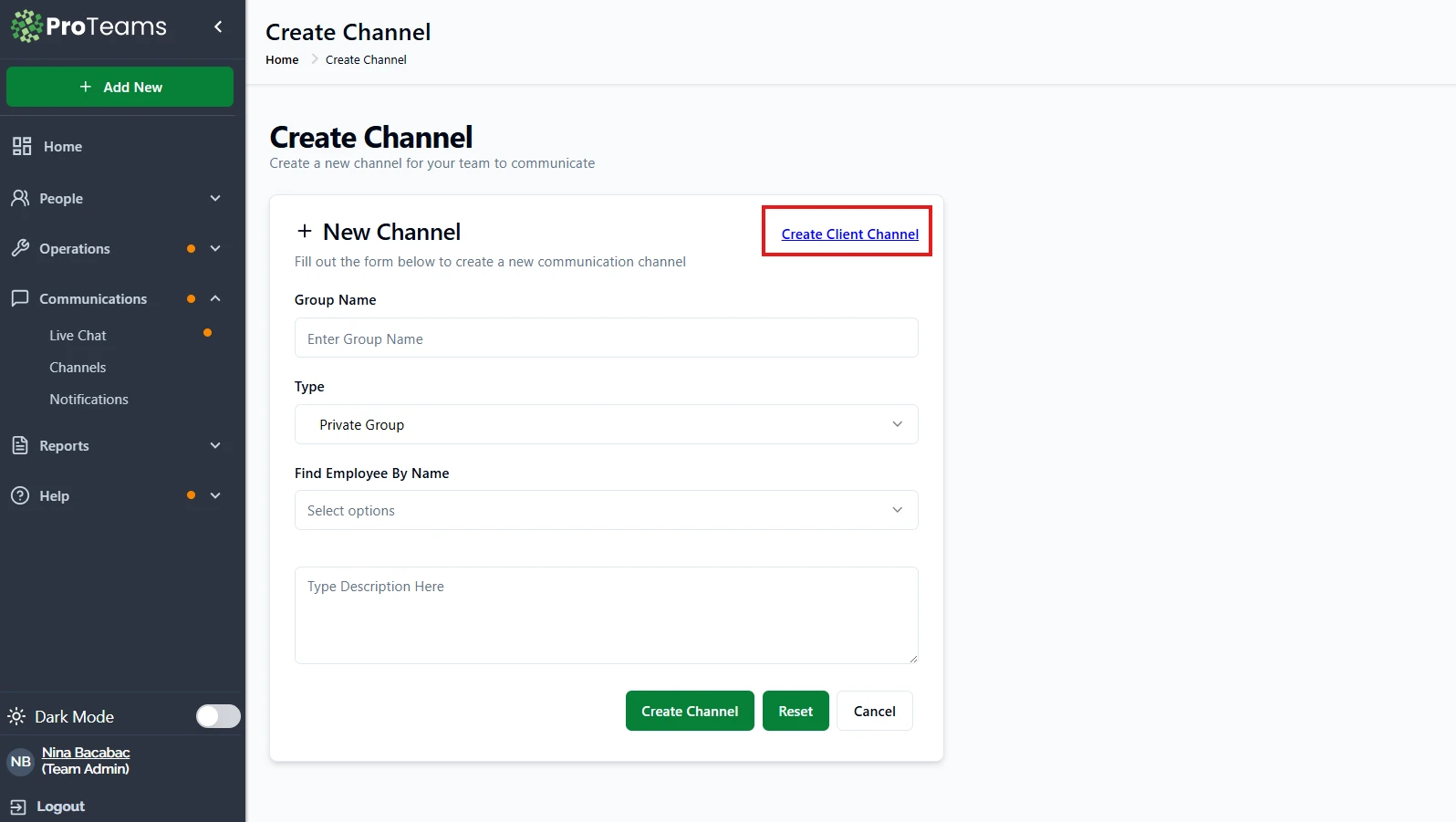
How to Create a New Channel (For Client)
1. From the Create Channel page, click Create Client Channel (top-right)
2. Enter the required channel details:
- Group Name
- Select Client
- Find Employee By Name
- Description
4. Click Create Channel
Once created, the channel will immediately appear in:
- Channel Management
Live Chat (under Private or Public tabs)
How to Delete a Channel
- Go to Communications > Channels
- Locate the channel you want to remove
- Click the Delete option in the Actions column
- Confirm the deletion when prompted
Important notes:
- Deleting a channel permanently removes it
- All messages in the channel will no longer be accessible
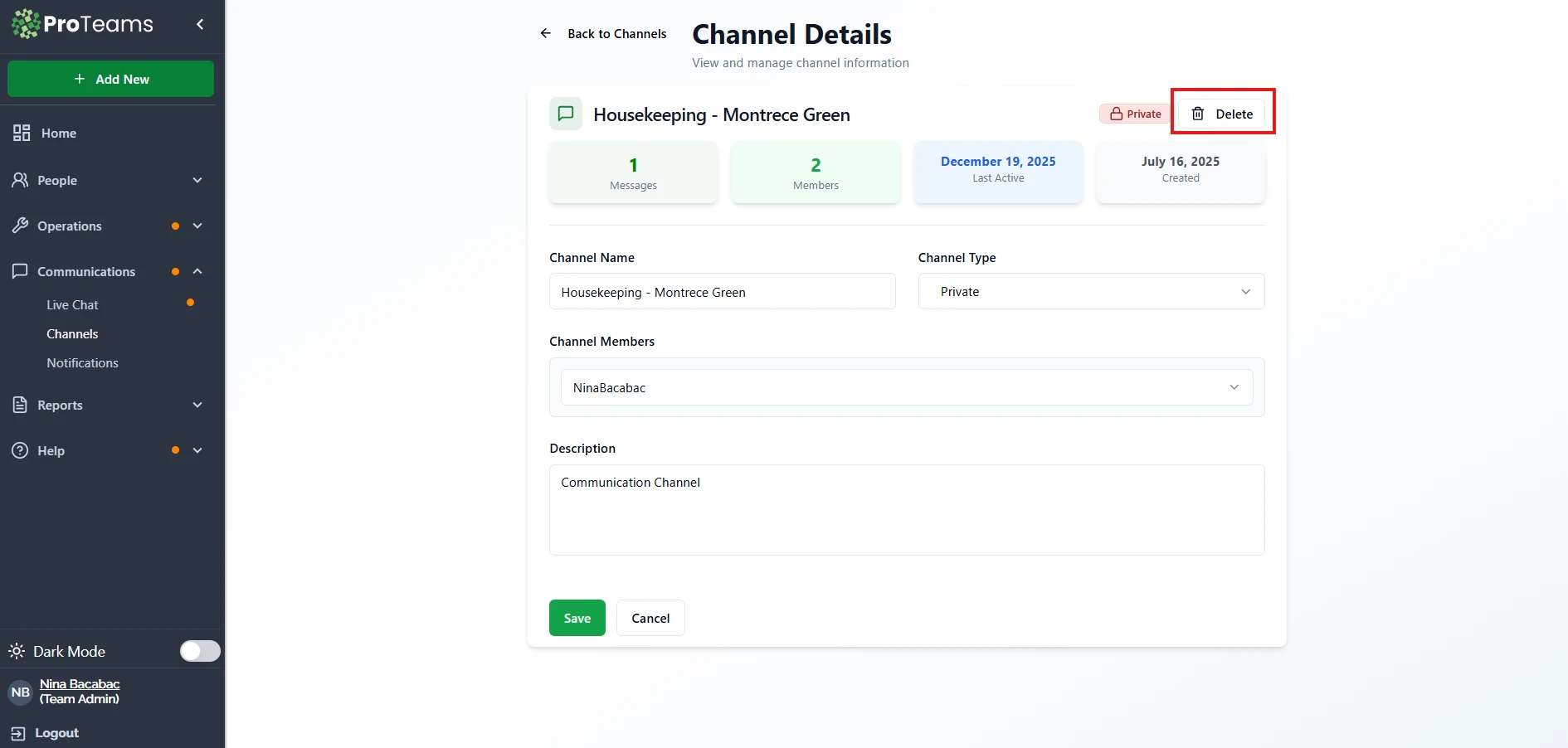
Only admins or authorized users can delete channels
Best Practices for Channel Management
- Use Private channels for employee-specific or sensitive communication
- Use Public channels for company-wide announcements
- Regularly review inactive channels and remove those no longer needed
- Name channels clearly so users understand their purpose immediately
Summary
Channel Management in ProTeams allows you to:
- Create new chat channels
- Control who can access each channel
- Monitor usage and activity
- Delete channels when they’re no longer needed
Keeping your channels organized ensures smoother communication and better collaboration across your team.
Channel deletion is permanent. If there’s any chance you’ll need to reference the conversation history, export or screenshot key messages before deleting.