Sending a notification takes about two minutes. The key is making sure the right people get the right message through the right channel — so it lands, gets read, and prompts the action you need.
ProTeams allows you to send important announcements and updates to your team using Email, Push Notifications, and SMS. This ensures your message reaches team members through their preferred communication channel.
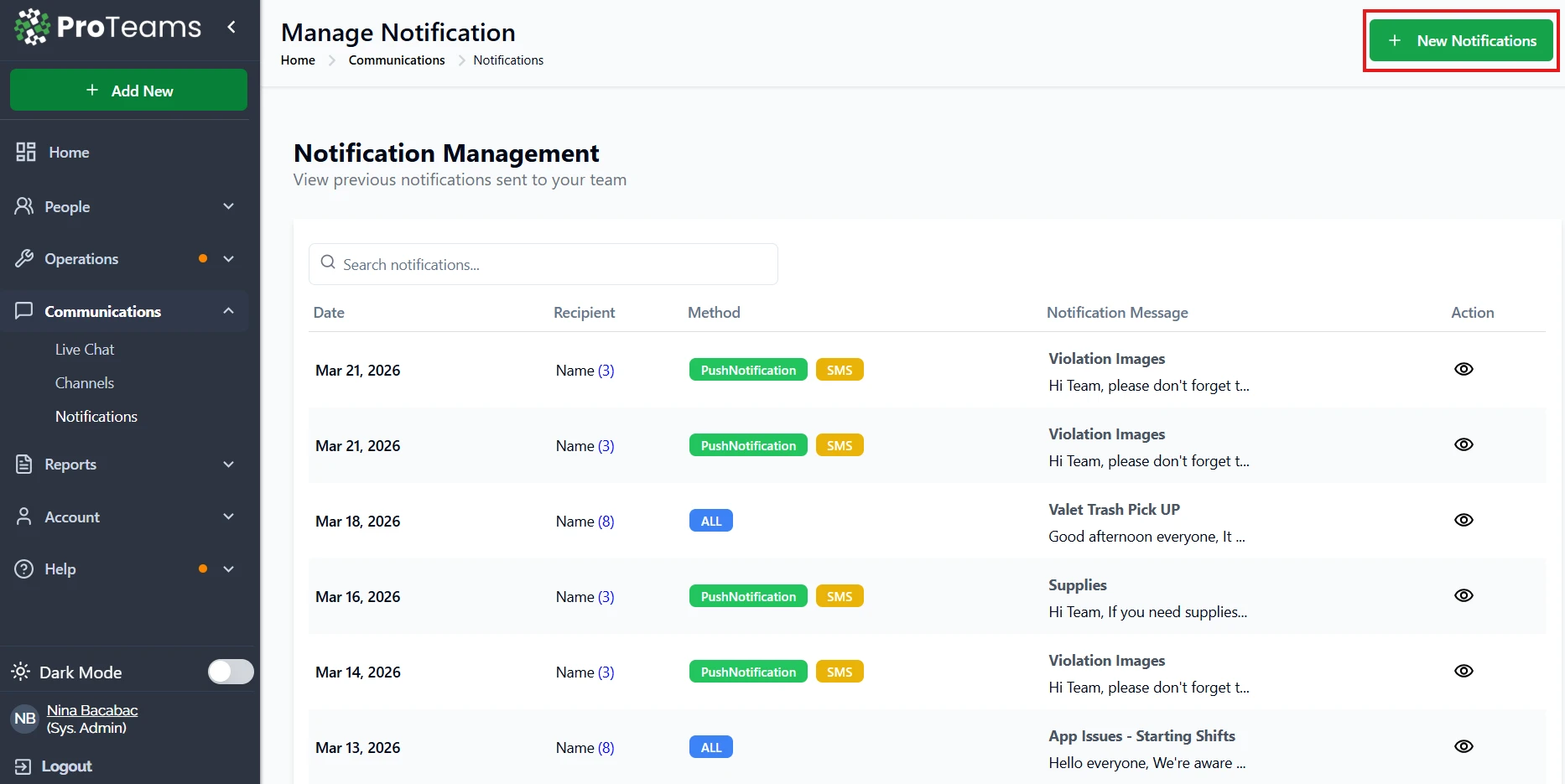
Where to Find Create Notification
- Open the left navigation menu.
- Click Communications.
- Select Notifications.
- Click Create Notification.
This opens the notification creation screen.
This section guides you through sending notifications to your team.
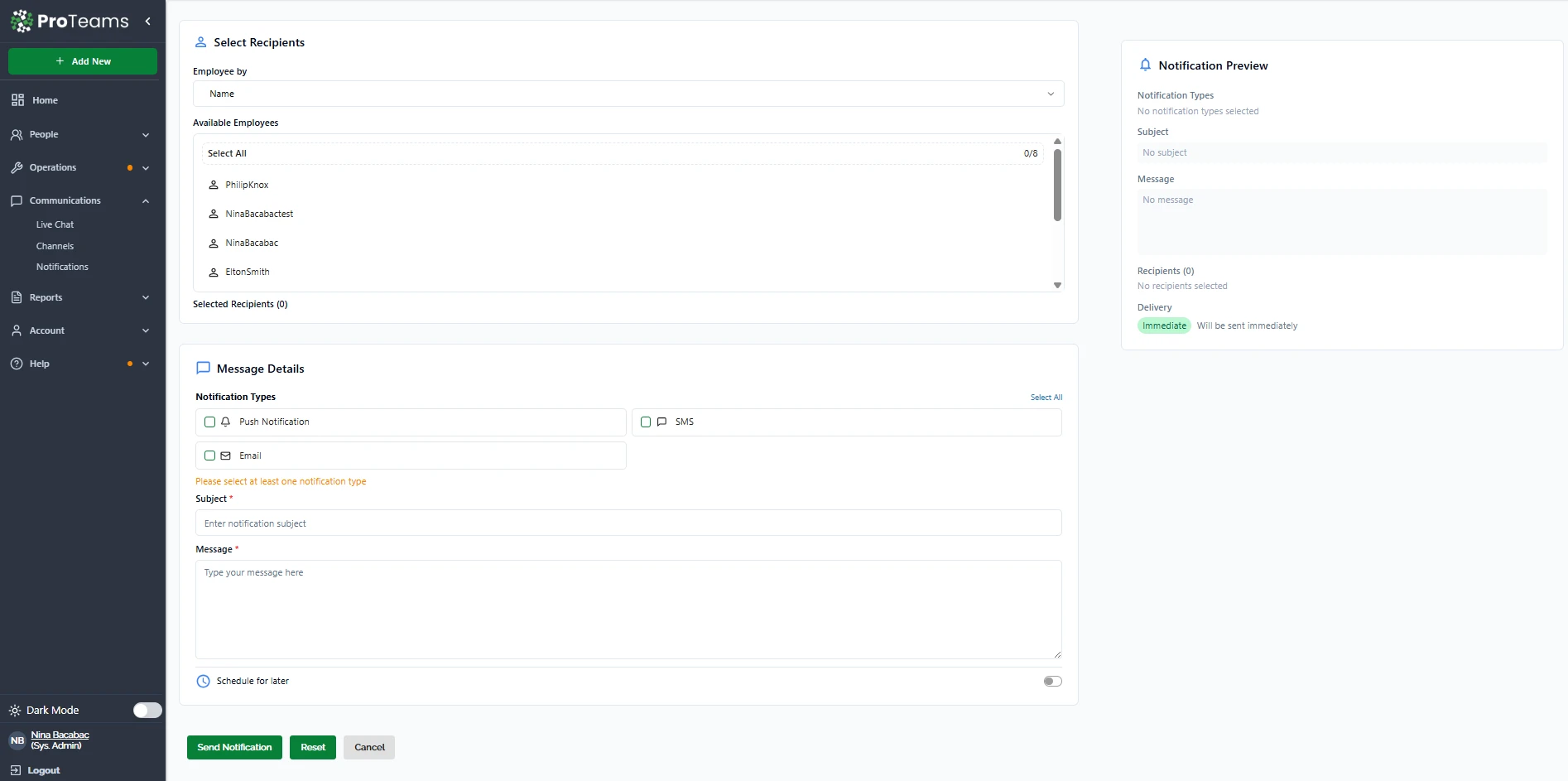
Select Recipients
The Select Recipients section allows you to choose who will receive the notification.
Employee Filter
- Use the Employee by dropdown to filter employees by name.
- This makes it easier to find specific users in large teams.
Available Employees
- View a list of all employees matching your filter. Use Select All to include everyone in the list.
- Click individual employee names to select them.
Selected Recipients
- The system shows how many recipients are selected.
- Notifications cannot be sent until at least one recipient is chosen.
Message Details
The Message Details section controls how and what you send.
Notification Types
Select at least one delivery method:
- Push Notification – Sent directly to the ProTeams app
- Email – Delivered to the employee’s registered email
- SMS – Sent as a text message
You may select multiple notification types at once.
Subject
- Enter a clear and short subject line.
- This appears in email and notification headers.
Message
- Enter the full message content.
- Keep messages concise and action-focused.
Schedule for Later
- Toggle Schedule for later to delay delivery.
- Leave this off to send the notification immediately.
Notification Preview Panel
The Notification Preview panel on the right shows a live summary of your notification before sending.
It displays:
- Selected notification types
- Subject line
- Message content
- Number of recipients
- Delivery timing (Immediate or Scheduled)
This helps confirm all details before sending.
Sending the Notification
At the bottom of the page, you will see three action buttons:
- Send Notification – Sends the notification based on your settings
- Reset – Clears all selected fields
- Cancel – Exits without sending
Notifications cannot be sent unless recipients and at least one notification type are selected.
Best Practices
- Use clear subject lines to get attention quickly.
- Choose the right delivery method based on urgency.
- Preview messages before sending to avoid errors.
- Use scheduling for reminders or planned announcements.
Summary
The Create Notification feature in ProTeams provides a simple and reliable way to communicate with your team. By selecting recipients, choosing delivery methods, and reviewing the notification preview, administrators can send accurate and timely messages that keep everyone informed and aligned.
Keep notifications short and specific. ‘Site B access code changed to 4821. Update before your shift today.’ is perfect. A five-paragraph notification will be ignored by half your team.