Things change. A client needs to move a service date, a crew member becomes unavailable, or a building has an event that conflicts. Rescheduling preserves the appointment — it just moves it. No deletion, no recreation, no lost history.
ProTeams allows you to safely reschedule existing appointments while checking for conflicts and confirming changes before they are applied.
Open the Appointment Details
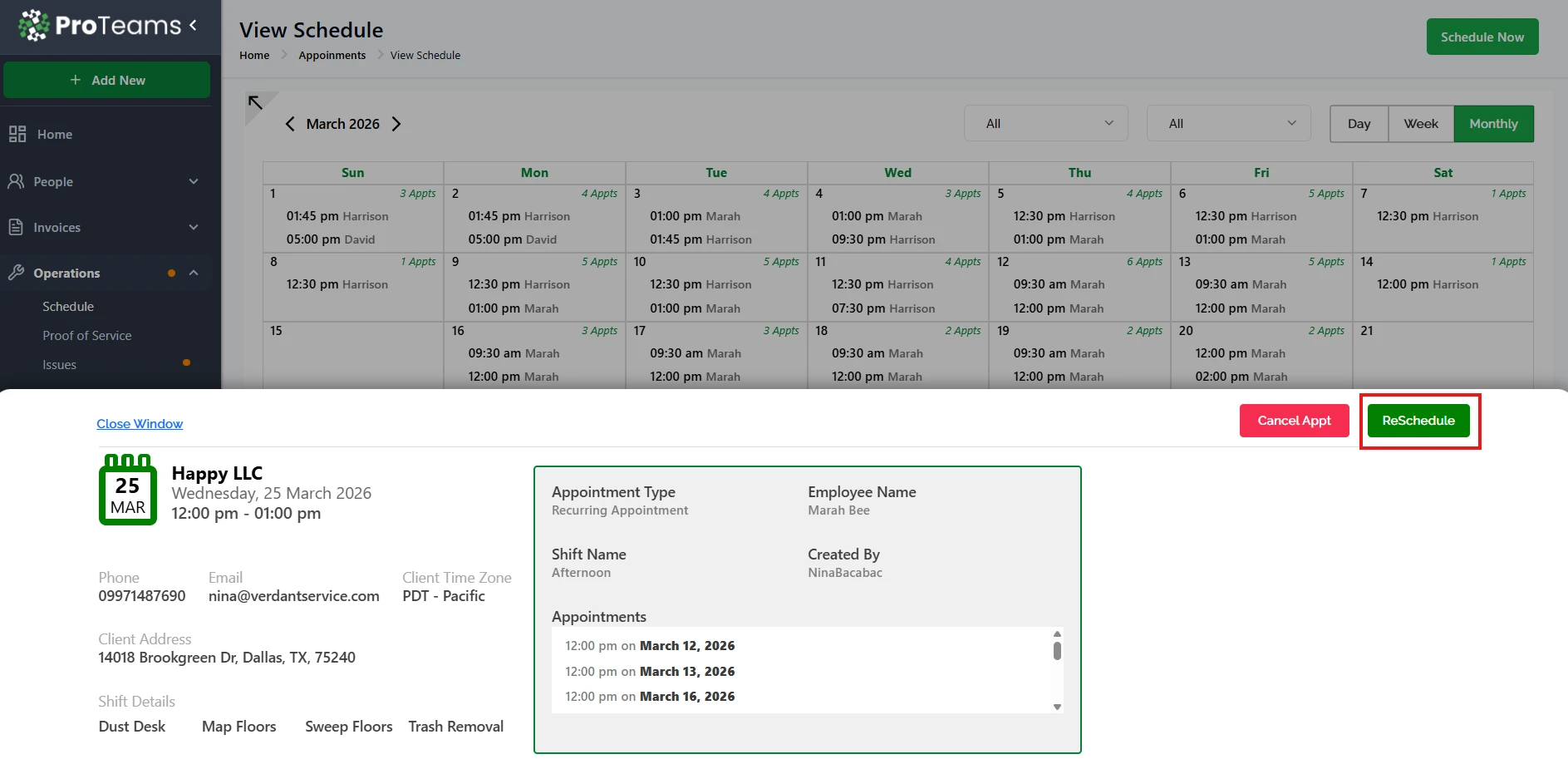
- Go to Appointments → View Schedule.
- Click on the scheduled appointment you want to update.
- The Appointment Details page will open, showing:
- Client information
- Shift and employee assigned Appointment date and time
- Click ReSchedule in the top-right corner of the appointment details screen.
Choose Scope (For Recurring Appointments)
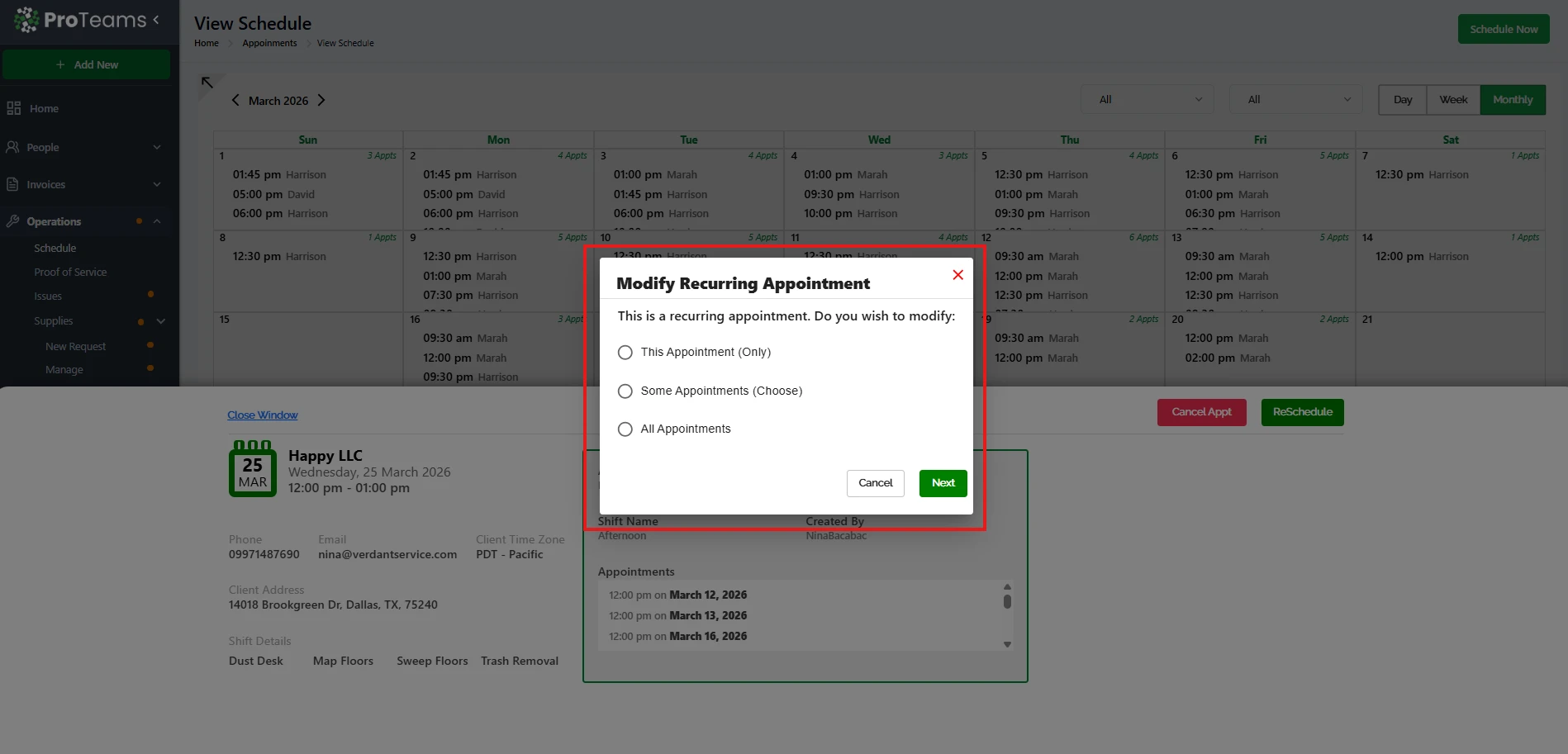
If the appointment is recurring, select one of the following:
- This Appointment (Only) Reschedules only the selected appointment
- Some Appointments (Choose) Lets you pick specific dates to reschedule
- All Appointments Applies the changes to the entire series
Click Next to proceed
Update Appointment Details
You will go through the following steps:
1 Client Selection
- Confirm or update the client
- Click Continue
2 Shift Selection
- Select the appropriate shift
- Review related tasks if needed
- Click Continue
3 Employee Selection
- Assign or confirm the employee
- Click Continue
4 Appointment Details
- Update the date
- Update the start time and end time
- Review the appointment summary
Note: You must change at least the date or time to proceed
Confirm Reschedule
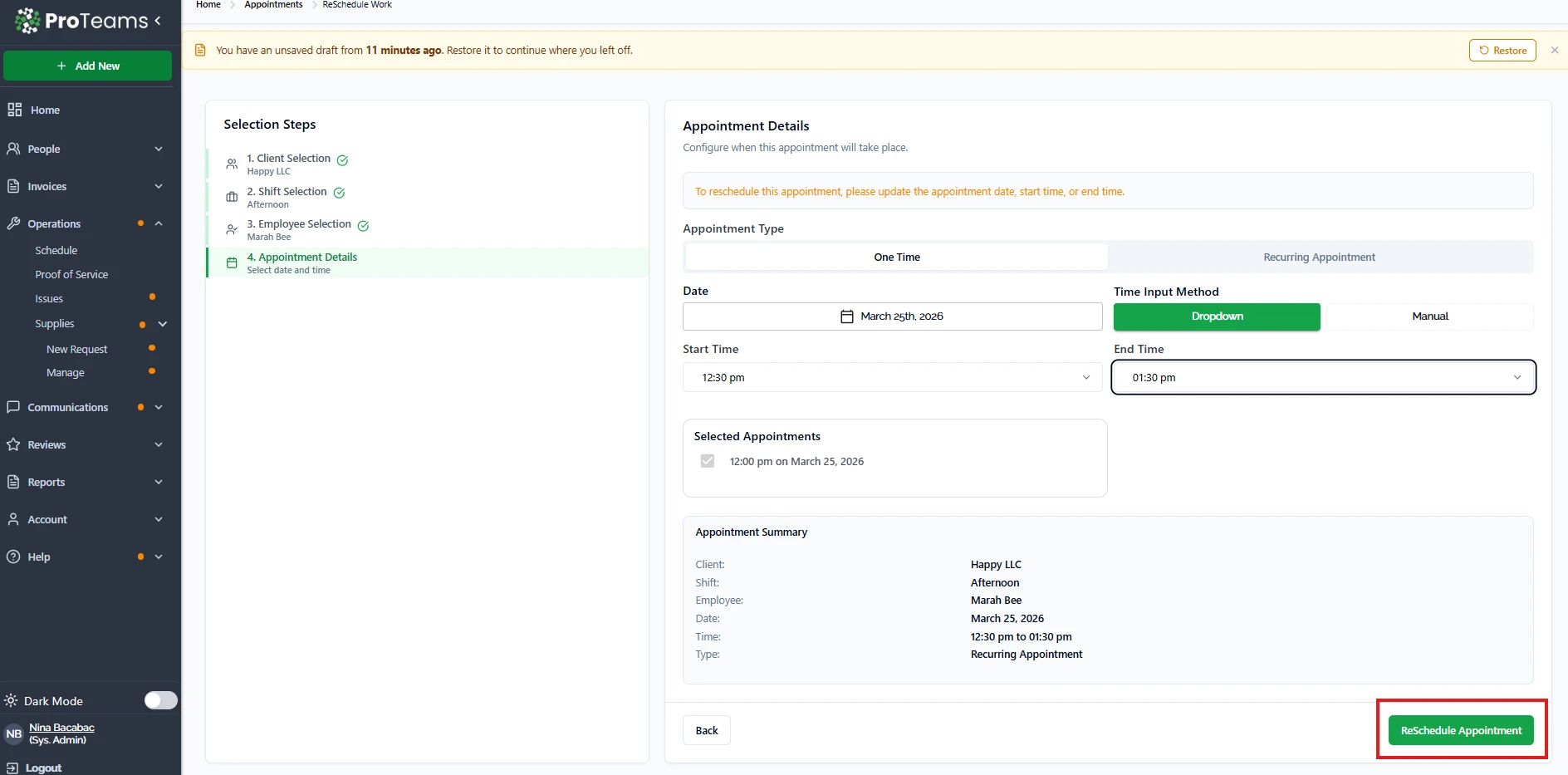
- Click ReSchedule Appointment
- Your changes will be saved and reflected in the schedule
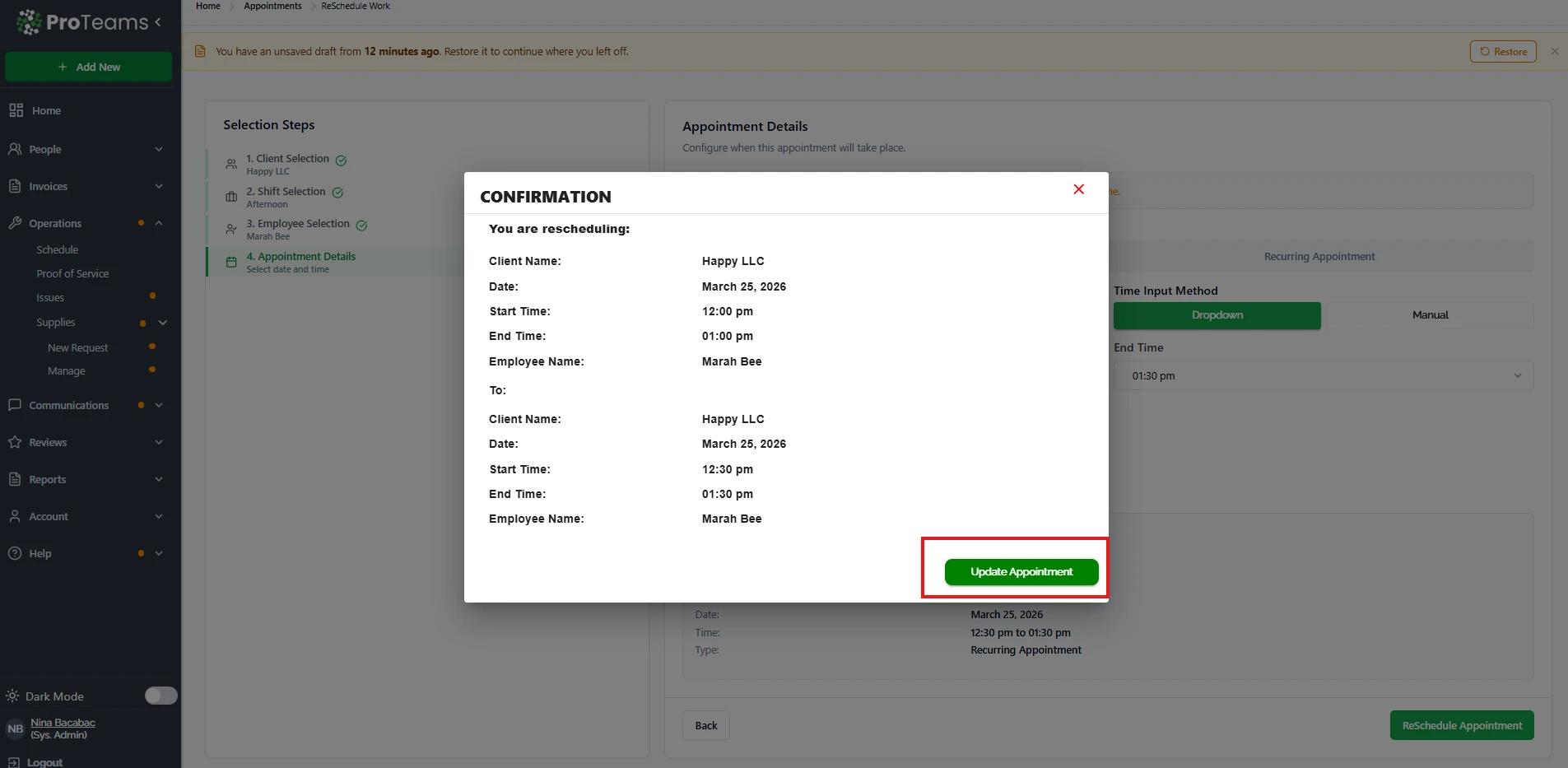
Step 5: Review and Confirm Changes
After clicking ReSchedule Appointment, a confirmation window will appear showing:
- Original appointment details
- Updated appointment details
Carefully review:
- Client name
- Date
- Start and end time
- Assigned employee
If everything is correct:
- Click Update Appointment
- Your changes will be saved
Important Notes
- Rescheduling does not delete the appointment
- Always review the confirmation before finalizing changes
- Be careful when selecting options for recurring appointments
- Changes apply immediately after confirmation
Tips
- Double-check the date, time, and time zone before confirming
- Use “This Appointment Only” to avoid affecting other scheduled dates
- If you need to remove the appointment instead, use Cancel Appointment
Use ‘This Appointment Only’ by default unless you’re sure the change should apply to the whole series. It’s easy to accidentally shift a month of shifts when you only meant to move one.