After you book an appointment, you need to know it actually saved. The Scheduled Appointment confirmation is the moment ProTeams tells you it’s done — clearly, before you move on.
Overview
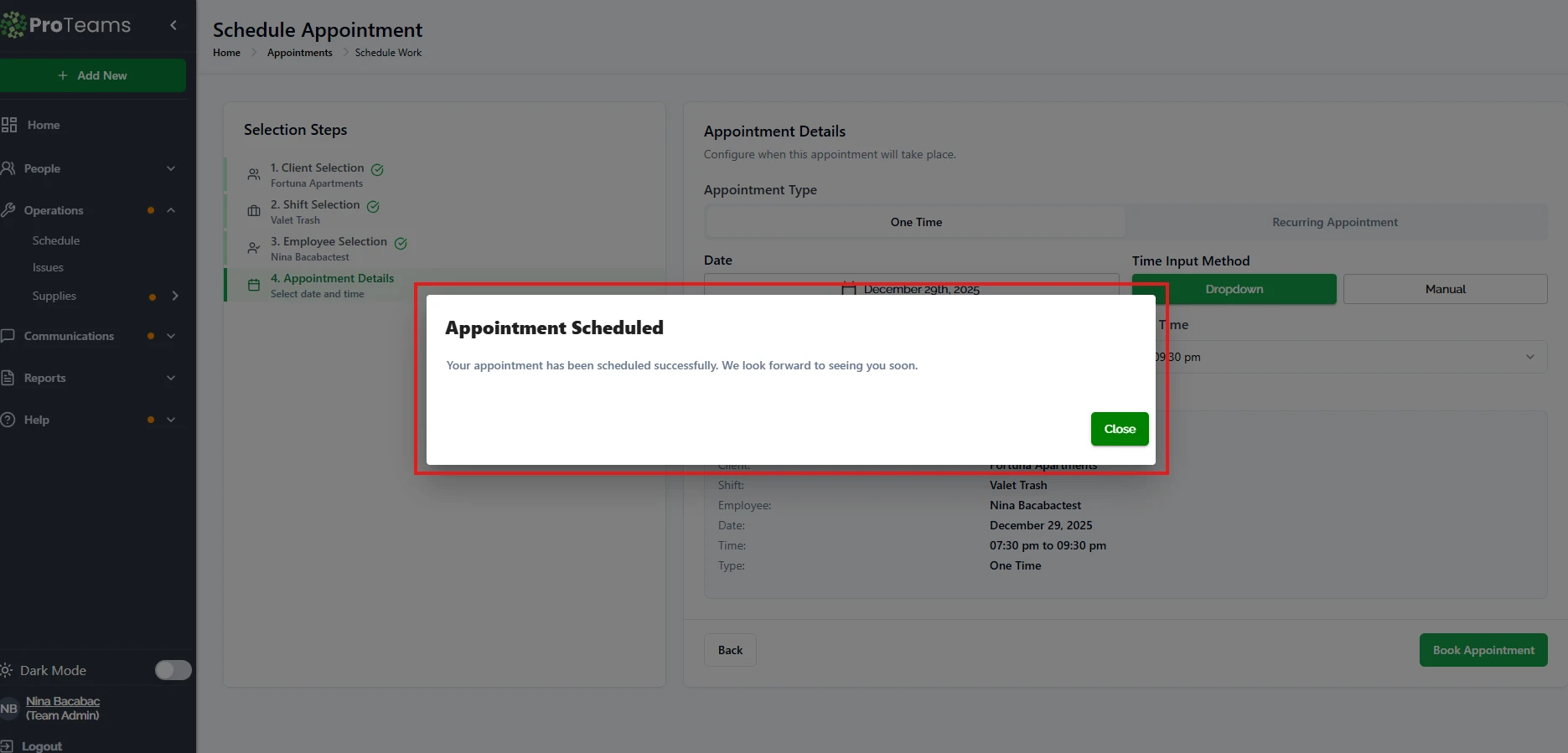
The Scheduled Appointment floating layer is a confirmation modal that appears after an appointment has been successfully booked in ProTeams. It confirms that the scheduling process is complete and that all appointment details have been saved in the system.
This floating layer acts as the final validation step before returning you to the Scheduler.
When does it appear?
The floating layer appears immediately after you click Book Appointment in the final step of the scheduling process.
It only appears when:
- All required scheduling steps are completed
- The appointment is successfully saved
- No errors occur during booking
What information does it provide?
The floating layer displays:
- Confirmation title: “Appointment Scheduled”
- Success message: Confirms the appointment was scheduled successfully
- Close button: Allows you to exit the confirmation
This message indicates the appointment is now active and visible in the system.
What happens after the floating layer appears?
Once the floating layer is displayed:
- The appointment is added to the View Schedule calendar
- The assigned employee receives the shift in their mobile app, adjusted to their time zone
- Any tasks associated with the shift become active
- Alerts and time tracking are enabled for the scheduled time
No additional action is required unless you need to make changes.
Why is this floating layer important?
The Scheduled Appointment floating layer:
- Confirms the appointment was saved successfully
- Gives immediate feedback that the process is complete
- Ensures confidence before returning to the Scheduler
It acts as a clear checkpoint between scheduling and execution.
Summary
The Scheduled Appointment floating layer is a confirmation modal that appears after an appointment is booked. It verifies that the scheduling process was successful, activates the appointment across the system, and allows users to safely return to the Scheduler.
If the confirmation doesn’t appear after clicking Book Appointment, check the form for validation errors. The appointment was not saved.