If you operate in multiple cities — or even just have employees who live in a different time zone from your clients — manual time conversion is a daily headache. ProTeams handles it automatically: you schedule in your time zone, and your employees see their shifts in theirs.
Overview
ProTeams allows you to schedule employees across different time zones without manual time conversion. The Scheduler uses each employee’s assigned time zone to ensure schedules, alerts, and actual work time are displayed and tracked accurately.
Admins schedule appointments normally, while employees automatically see their shifts in their local time on the mobile app.
Before you schedule: Verify employee time zones
Time zone accuracy starts at the employee profile level.
- Go to People → Employees
- Click the Edit (pencil) icon next to the employee
- In the Profile tab, locate the Time Zone field
- Select the correct time zone (example: America/Chicago)
- Click Save & Proceed
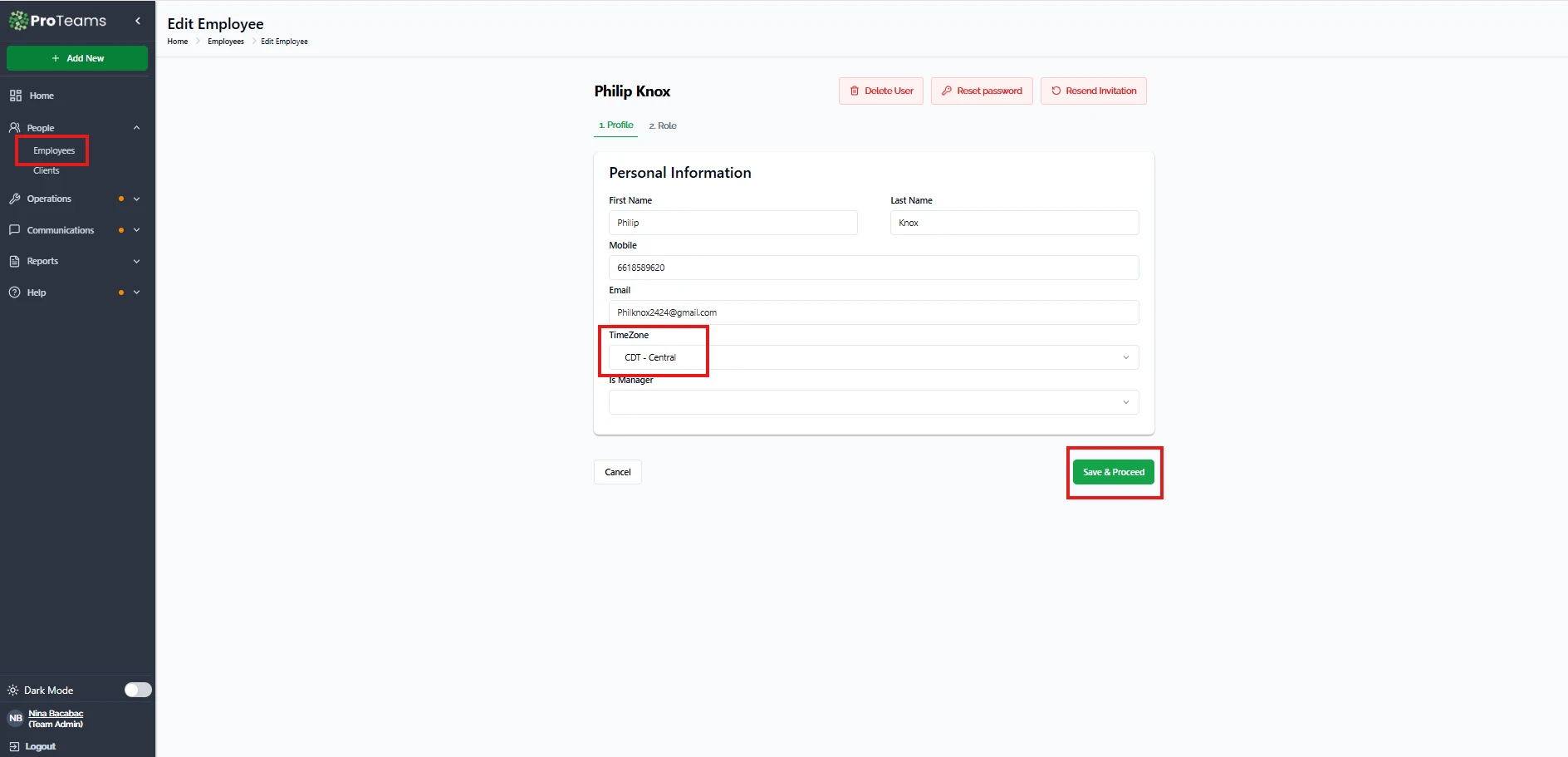
If this step is skipped, shifts may appear at incorrect times.
HOW TO SCHEDULE
- Navigate to Appointments → View Schedule
- Click Schedule Now in the top-right corner to create a new appointment.
Schedule an appointment (Step-by-step)
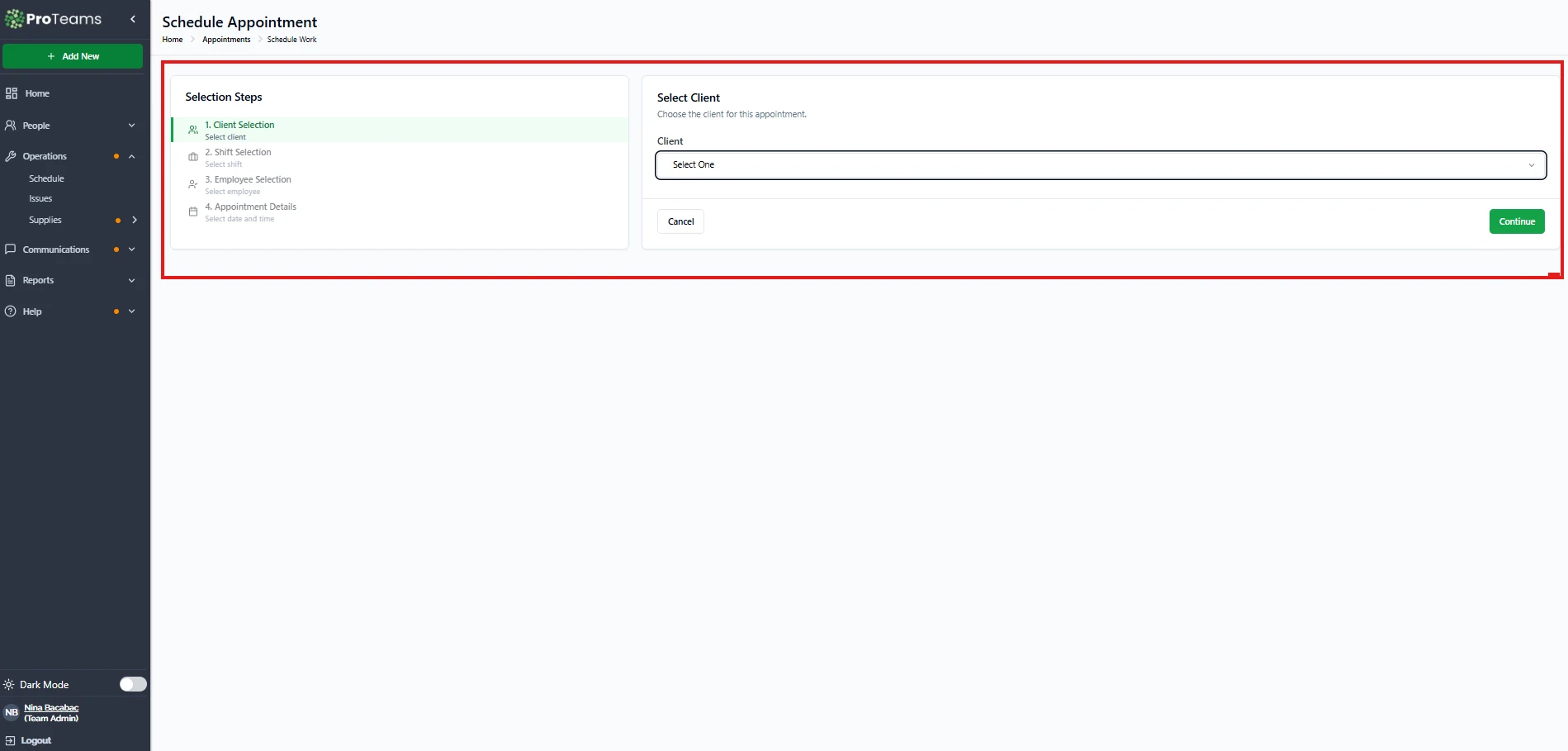
The scheduling process follows a guided workflow with four steps.
Client Selection
- Select the client the appointment belongs to
- Click Continue
This determines which shifts and tasks will be available.
Shift Selection
- Choose the appropriate client shift (for example, Valet Trash, Housekeeping, Groundskeeping)
- Click Continue
Shifts define the type of work being scheduled.
Employee Selection
- Select the employee who will perform the shift
- Only eligible employees appear in the list
- Click Continue
The employee’s time zone will be applied automatically from their profile.
Appointment Details
This is where time zone handling is most important.
Appointment Type
- One Time – single appointment
- Recurring Appointment – repeating schedule
Date
- Select the appointment date
- The date aligns correctly with the employee’s time zone
Time Input Method
- Dropdown – select predefined times
- Manual – enter custom start and end times
Start Time and End Time
- Enter times normally
- ProTeams automatically adjusts these based on the employee’s time zone
Appointment Summary
Review all details before booking:
- Client
- Shift
- Employee
- Date
- Time Appointment type
Click Book Appointment to finalize.
If the employee time zone step is skipped, shifts will display at the wrong time in their mobile app. They’ll show up an hour early or late without knowing why.