The Scheduler is where your operation gets its shape. It turns client contracts into actual shifts, assigned to actual people, on actual days. Everything — GPS check-ins, task lists, Proof of Service — flows from what you build here.
What is the Scheduler?
The Scheduler in ProTeams is a calendar-based tool used to plan, view, and manage all client appointments and employee assignments. It gives administrators a clear visual overview of scheduled work across days, weeks, or months, making it easier to coordinate teams and avoid scheduling conflicts.
The Scheduler acts as the central hub for operational planning.
Where can I find the Scheduler?
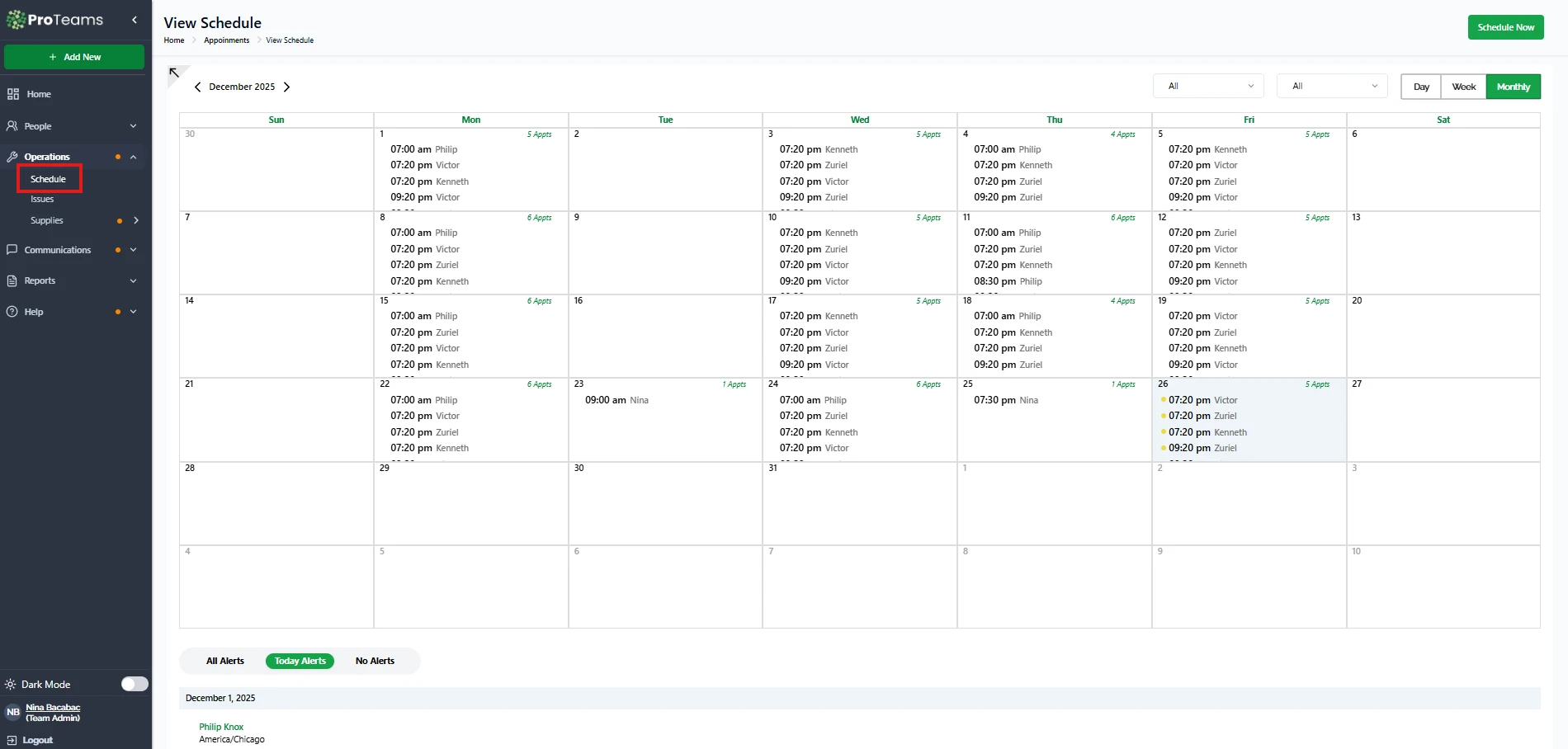
To access the Scheduler:
- Open the left-hand navigation menu
- Go to Operation
- Click Schedule
This opens the View Schedule page.
Scheduler Views Explained
The Scheduler supports multiple calendar views to match different planning needs.
Monthly View
The Monthly view shows all scheduled appointments for the entire month. Each day displays:
- Appointment times
- Assigned employee names
- Total number of appointments per day
This view is ideal for long-term planning and spotting workload trends
Weekly View
The Weekly view provides a more detailed look at appointments across a single week. It helps admins review coverage and balance workloads more precisely.
Daily View
The Daily view focuses on one day at a time. This is useful for:
- Same-day adjustments
- Monitoring daily operations
- Verifying last-minute assignments
Scheduler Navigation Tools
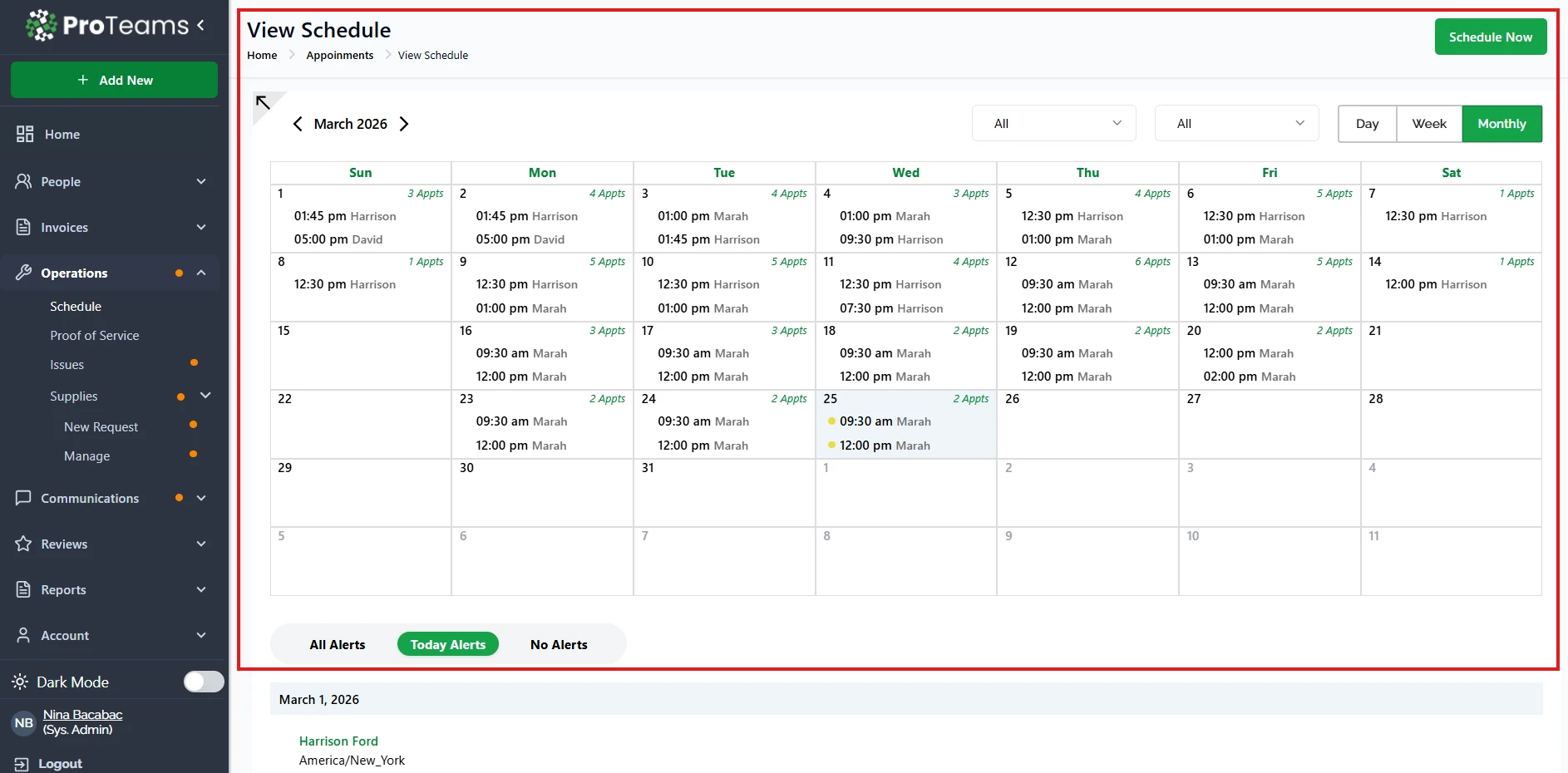
What you can see: Date Navigation
At the top of the calendar, you can:
- Move forward or backward by month, week, or day
- Quickly jump between time periods
Filters
The dropdown filters allow you to refine what is shown on the calendar, such as:
- Specific employees
- Specific clients or shifts (depending on configuration)
This helps reduce visual clutter and focus on relevant schedules.
Appointment Indicators
Each appointment displays:
- Start time
- Assigned employee
- Visual markers indicating multiple appointments on the same day
These indicators help admins quickly assess workload distribution.
Schedule Now Button
The Schedule Now button (top right) allows administrators to quickly create new appointments.
Use this when:
- Assigning employees to client shifts
- Adding new work to the calendar
- Making real-time scheduling updates
Alerts Section
Below the calendar, the Alerts section highlights:
- All alerts
- Today’s alerts
- Days with no alerts
This helps admins quickly identify scheduling issues, missed tasks, or conflicts that need attention.
Summary
The Scheduler in ProTeams is a powerful calendar tool that allows administrators to plan, manage, and monitor all appointments and employee assignments in one place. By using its flexible views and filters, teams can maintain organized, efficient, and error-free scheduling.
Start your morning in Daily view to confirm all shifts are covered. Switch to Weekly on Friday to review the upcoming week before your team disperses.