Client profiles aren’t set-and-forget. Contacts change, addresses get updated, contracts evolve. The Client Management page is where you keep all of that current — and where you can find any client quickly when something needs your attention.
Overview
Once clients have been created in ProTeams, administrators can manage them through the Clients section. Client management allows you to update client information, monitor activity, review assigned shifts, and keep client records accurate as operations change.
This ensures smooth scheduling, clear communication, and organized operations across your team.
Where to manage clients
To manage existing clients:
- Open the left-hand navigation menu
- Go to People
- Select Clients
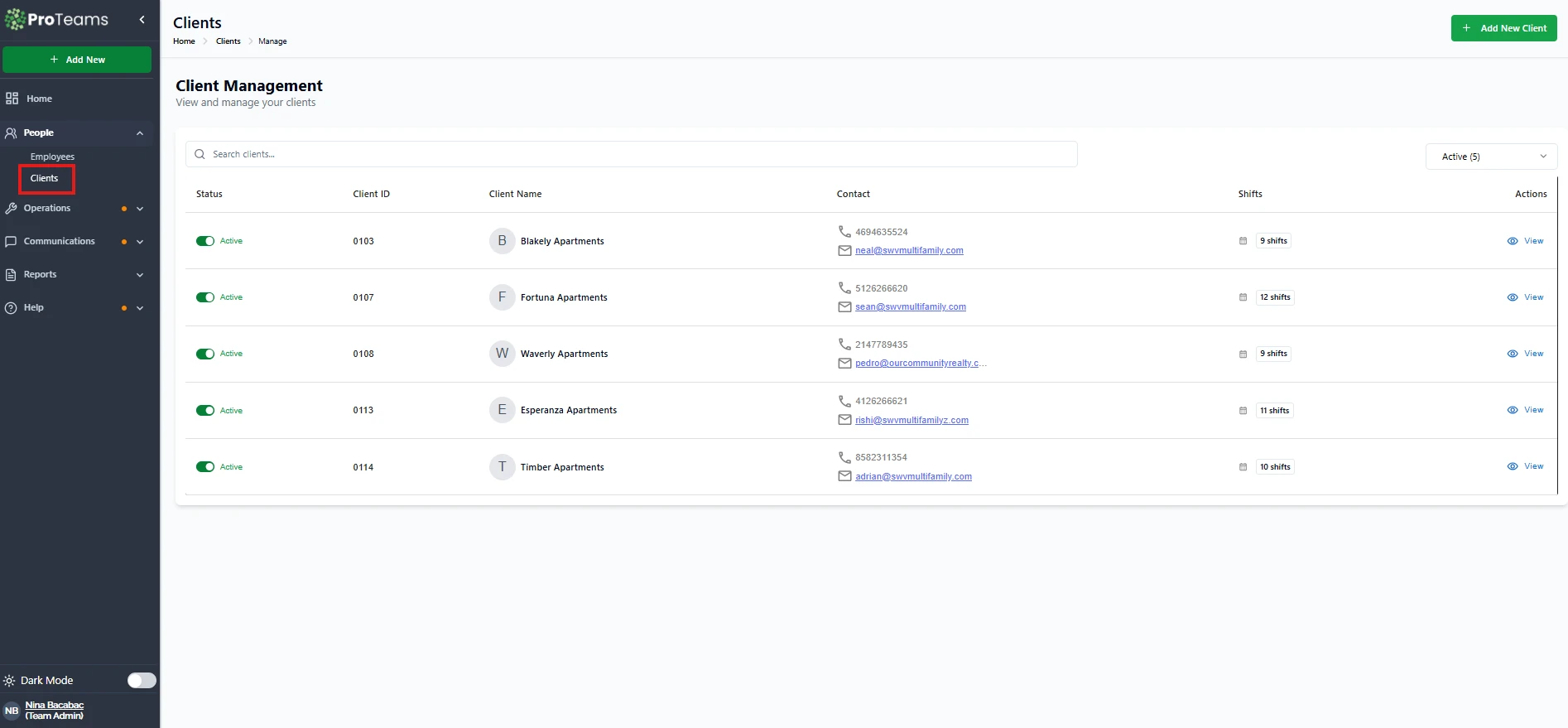
This opens the Client Management page, where all clients are listed.
Managing clients from the Client Management page
The Client Management page provides several tools to help you organize and maintain client records.
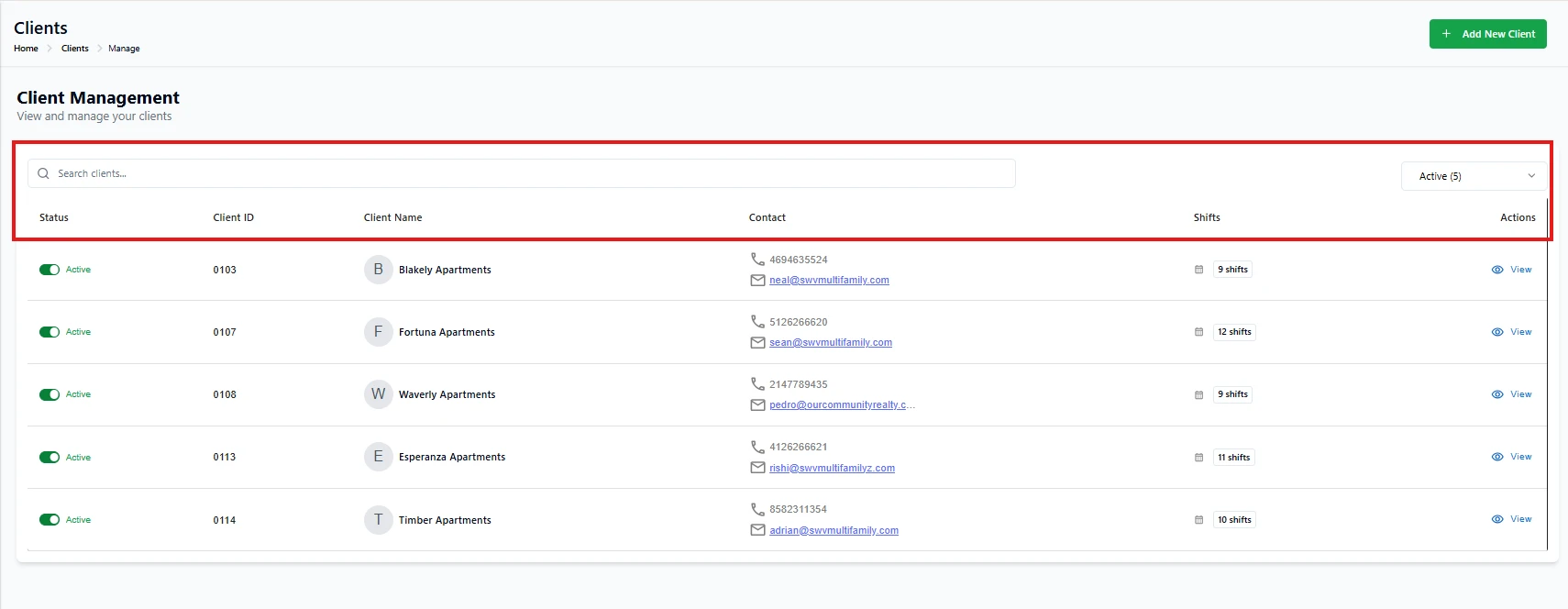
What you can see:
Search Clients: The Search clients field allows you to quickly find a client by name or ID.
- Status Filter: The status dropdown allows you to filter clients by their current state, such as:
Active: Clients currently in use
Other statuses may appear depending on configuration (inactive, pending)
Client List Table: Each row in the table represents one client and includes the following columns:
- Status: Indicates whether the client is active. Active clients are available for scheduling and assignments.
- Client ID: A unique identifier automatically assigned to each client. This helps with internal tracking and reference.
- Client Name: Displays the name of the client, property, or business.]
- Contact: Shows the client’s primary contact details, including:
Phone number
Email address
- Shifts: Displays the number of shifts currently associated with the client. This gives instant visibility into how active the client is within the system.
- Actions: The View action allows you to open the client’s detailed profile. From there, you can manage client information, shifts, and related settings.
Activity tracking
Client profiles provide visibility into how actively a client is being serviced by showing shift counts and scheduling frequency. This supports planning and operational reviews.
Best practices for managing clients
- Regularly review client contact details
- Monitor shift counts to ensure proper coverage
- Update client status if they become inactive
- Use consistent naming conventions for easy searching
Why proper client management matters
Managing clients correctly helps:
- Prevent scheduling errors
- Maintain accurate operational data
- Improve team coordination
- Support scalable growth
Well-maintained client records lead to smoother daily operations.
Summary
After clients are created, ProTeams provides tools to manage and maintain them through the Client Management page. By reviewing client details, managing shifts, and keeping information up to date, administrators can ensure efficient scheduling and reliable operations.
Changing a client’s status to Inactive will pause all scheduled appointments for that client. Only do this when you’ve confirmed no active shifts are running.