Not everything a client needs happens on a regular schedule. Quarterly window cleaning, a one-off deep clean, an annual pressure wash — these are Open Tasks. They sit outside the normal shift cycle and give you a way to assign non-routine work without disrupting your scheduling.
Overview
An Open Task in ProTeams is a non-routine or flexible task that is assigned to a client but is not tied to a daily shift workflow. Open Tasks are typically used for periodic, special, or as-needed work that does not occur every day.
Examples include:
- Power washing dumpsters
- Deep cleaning projects
- Seasonal maintenance
- Special inspections
- One-off requests
Open Tasks ensure these types of work are visible, trackable, and assigned correctly without disrupting daily operations.
What is an Open Task?
An Open Task is a task that:
- Is linked to a client
- Can be scheduled weekly, monthly, quarterly, or as needed
- Appears in the employee’s mobile app when applicable
- Is not part of a daily repeating task list
Open Tasks are ideal for work that does not follow a daily routine.
How to create an Open Task for a client
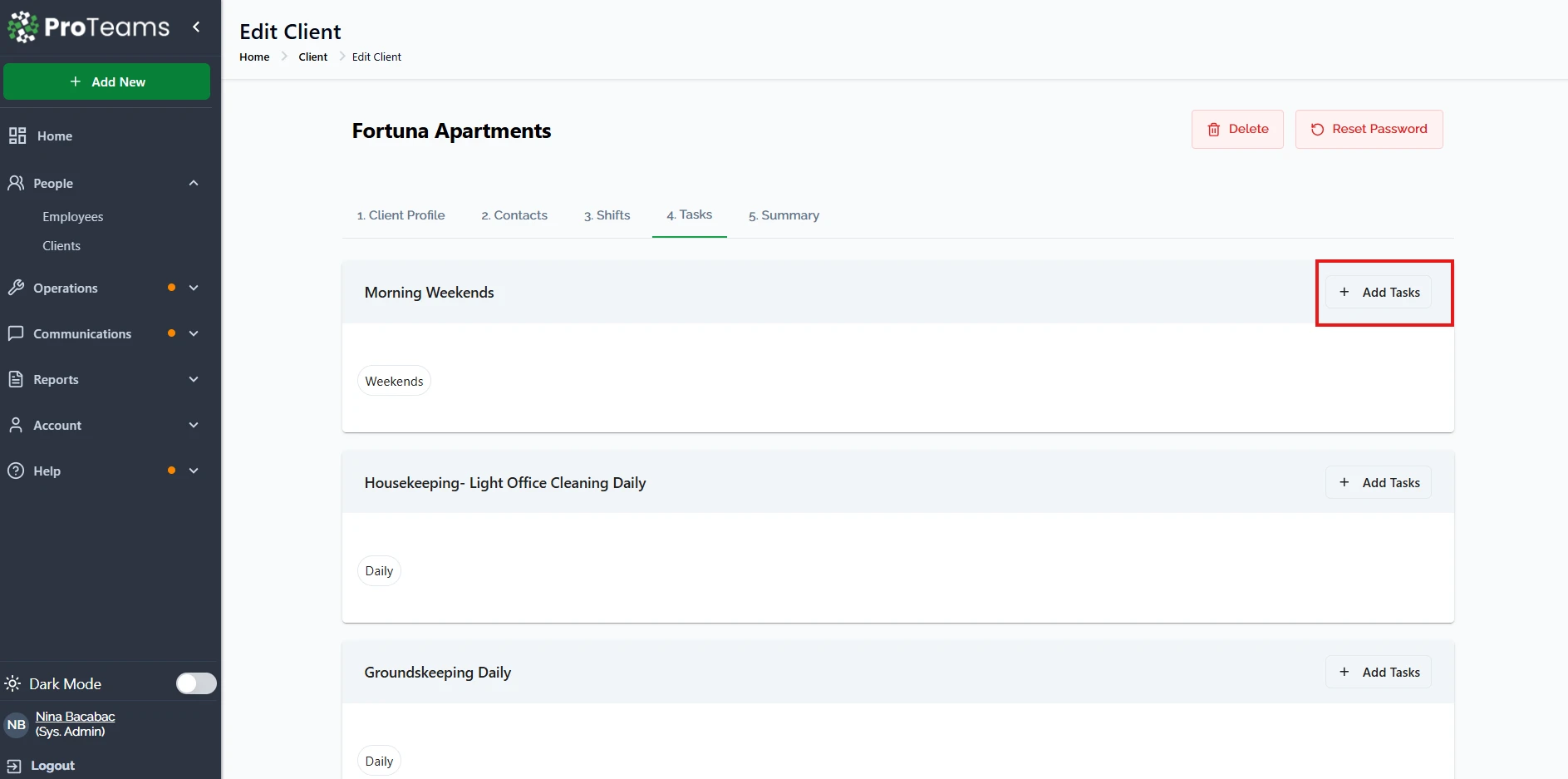
- Inside the client profile, go to the Tasks tab
- Scroll to the Opentasks section
- Click Add Tasks
- Choose the task frequency (Example:Quarterly)
- Enter the task name (Example: Power wash dumpsters)
- Add start and end date
- Add days duration
- Click “Update to Task”
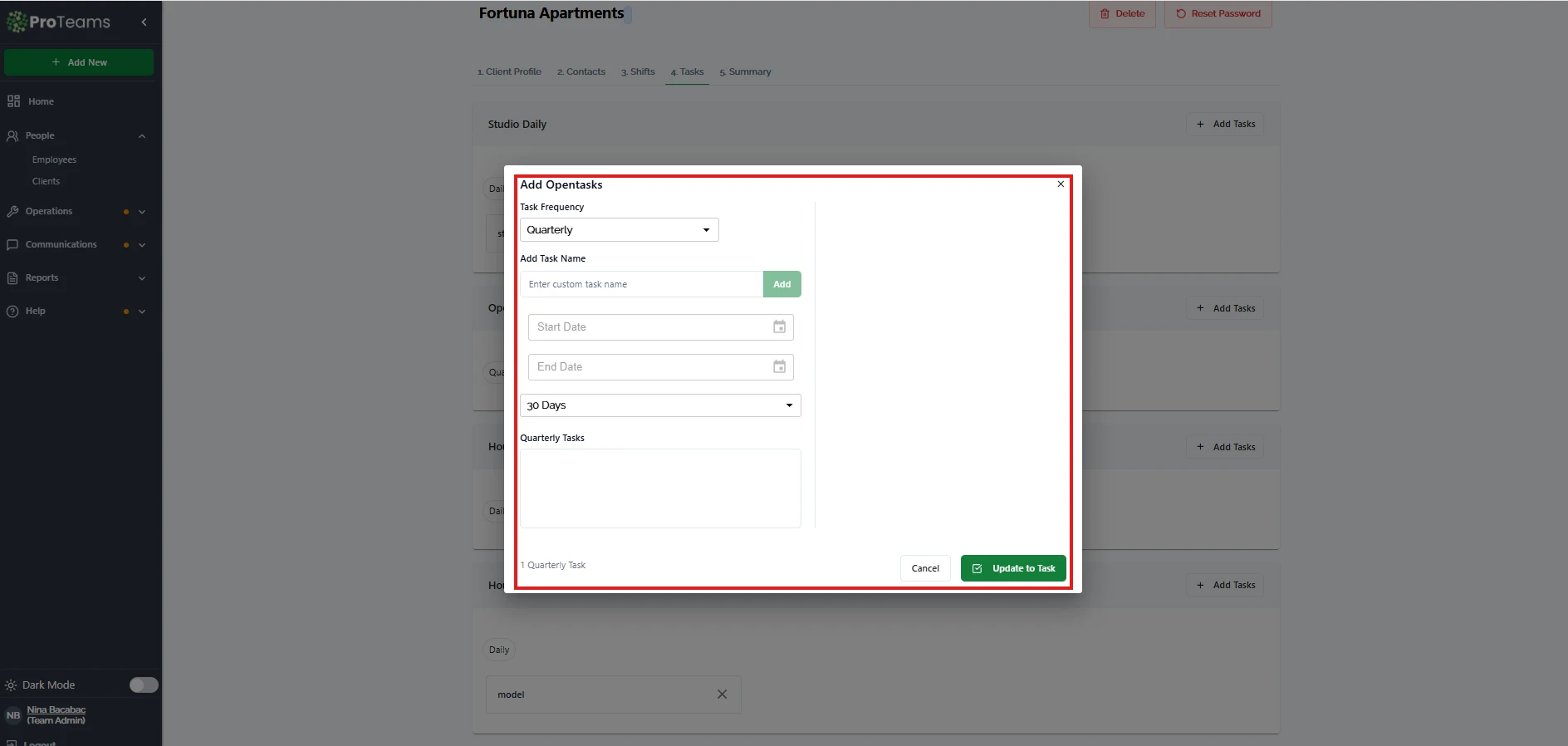
Once saved, the Open Task will appear under the selected frequency category.
Task frequency explained
Open Tasks can be scheduled based on frequency, such as:
- Daily – Rarely used for Open Tasks
- Weekly – Recurring but not daily
- Monthly – Scheduled once per month
- Quarterly – Scheduled once per quarter
The selected frequency determines when the task becomes active and visible to employees
How Open Tasks are assigned to employees
Open Tasks are not assigned to individual employees directly.
Instead:
- Open Tasks are assigned to a client
- Employees assigned to the relevant shift or client will see the Open Task in their mobile app when it becomes active
This ensures flexibility and avoids manual reassignment when staffing changes.
How employees see Open Tasks in the mobile app
When an Open Task becomes active:
- It appears in the employee’s task list or reminders
- It is clearly separated from daily routine tasks
- Incomplete Open Tasks remain visible until completed
Admins can monitor visibility using the Lock Action to view the employee’s mobile app.
Editing or removing Open Tasks
From the Tasks tab, admins can:
- Remove an Open Task using the “X” icon
- Add new Open Tasks at any time
- Adjust task names or frequencies if requirements change
Removing an Open Task:
- Does not affect daily tasks
- Immediately removes it from employee task views
Why Open Tasks are important
Open Tasks help:
- Track non-daily work
- Prevent special tasks from being forgotten
- Improve accountability for periodic jobs
- Keep daily workflows clean and focused
- Support complex client requirements
They add flexibility without cluttering daily task lists.
Summary
An Open Task in ProTeams is used for flexible, non-routine client work such as quarterly maintenance or special projects. Admins create Open Tasks under the client’s Tasks tab, assign a frequency, and employees automatically see them in the mobile app when active. This ensures important work is tracked without disrupting daily operations.
Use Open Tasks to document everything that’s in the contract but not on a daily shift. When a client asks if the annual deep clean was done, you have a timestamped completion record.