Tasks are the specific actions your crew needs to complete during every shift. They’re what shows up on your employee’s phone when they tap into a job — the checklist that turns a vague shift into a clear set of deliverables.
Overview
Tasks in ProTeams define the specific actions employees must complete for a client during a shift. Creating and assigning tasks ensures work is consistent, trackable, and visible to employees in the mobile app.
Tasks are always created under a client and linked to a client shift, so employees know what to do, where, and for which service.
How to create and assign tasks for a client
- Inside the client profile, click the Tasks tab
- Choose shift where you want to add a task
- Click Add Task
- Enter the task details:
- Task name
- Task description or instructions
- Associated client shift
- Save the task
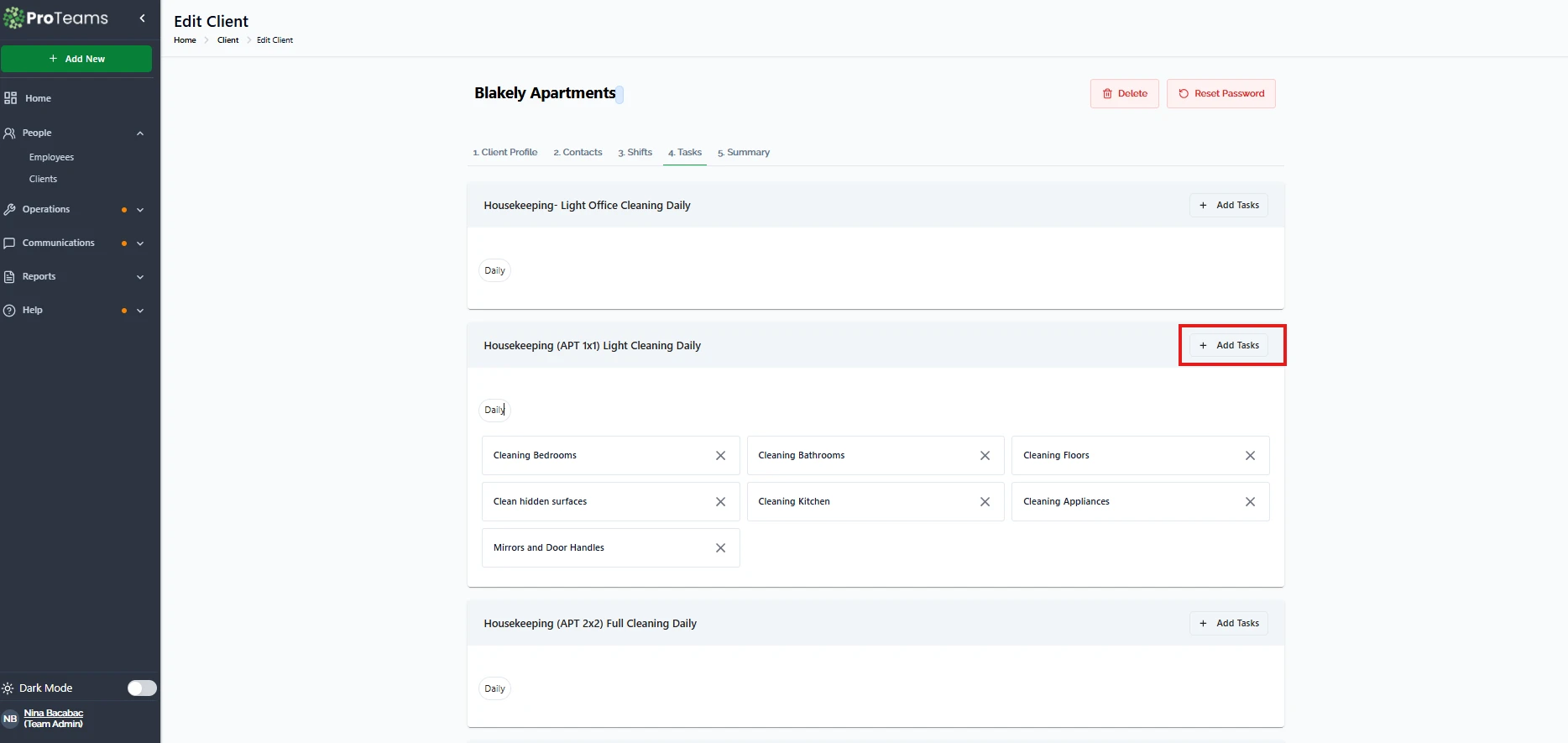
Once saved, the task becomes part of the client’s workflow.
How tasks are assigned to employees
Tasks are not assigned directly to individual employees. Instead:
- Tasks are assigned to client shifts
- Employees assigned to that shift will automatically see the tasks in their mobile app
This makes task assignment scalable and avoids manual reassignment when staffing changes.
Editing or removing tasks
From the Tasks tab, admins can:
- Edit tasks to update instructions or shift assignment
- Remove tasks that are no longer required
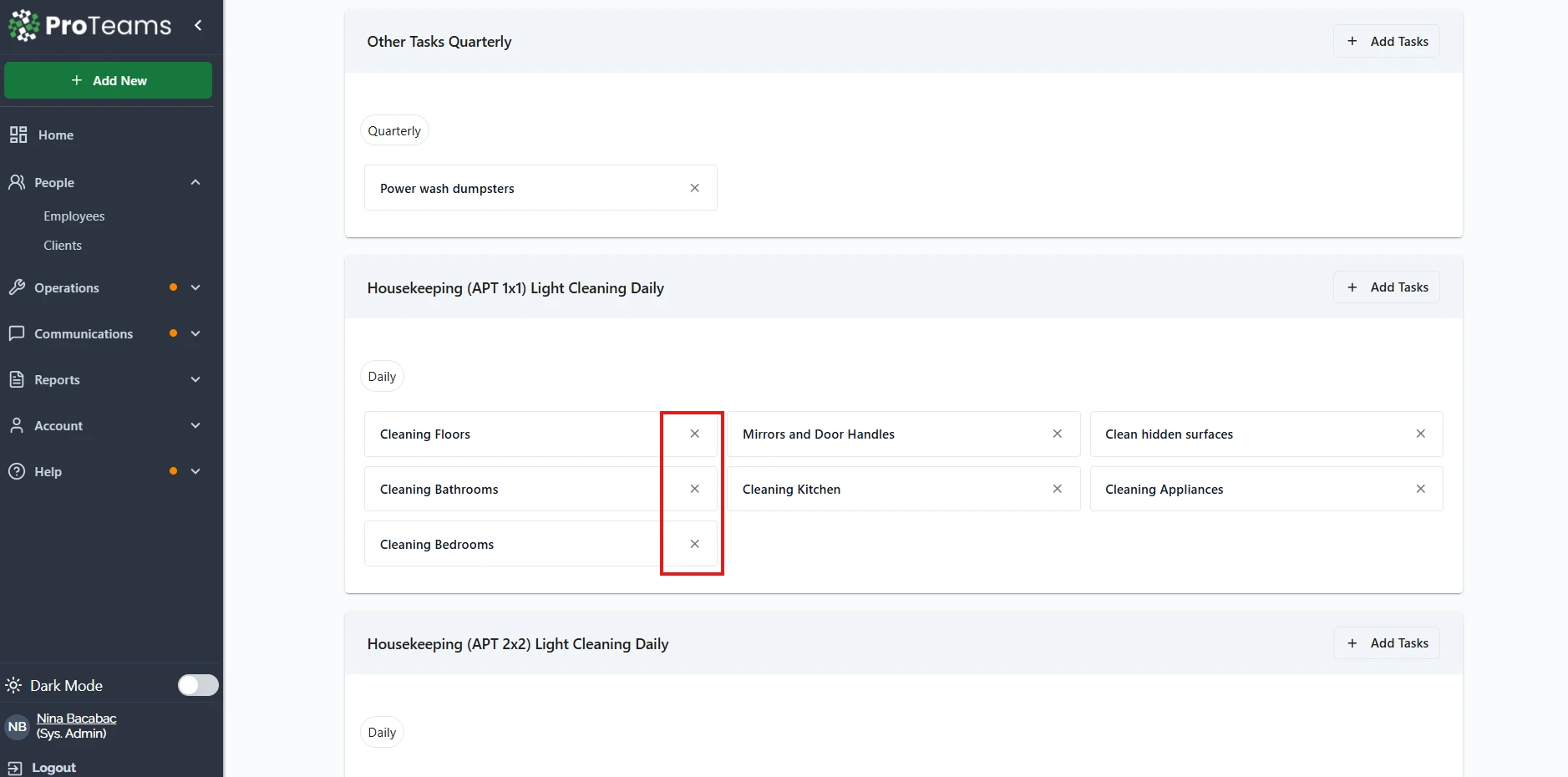
Removing a task:
- Does not affect the client
- Immediately removes it from employee task lists
Summary
To create and assign tasks in ProTeams, admins add tasks under a client and link them to specific client shifts. Employees assigned to those shifts automatically receive the tasks in their mobile app. This approach ensures clarity, consistency, and accountability across all client operations.
Review task lists whenever a client’s contract changes. Outdated tasks create confusion for your crew and make your Proof of Service data less meaningful.