A client shift in ProTeams defines the type of service being performed at a client’s site — not just when, but what. Shifts are how you connect the right tasks to the right crew for the right client, every time.
What is a client shift?
A client shift is a custom work category created under a specific client. Each shift typically represents a service type, cleaning scope, or operational task that employees will perform.
Examples of client shifts include:
- Valet Trash
- Housekeeping – Standard Office Cleaning
- Housekeeping (APT 2x2) Full Cleaning
- Housekeeping (APT 1x1) Light Cleaning
- Quality Check
- Opentasks
Each client can have multiple shifts, depending on the services they require.
Where do I manage client shifts?
Viewing client details
Step 1: In the Actions column, click View next to a client shifts.
This opens the client’s detailed profile, where you can:
- Review client information
- View assigned shifts
- Monitor activity related to that client
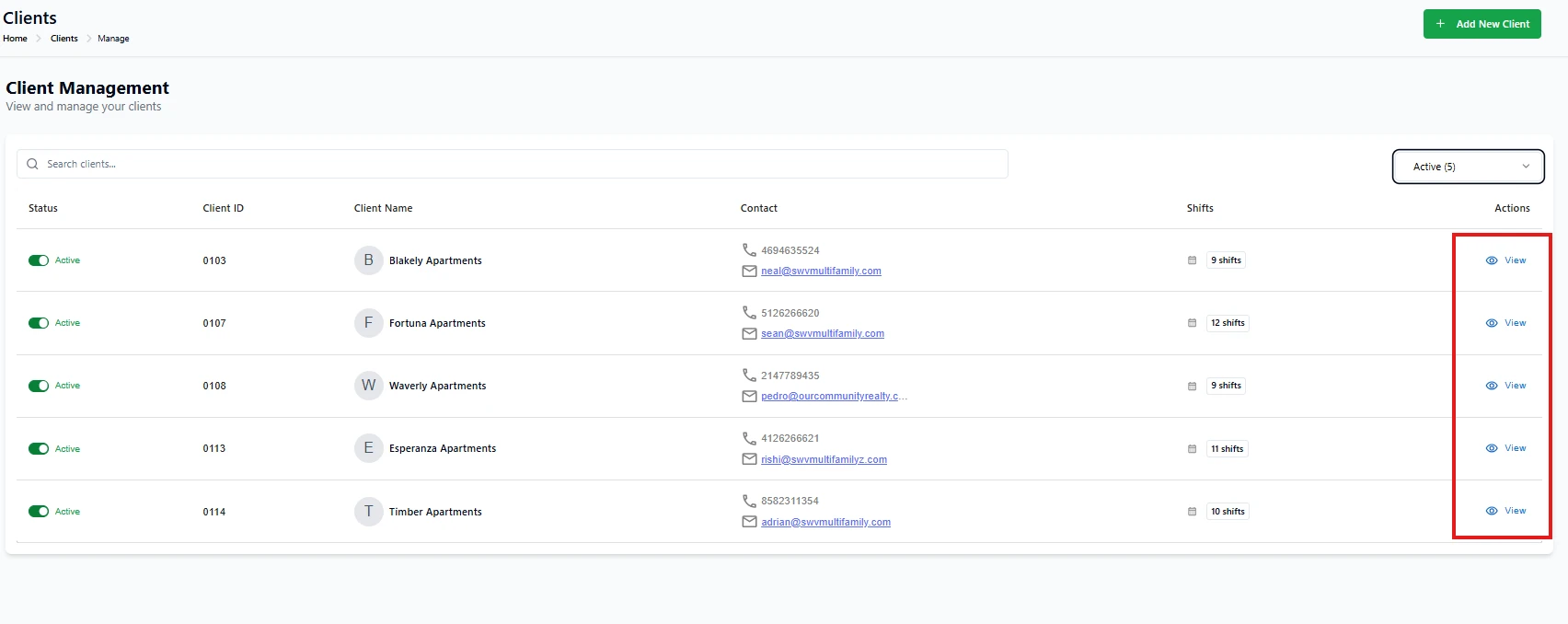
What you can manage inside a client profile (What you can see):
Once inside a client’s profile, administrators can manage several key areas.
- Client Information
- Contacts
- Shifts
- Tasks
- Summary
How to add shift
Go to SHIFT TAB and click “Add Shift” at the top right corner.
Select Add new Shift
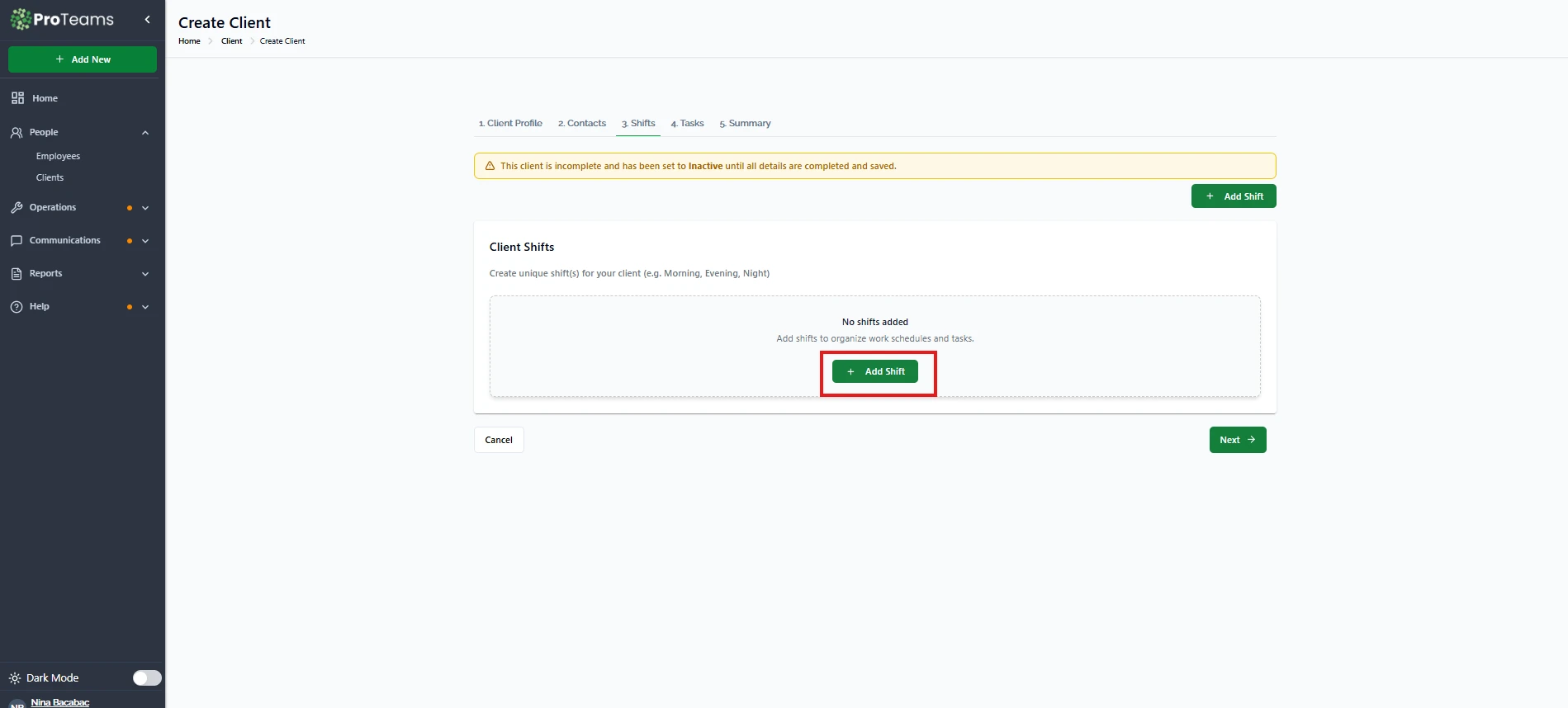
Add Shift Type and save shift.
How client shifts are used in ProTeams
Client shifts are used to:
- Assign employees to the correct type of work
- Define service variations under one client
- Organize schedules by task or service type
- Track workload and coverage per service Ensure employees see the correct shift in the mobile app
Without client shifts, employees cannot be properly scheduled for that client.
Client Shifts tab explained
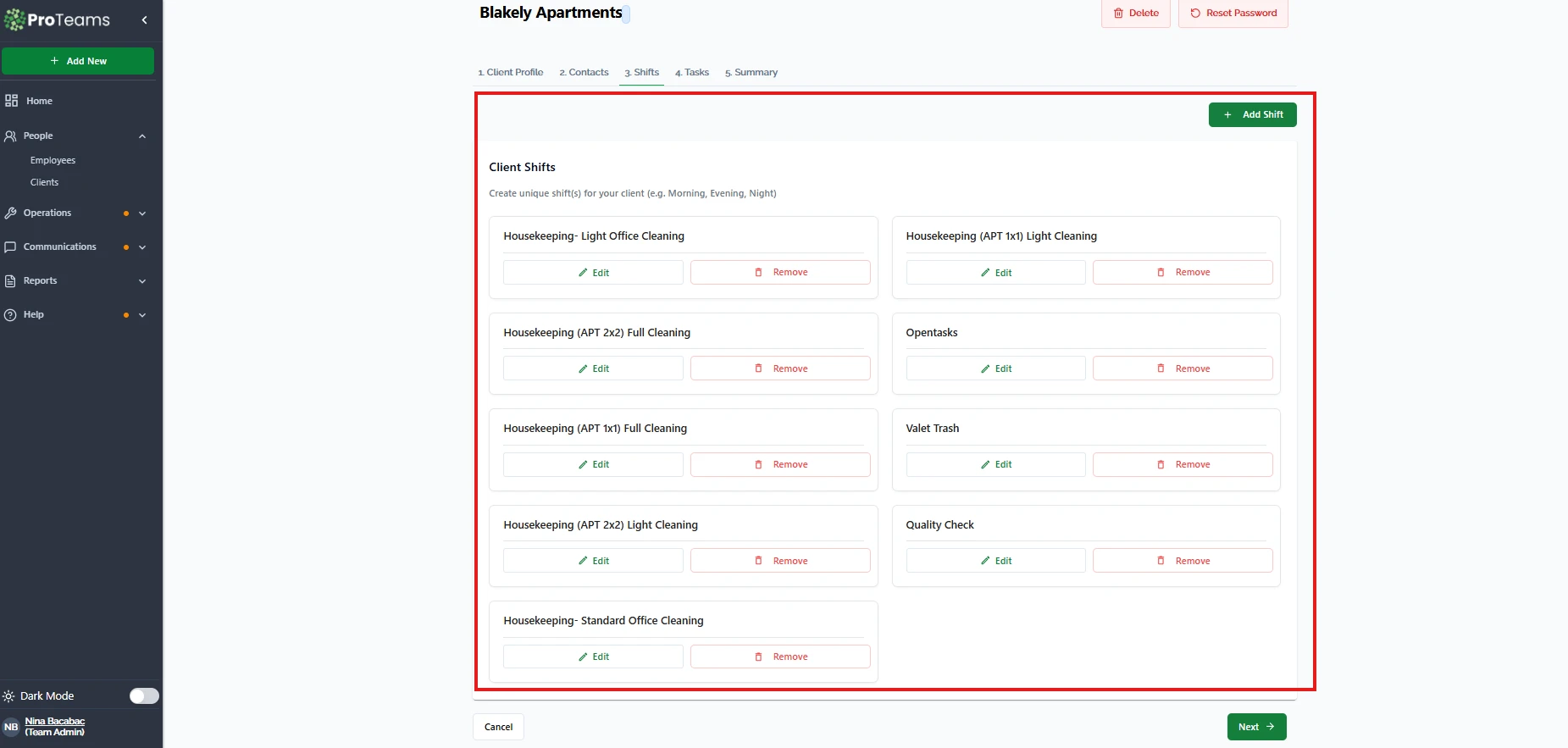
Client Shifts list
The Client Shifts tab displays all shifts created for the client. Each shift is shown as a card with its name and available actions.
Add Shift
The Add Shift button allows admins to create a new shift for the client.
Use this when:
- A new service is added
- Cleaning scope changes
- You need separate schedules for different tasks
Edit Shift
The Edit button allows you to:
- Rename the shift
- Update shift details
- Adjust how the shift is used in scheduling
- This is useful when service names or scopes change.
Remove Shift
The Remove button deletes the shift from the client.
Important notes:
- Removing a shift does not delete the client
- Employees assigned to that shift will no longer see it
- Shifts should only be removed if they are no longer used
Summary
A client shift in ProTeams defines a specific service or work type performed for a client. Shifts allow administrators to organize services, assign employees correctly, and maintain clear, structured scheduling. Proper use of client shifts ensures smoother operations and better visibility for both admins and employees.
Name shifts clearly. ‘Morning Housekeeping’ is more useful than ‘Shift A’ when you’re scheduling across 50 buildings.