Every client in ProTeams starts the same way: a profile you build once that drives everything else — shift assignments, task lists, Proof of Service requirements, and client-facing reports. Getting it right from the start saves you from fixing it later.
Overview
Adding a client in ProTeams is a guided, multi-step process that helps you set up everything needed to manage work, schedules, tasks, and reporting for that client.
Adding clients correctly ensures accurate scheduling, shift tracking, and communication across your team.
How to Add a New Client
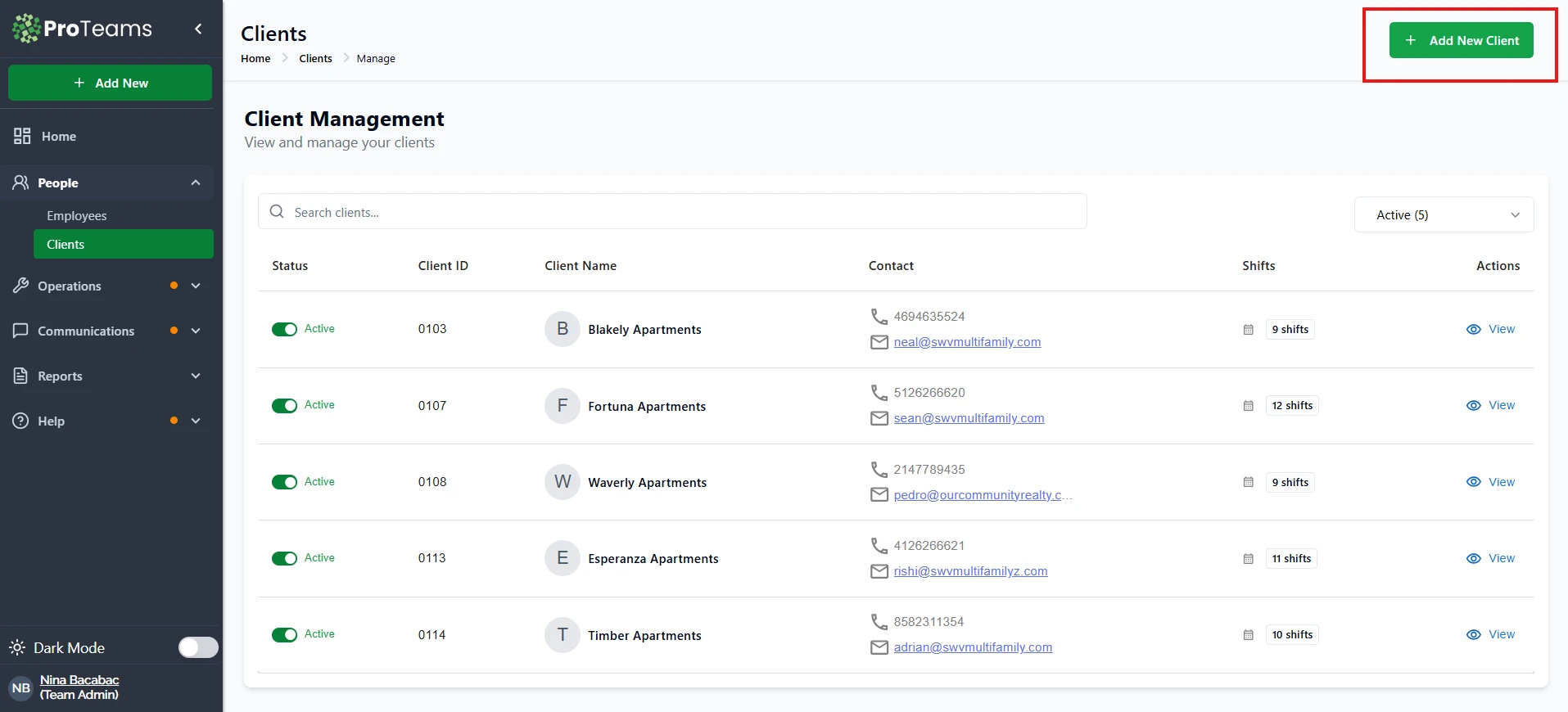
Go to Client Management
-
From the left sidebar, click People
-
Select Clients
-
On the top right, click + Add New Client
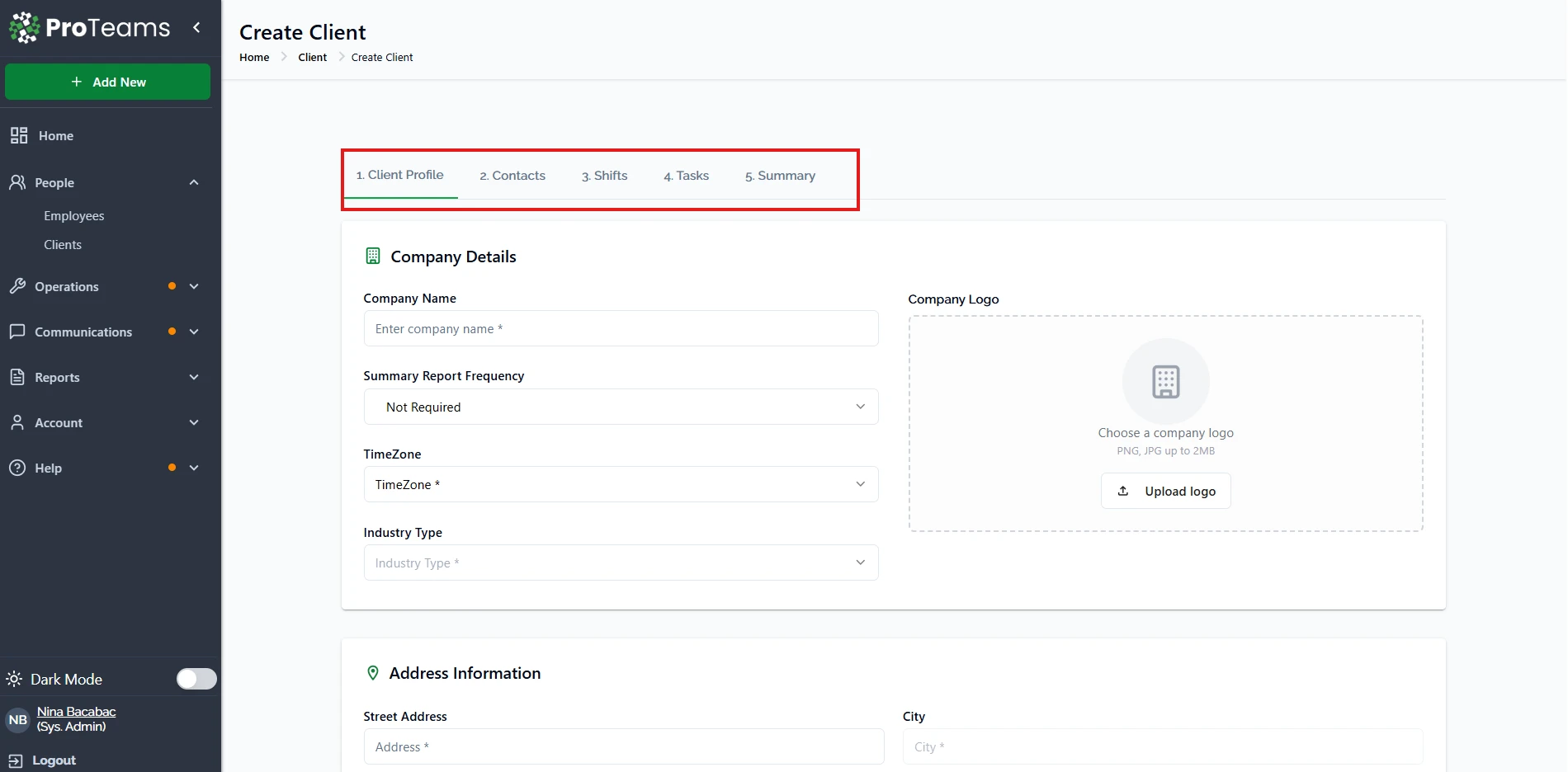
This opens the Create Client setup flow.
What You Will See:
Complete the Client Profile
Under 1. Client Profile, fill in the core business details:
Company Details
-
Company Name – Required
-
Summary Report Frequency – Optional (Not Required, Weekly, Monthly, etc.)
-
Time Zone – Required for accurate scheduling and reporting
-
Industry Type – Helps organize reports and workflows
-
Company Logo – Optional (PNG or JPG, up to 2MB)
Address Information
-
Street Address
-
City
-
State
-
ZIP Code
-
Additional Notes (optional)
Once completed, click Save & Proceed.
Add Client Contacts
In 2. Contacts, you can:
-
Add one or multiple client contacts
-
Include name, phone number, and email
-
Use contacts for notifications and communication
Click Save & Proceed to continue.
Set Up Shifts
In 3. Shifts, define how work is scheduled for this client:
-
Shift name
-
Start and end time
-
Assigned employees or teams
-
Recurring or one-time schedules
This step connects the client to daily operations.
Click Save & Proceed when done.
Add Tasks
In 4. Tasks, assign what work needs to be done for the client.
You can:
-
Click + Add Tasks
-
Choose a task frequency (Daily, Weekly, Monthly, Quarterly)
-
Enter custom task names
-
Set start and end dates if needed
-
Review tasks before saving
Tasks added here will appear in shift workflows and reports.
Click Save & Proceed to continue.
Once saved, the client will appear in the client list and can be used immediately for scheduling and shift assignments.
Summary
The Add New Client feature in ProTeams helps administrators create and manage client records that serve as the foundation for scheduling and workforce management. By maintaining accurate client data, teams can ensure smooth operations, proper assignments, and clear communication.
Fill in the address accurately — it’s what shows up on your crew’s mobile app when they navigate to a job site. A wrong address costs time on the day of a shift.