Supply requests don’t fulfill themselves. Your crew submitted the request — now they’re waiting on you. Approving or rejecting is a 30-second decision that either keeps their work moving or explains why it can’t.
ProTeams allows managers and admins to review, approve, or reject supply requests directly from the Supply Requests page in the web portal.
Step-by-Step: Approving or Rejecting a Supply Request
- Log in to the ProTeams web portal.
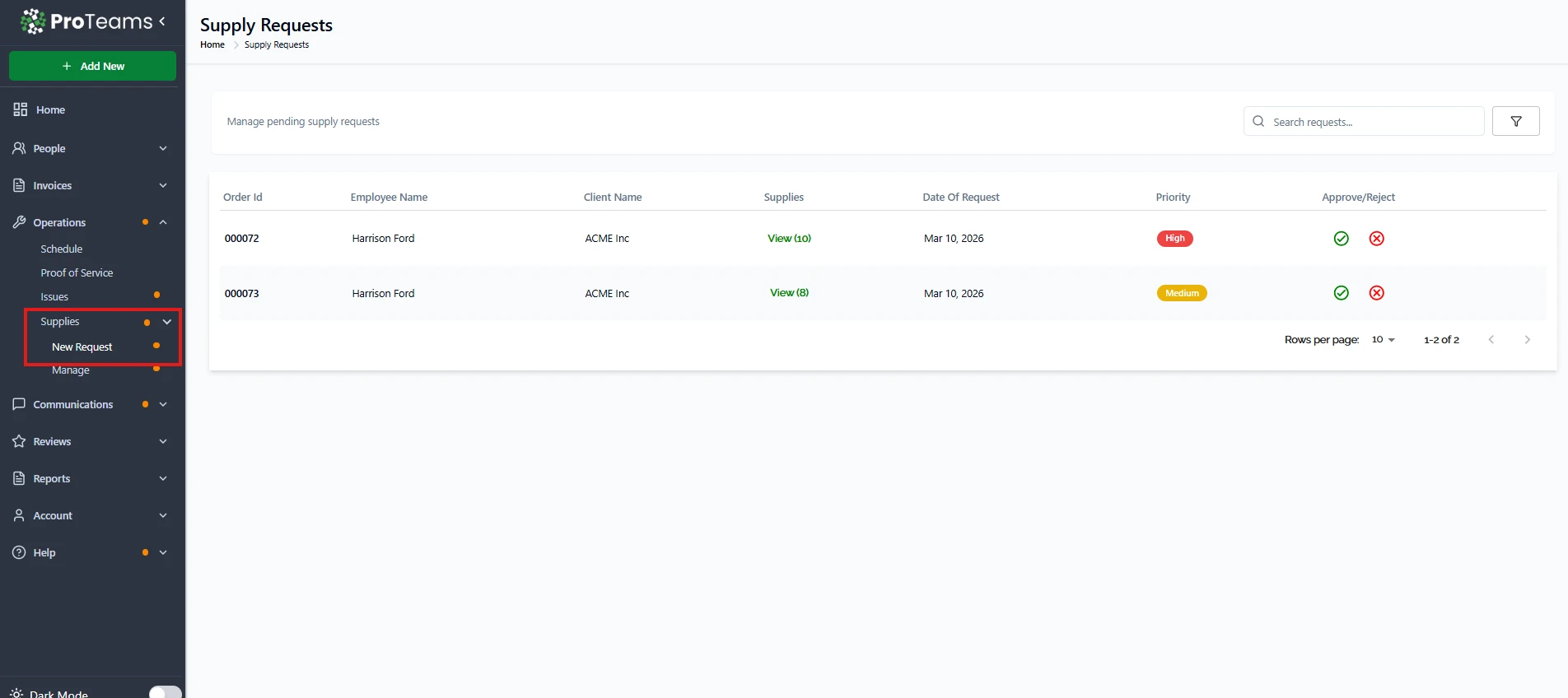
- From the left sidebar, click Operations.
- Select Supplies, then click Manage.
- You will be taken to the Supply Requests page.
Any pending requests will appear in the table
Reviewing the Request Details
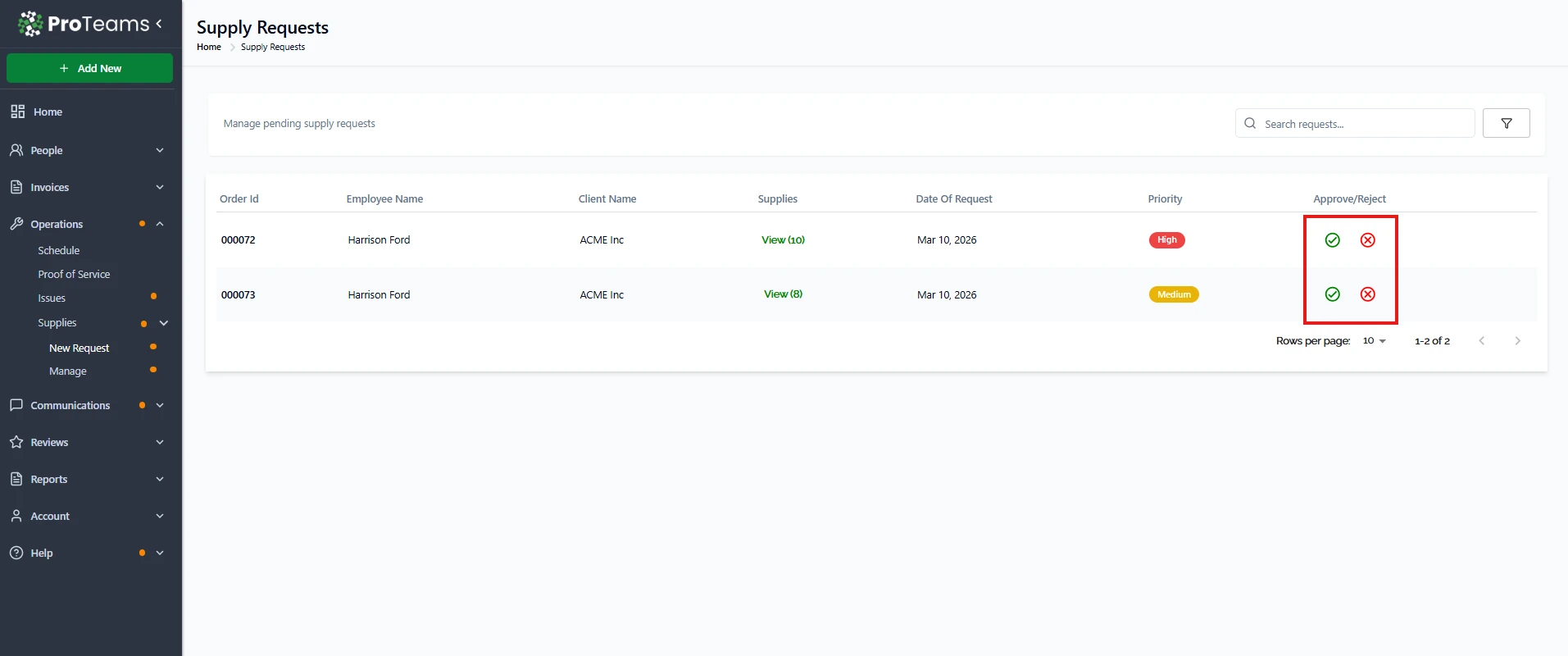
Each supply request row shows:
- Order ID for reference
- Employee Name who submitted the request
- Client Name linked to the request
- Supplies requested
- Date of Request
- Priority level
Review these details carefully before taking action.Approving a Supply Request
- Go to the Approve/Reject column.
- Click Approve.
- Confirm the action if prompted.
The request is approved and removed from the pending list.
Rejecting a Supply Request
- Go to the Approve/Reject column.
- Click Reject.
- Enter a reason for rejection if required.
- Confirm the action.
Rejected requests are logged and removed from the pending list.
What Happens After Approval or Rejection
- The request status is updated in the system.
- The request no longer appears as pending.
- The orange notification dot for Supplies clears once all pending requests are addressed.
Summary
To approve or reject a supply request in ProTeams, go to Operations > Supplies > Manage, review the request details, and use the Approve/Reject option in the table. Approved or rejected requests are removed from the pending list, helping keep supply management organized and up to date.
Always enter a rejection reason. An unexplained rejection leaves your crew without context and usually leads to a follow-up question you’ll have to answer anyway.