A supply order isn’t just one thing — it’s multiple items that may arrive at different times. ProTeams lets you track status at both the order level and the individual item level, so your team always knows exactly where each supply stands.
ProTeams allows managers to update both item-level and order-level statuses for approved supply requests. These updates are visible to the entire team, ensuring everyone stays informed on supply progress, delivery status, and any changes that may affect operations.
Where to Manage Supply Status Updates
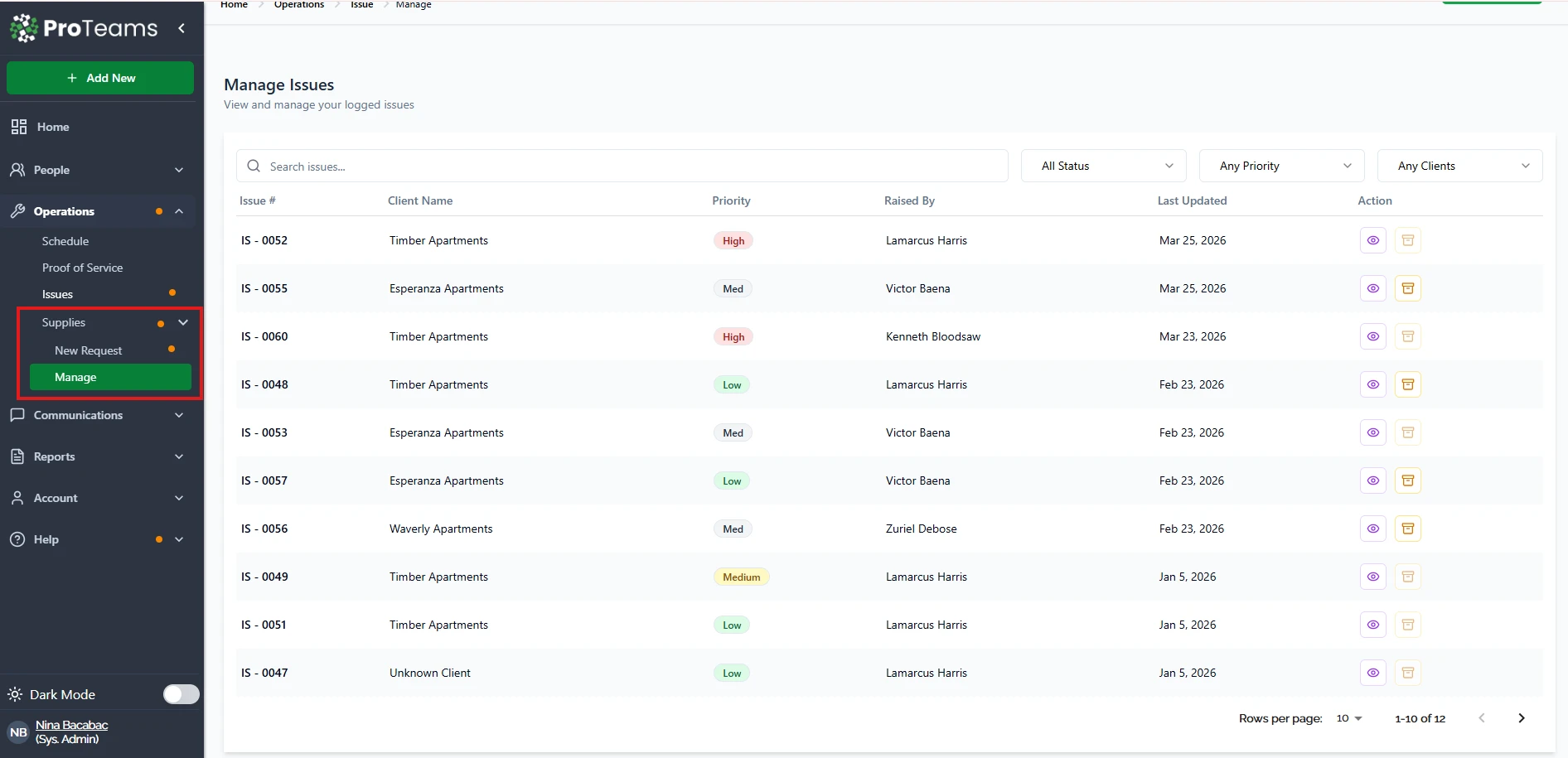
- Open the left navigation menu.
- Go to Operations.
- Select Supplies.
- Click Manage.
This takes you to the Supply Management page, where all approved supply requests are listed.
Viewing an Approved Supply Order
- Locate the approved order in the list.
- Click the View (eye) icon under the Action column.
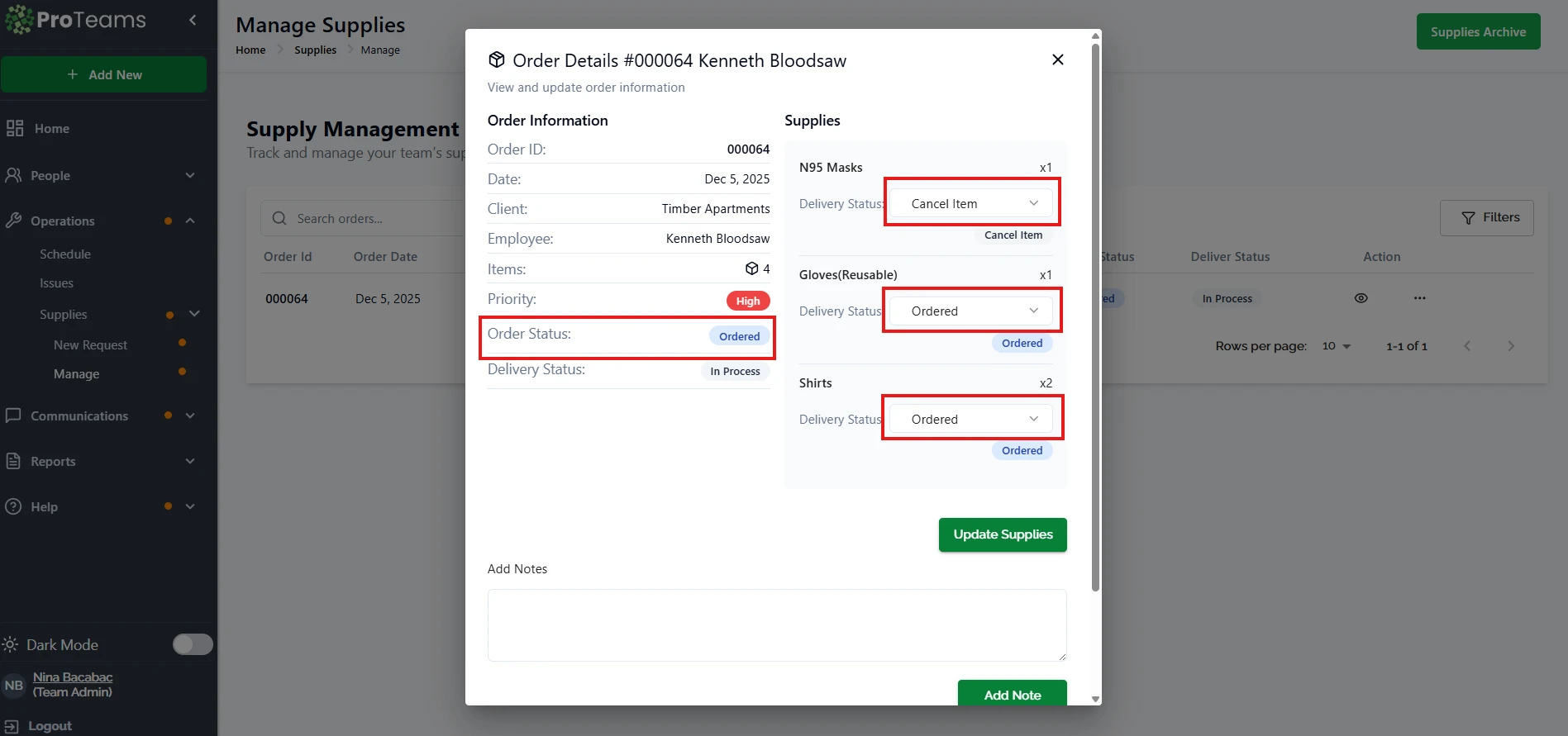
The Order Details window will open. This view shows both order-level details and individual supply items.
Understanding Order-Level Status
Order-level status applies to the entire request and reflects the overall progress.
Order Information Includes:
- Order ID
- Request date
- Client name
- Employee name
- Priority level
- Order status (for example: Ordered)
- Delivery status (for example: In Process)
Updating the order-level delivery status helps the team understand where the request stands as a whole.
Updating Item-Level Delivery Status
Each supply item within an order can be updated individually.
How to Update Item Status:
- In the Supplies section, locate the item.
- Click the Delivery Status dropdown next to the item.
- Select the appropriate status:
- Ordered
- Shipped
- Delivered
- Back Ordered
- Cancel Item
- Repeat for each item, if needed.
- Click Update Supplies to save your changes.
These updates allow teams to track partial deliveries and delays clearly.
Adding Notes for Team Visibility
You can include notes to provide context or instructions.
- Enter details in the Add Notes field.
- Click Add Note.
Notes are visible to the team and help explain delays, changes, or special handling.
How Updates Are Shared with the Team
Once saved:
- Item-level and order-level statuses update immediately.
- Changes are visible on the Supply Management page.
- Team members can view the latest status without additional follow-up.
This keeps communication consistent and reduces manual check-ins.
Best Practices
- Update item statuses as soon as shipment or delivery changes occur.
- Use notes for delays, backorders, or cancellations.
- Confirm updates before closing the Order Details window.
- Keep statuses accurate to avoid confusion or duplicate requests.
Summary
ProTeams makes it easy to keep your team informed by allowing you to update supply status at both the order and item level. By managing delivery statuses and adding clear notes, everyone stays aligned on what has been ordered, what is in progress, and what has been delivered.
Update item statuses as deliveries happen, not at the end of the day. Real-time updates prevent your crew from submitting duplicate requests for items that are already en route.