Approving a supply request is the beginning, not the end. Until the items are actually in your crew’s hands, the request needs to be tracked. ProTeams gives you the tools to update every order as it moves through the fulfillment process.
Once a supply request has been approved, ProTeams gives you clear tools to track progress, update statuses, and manage delivery until the request is completed.
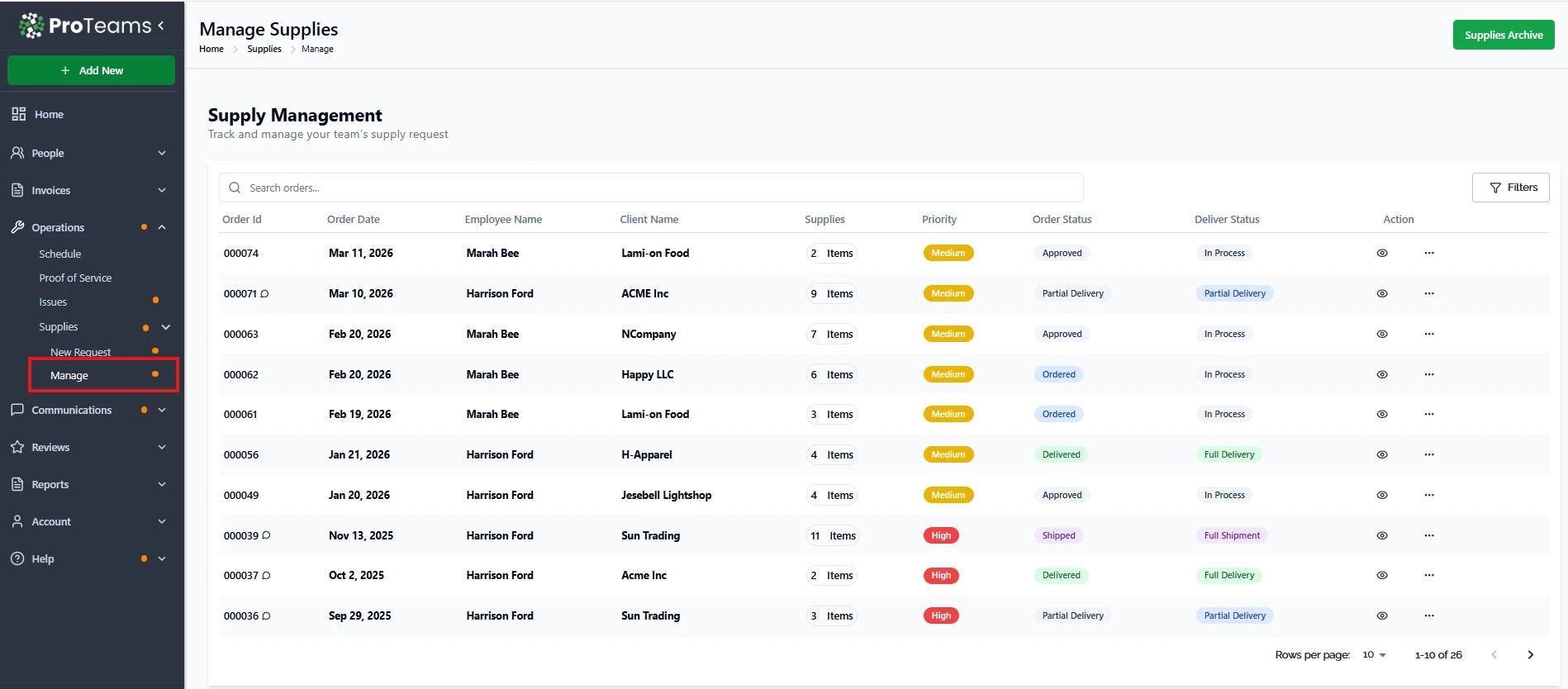
Access the Manage Supplies Page
- In the left sidebar, click Operations.
- Select Supplies, then click Manage.
- This opens the Supply Management page where all approved and active requests are listed.
Review Approved Supply Requests
Each approved request appears in the table with key details, including:
- Order ID
- Order date
- Employee name
- Client name
- Number of items requested
- Priority level
- Order status
- Delivery status
These fields help you quickly understand where each request stands.
Update an Approved Supply Request
To make changes to an approved request:
- Locate the request in the list.
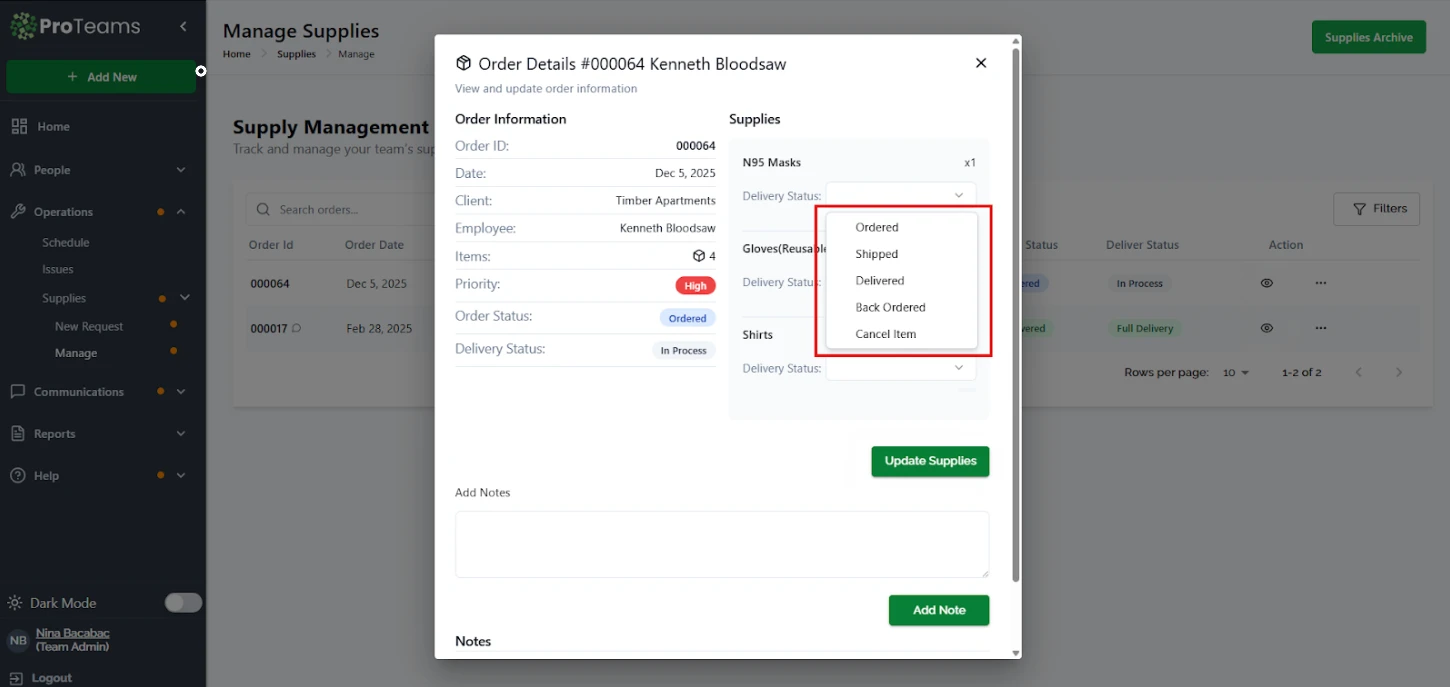
- Click the View (eye) icon to open the request details.
- From the details page, you can:
- Update the order status such as Ordered or Delivered
- Update the delivery status such as In Process or Full Delivery
- Review requested items and quantities
- Add notes or comments if needed
All updates are saved in real time and reflected in the main list.
Use Filters and Search
At the top of the page, you can:
- Use the search bar to find a specific order by ID, employee, or client
- Click Filters to narrow results by priority, order status, or delivery status
This is helpful when managing multiple approved requests at once.
Adding Notes to an Approved Supply Request
Why Notes Matter
Notes help document:
- Delivery delays
- Partial shipments
- Vendor issues
- Internal follow-ups
How to Add Notes
- Scroll to the Add Notes section.
- Enter your note in the text box.
- Click Add Note.
Notes are saved under the Notes section and remain visible for future reference.
Best Practices for Managing Approved Supply Requests
- Update item statuses as deliveries progress.
- Use notes to explain delays or changes.
- Keep item statuses accurate for reporting.
- Review high-priority orders regularly.
Summary
To update and manage an approved supply request in ProTeams, go to Operations > Supplies > Manage, open the order using the View (eye) icon, update each item’s Delivery Status, click Update Supplies, and add notes when needed. This keeps supply tracking accurate from approval through final delivery.
Notes are your paper trail. Log every delay, partial shipment, or back-ordered item as it happens.