A back-ordered item, a delayed shipment, a vendor change — when something affects a supply order, your team needs to know. Notes inside the order keep that communication tied to the record, not scattered across texts and emails.
Sending a message to your team about a supply order is easy using the ProTeams Web Portal. You can communicate directly from the Manage Supplies page while viewing an approved order.
Where Messaging Happens
Messages related to a supply order are sent through the Order Details view. This keeps communication tied to the specific order for better tracking and clarity.
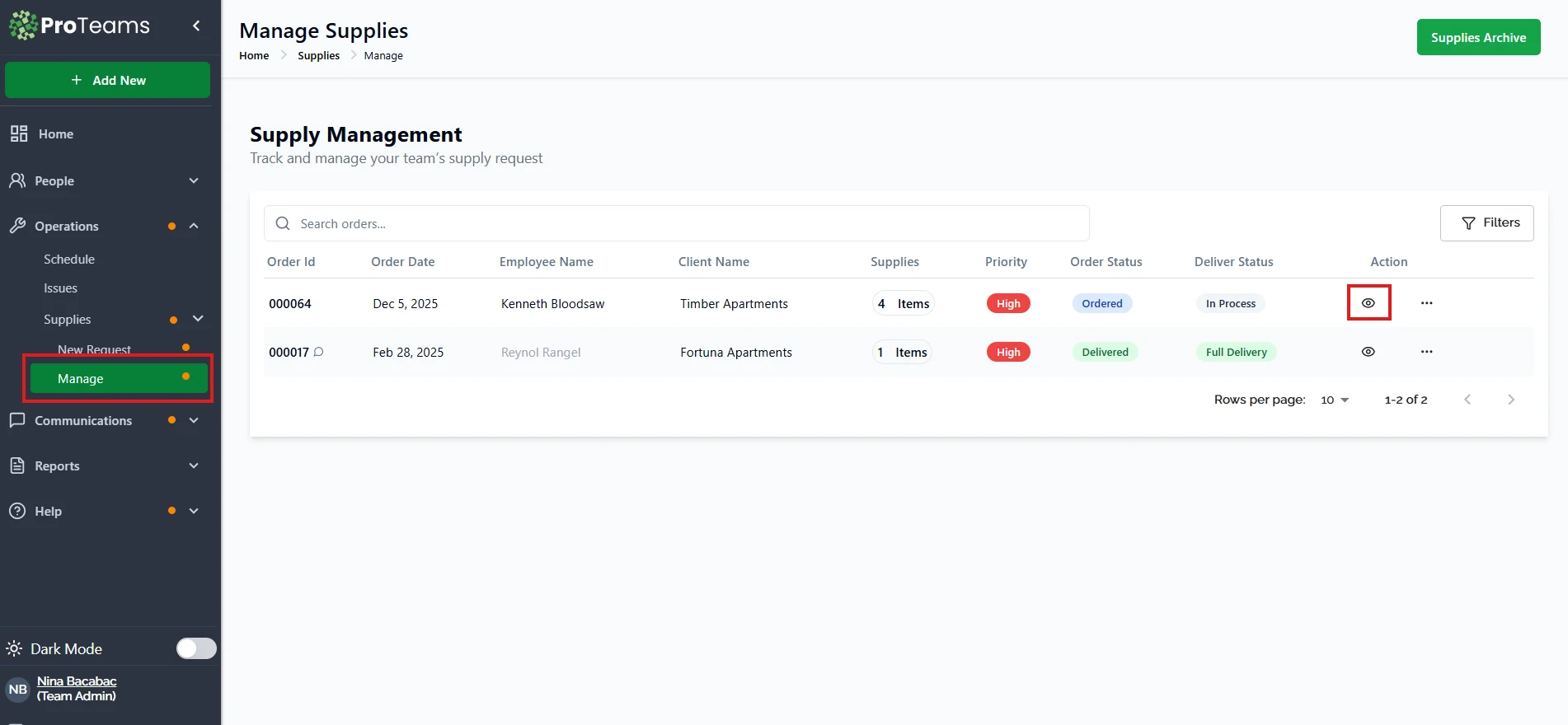
To access this page, go to: Operations > Supplies > Manage
Step-by-Step: Sending a Message About an Order
- Log in to the ProTeams Web Portal.
- Navigate to Operations in the left sidebar.
- Click Supplies, then select Manage.
- Locate the supply order you want to discuss.
- In the Action column, click the View (eye) icon.
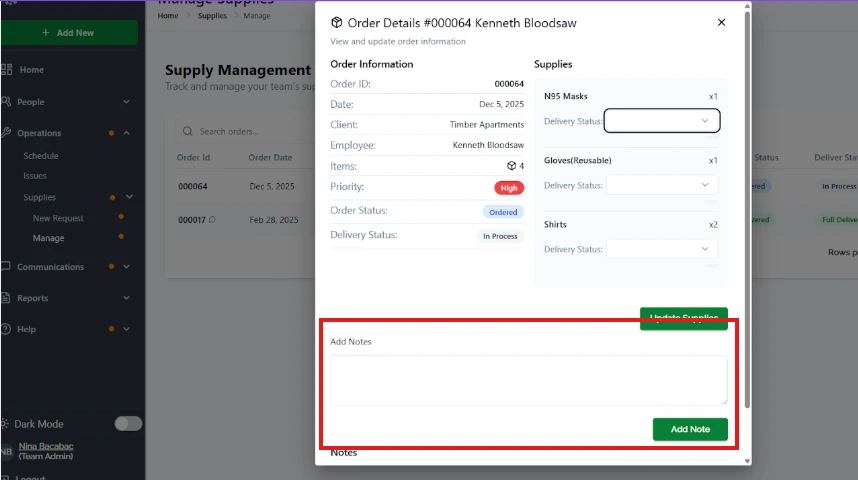
- The Order Details window will open.
- Scroll to the Add Notes section.
- Type your message in the text box.
- Click Add Note to save and send the message.
Your message is now attached to the order and visible to relevant team members.
What the Message Is Used For
Messages added through Notes are commonly used to:
- Update the team on delivery progress
- Explain delays or back-ordered items
- Share vendor or shipping updates
- Add internal instructions or reminders
This keeps all order-related communication in one place.
Where Messages Are Stored
- All messages appear in the Notes section of the order.
- Notes remain visible even after delivery is completed.
- Messages are saved for future reference and audits.
Best Practice
Always include clear and specific details in your message, such as item names, delivery expectations, or next steps. This helps your team respond quickly and avoids confusion.
Summary
To message your team about a supply order in ProTeams, go to Operations > Supplies > Manage, open the order using the View (eye) icon, add your message in the Add Notes section, and click Add Note. This keeps all communication organized and tied directly to the order.
Be specific. ‘Mop heads back-ordered, estimated delivery April 14’ is useful. ‘Delayed’ is not.