Client Reviews lets you collect feedback from clients after work is completed, direct satisfied clients to leave Google reviews, and customize the review experience with your branding. Configure it once and you have a repeatable system for building your reputation.
Overview
Client Reviews lets you collect feedback from your customers after a job is completed. You can control when review requests are sent, who receives them, how notifications work, and how your brand appears in the review experience. It also supports sending customers to your Google reviews.
How to Access Client Reviews
- Go to Account
- Click Settings
- Select Client Reviews
What you can see:
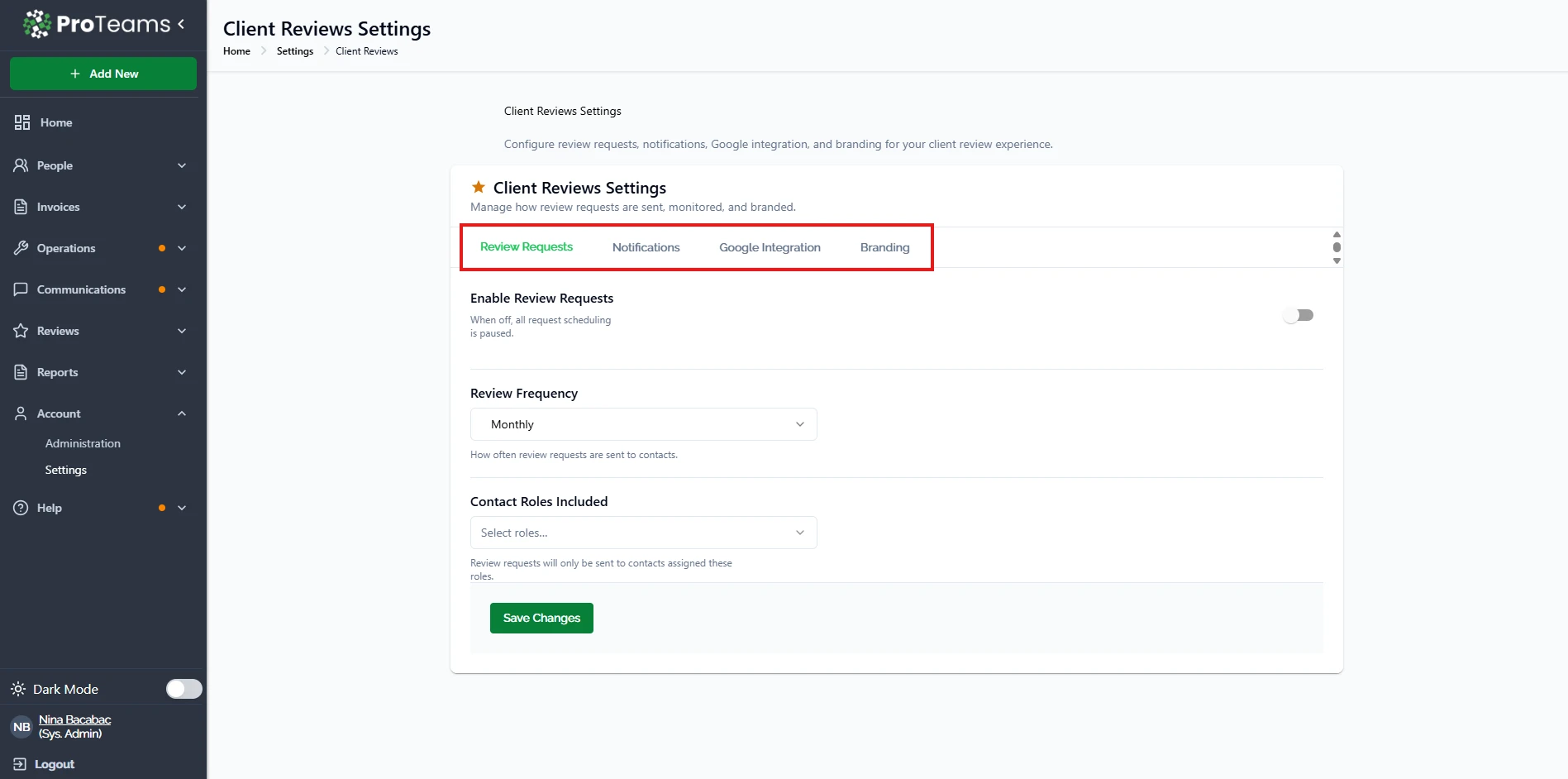
1. Review Requests
2. Notifications
3. Google Interaction
4. Branding
Review Requests
This tab controls how and when review requests are sent.
Key settings:
- Enable Review Requests Turn this ON to start sending review requests When OFF, all requests are paused
- Review Frequency Choose how often requests are sent (e.g., monthly)
- Contact Roles Included Select which contacts should receive review requests
How to use it:
- Enable requests to start collecting feedback
- Set a frequency that fits your workflow
- Choose the right contacts (e.g., decision-makers or primary clients)
- Click Save Changes when done
Notifications
This tab manages how review-related alerts are handled.
What you can control:
- Notifications for review requests
- Updates when reviews are submitted
How to use it:
- Turn notifications ON to stay updated
- Adjust settings based on how often you want alerts
Google Integration
This tab allows you to connect your Google Business profile.
Key settings:
- Enable Google Reviews Allows customers to leave reviews on Google
- Google Business Profile URL Add your business review link Customers will be directed here to leave reviews
- API Connection Option to connect your Google account (if available)
Important notes:
- Review requests are only sent to clients with strong ratings (4 stars or higher)
- Requests are manually triggered, not automatic
How to use it:
- Enable Google Reviews
- Paste your Google Business Profile link
- Save your changes
Branding
This tab lets you customize the review experience.
What you can customize:
- Logo URL Add your company logo (hosted online)
- Primary Color Set the color used in review pages
- Thank You Message Message shown after a customer submits a review
How to use it:
- Add your logo link
- Choose a color that matches your brand
- Write a simple thank you message
- Click Save Changes
When to Use Client Reviews
Use this feature when you want to:
- Collect feedback from clients
- Improve service quality
- Build trust with future customers
- Grow your online reputation
Review requests are not automatic — they’re manually triggered from client records. This is intentional. Not every interaction warrants a review request, and you want control over timing.