Notification Settings controls which channels are active and who receives what. Configured well, notifications keep the right people informed without overwhelming everyone with messages that don’t concern them.
Overview
Notification Settings in ProTeams allow you to control how users receive alerts and updates across the system. You can choose which communication channels are used and which user roles receive notifications.
This helps ensure the right people are informed at the right time without unnecessary messages.
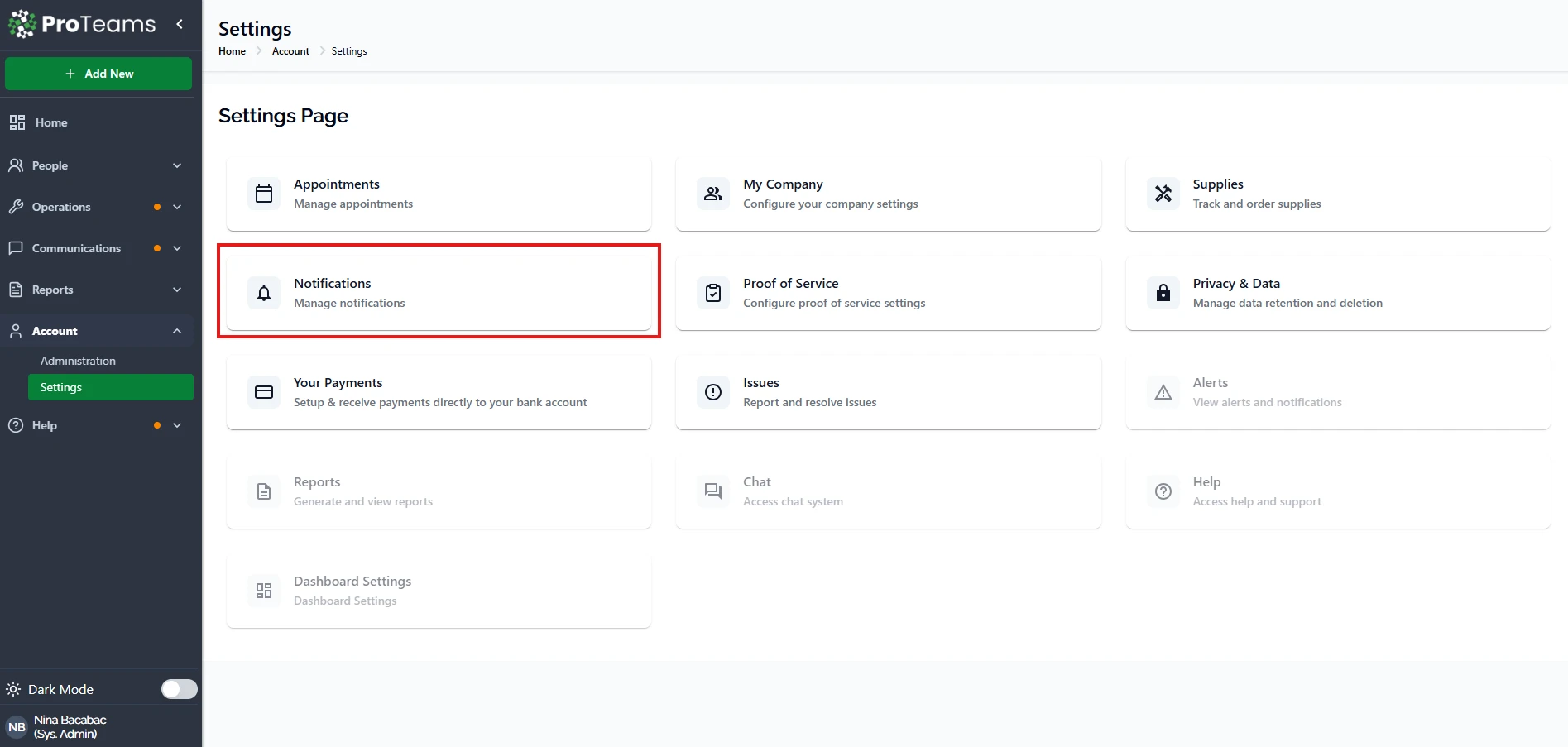
To access: Account → Settings → Notifications
Notification Channels
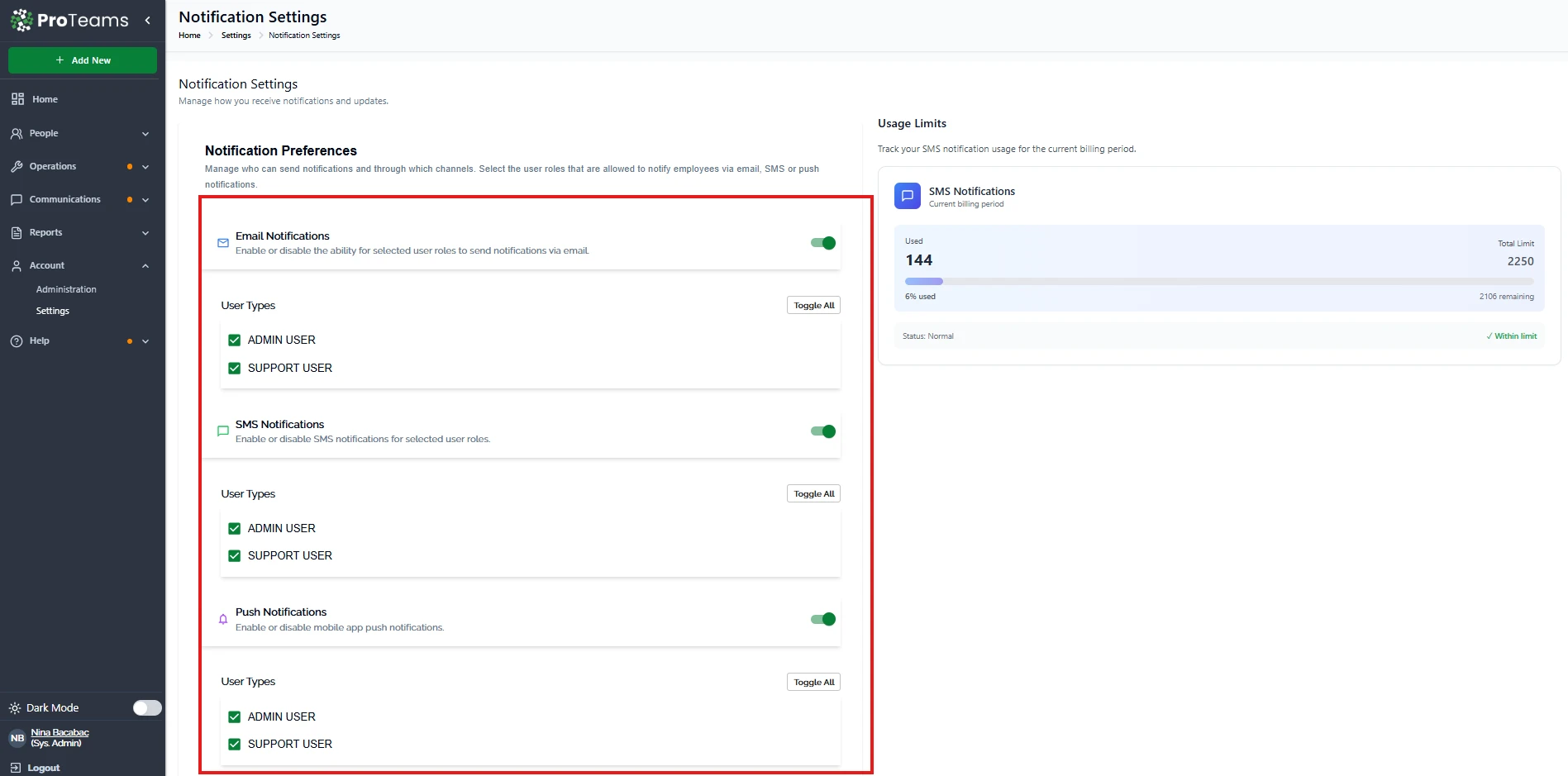
ProTeams supports multiple notification types:
Email Notifications
Send updates directly to users via email. This is useful for detailed communication and record-keeping.
SMS Notifications
Send text messages for important or time-sensitive updates. This is ideal for quick alerts.
Push Notifications
Send real-time alerts to mobile devices. This helps users stay updated instantly while on the go.
User Role Control
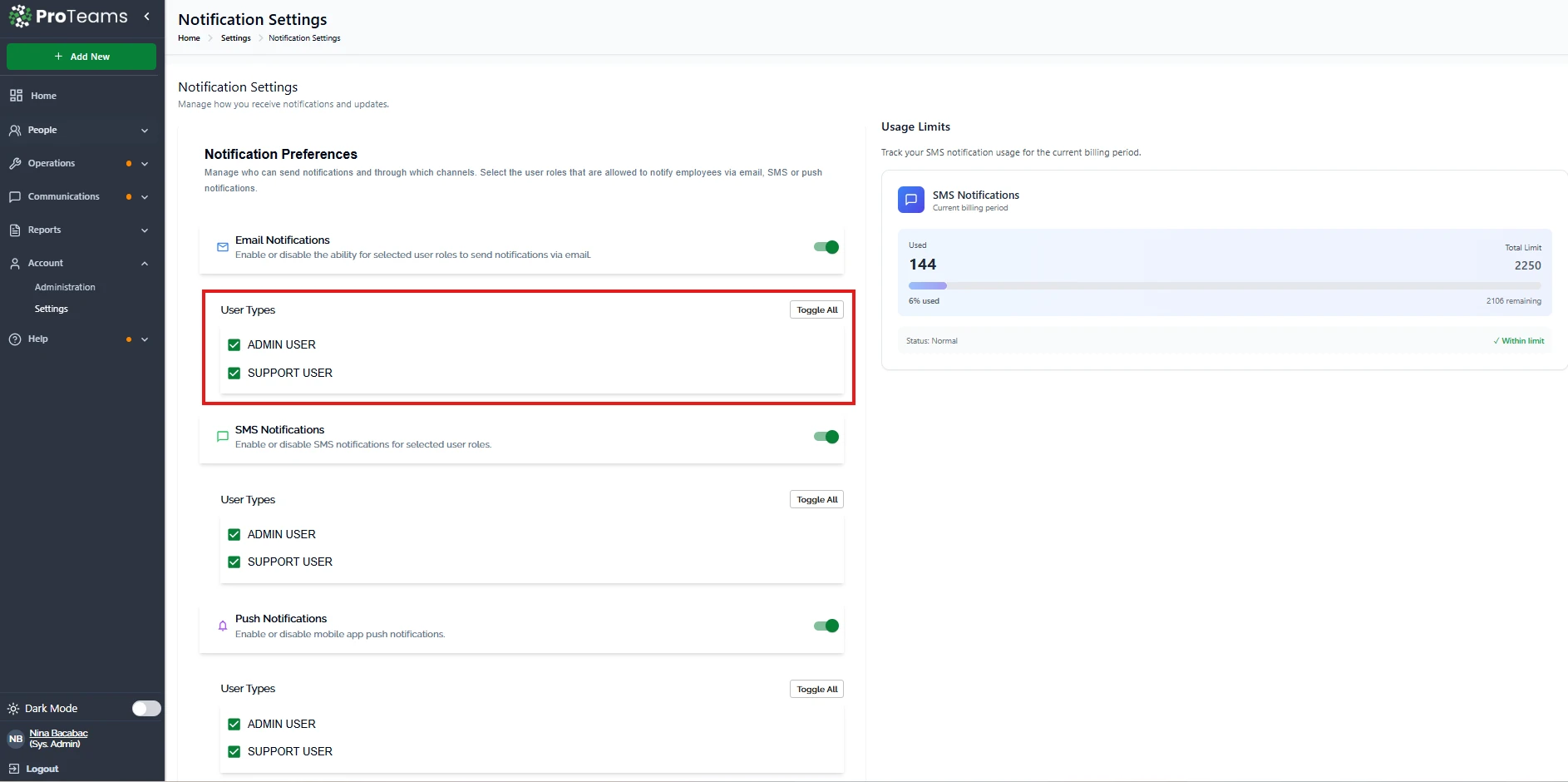
For each notification type, you can choose which user roles will receive notifications, such as:
- Admin Users
- Support Users
This allows you to control who gets notified based on their responsibilities.
How It Works
- Enable or disable a notification channel (Email, SMS, or Push)
- Select the user roles that should receive notifications
- Save your changes
Once configured, notifications are automatically sent based on system activity, such as updates, issues, or appointments.
Usage Limits (SMS)
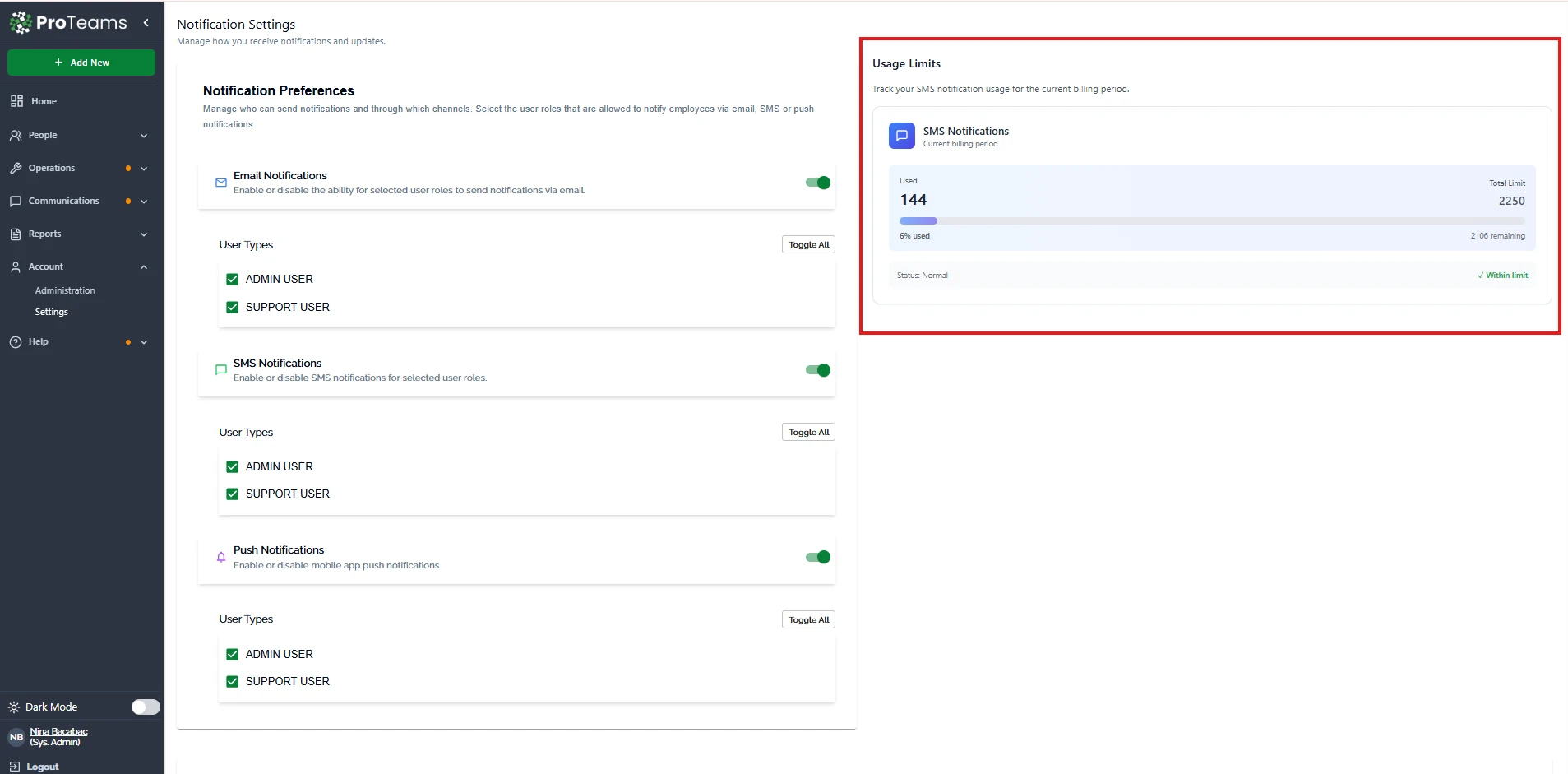
The system includes an SMS usage tracker that shows:
- Total SMS used
- Remaining balance
- Current usage status
This helps you monitor and manage your SMS usage within your plan.
SMS Compliance
Before using SMS notifications, your organization must meet compliance requirements.
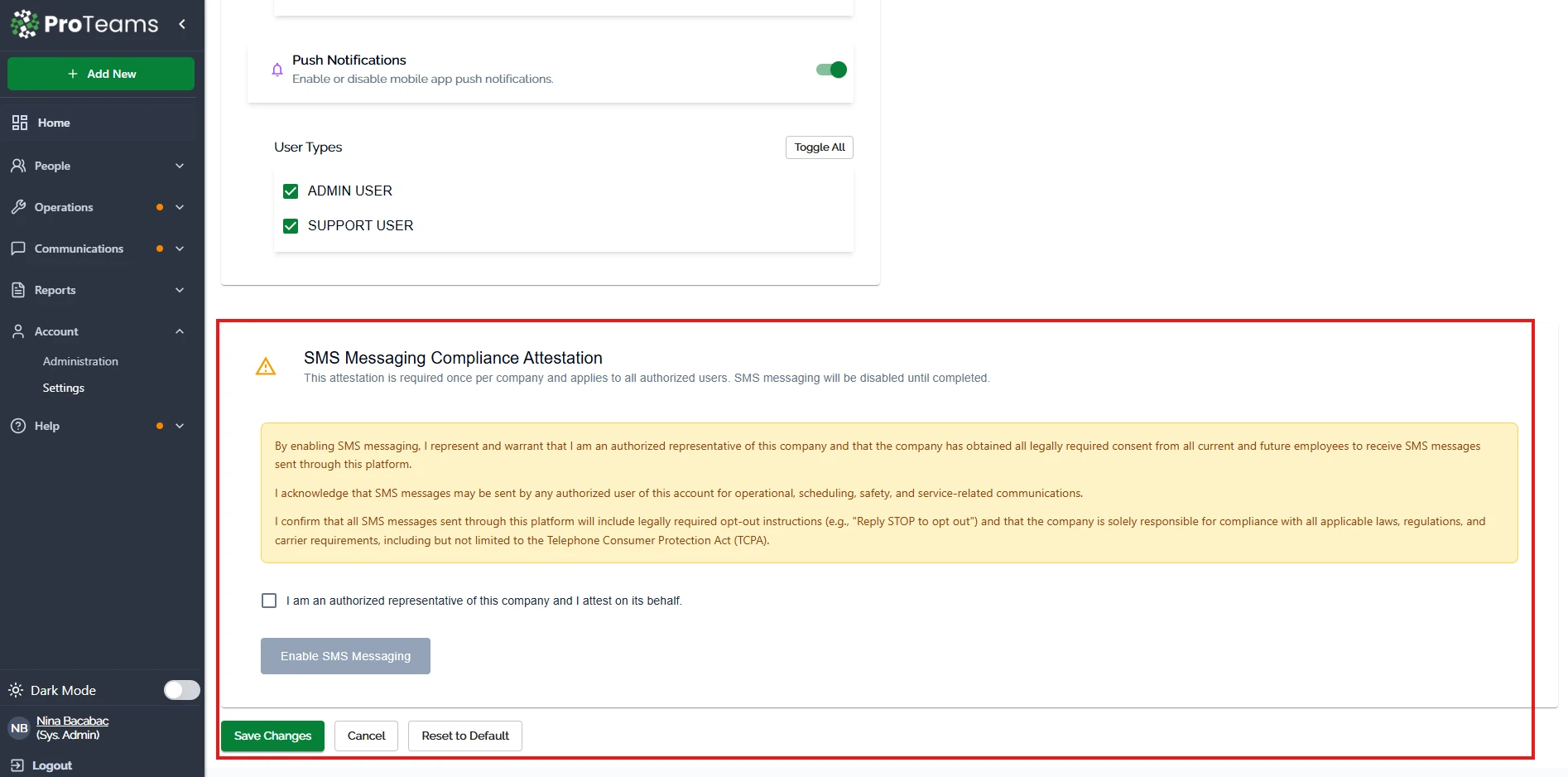
- SMS messaging must be enabled
- Your company must agree to applicable regulations
- You can disable SMS messaging at any time
Best Practices
- Use SMS only for urgent or time-sensitive updates
- Enable push notifications for real-time awareness
- Limit notifications to relevant roles to avoid overload
- Review usage regularly to manage SMS limits
Summary
Notification Settings give you full control over how communication happens in ProTeams. By configuring channels and roles properly, you can keep your team informed while avoiding unnecessary interruptions.
If you want, I can also create:
- Short tooltips for each toggle
- Troubleshooting FAQs (e.g., “Why am I not receiving notifications?”)
- Or a quick-start version for onboarding users
Assign SMS only to roles that need immediate alerts. Sending SMS to every role burns through your plan limit and trains your team to ignore them.