Supplies Settings gives you control over who can act on supply requests, how often requests get automatically cleaned up, and what items your crew can actually request. Set these up before your team starts submitting requests and the workflow runs itself.
The Supplies feature in ProTeams helps you manage supply requests, approvals, and inventory categories within your organization. It ensures that teams can request needed items while maintaining control over approvals, archiving, and usage.
To access: Account → Settings → Supplies
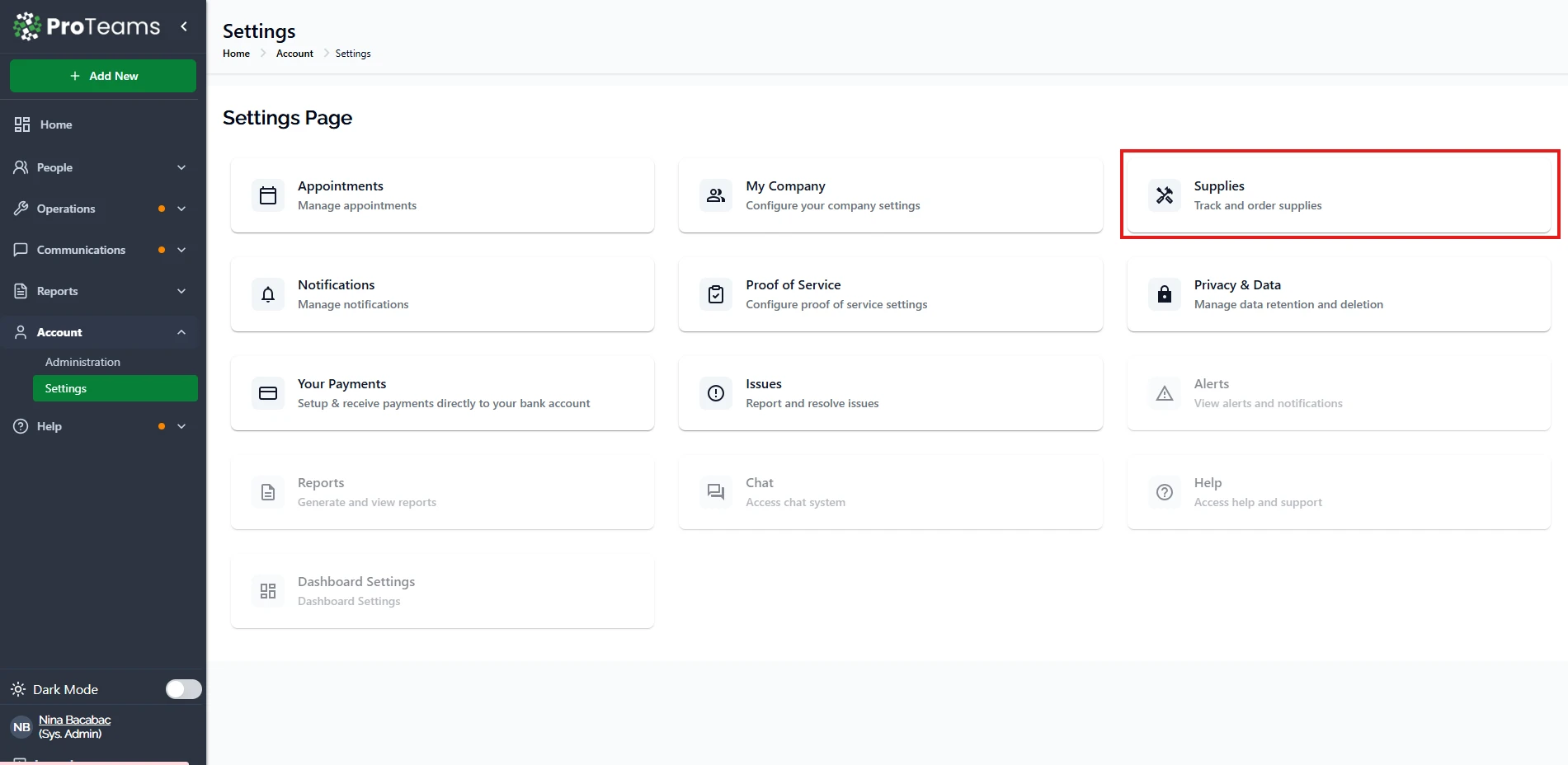
Supply Settings
The Settings tab allows you to control how supply requests are handled, including permissions and automation.
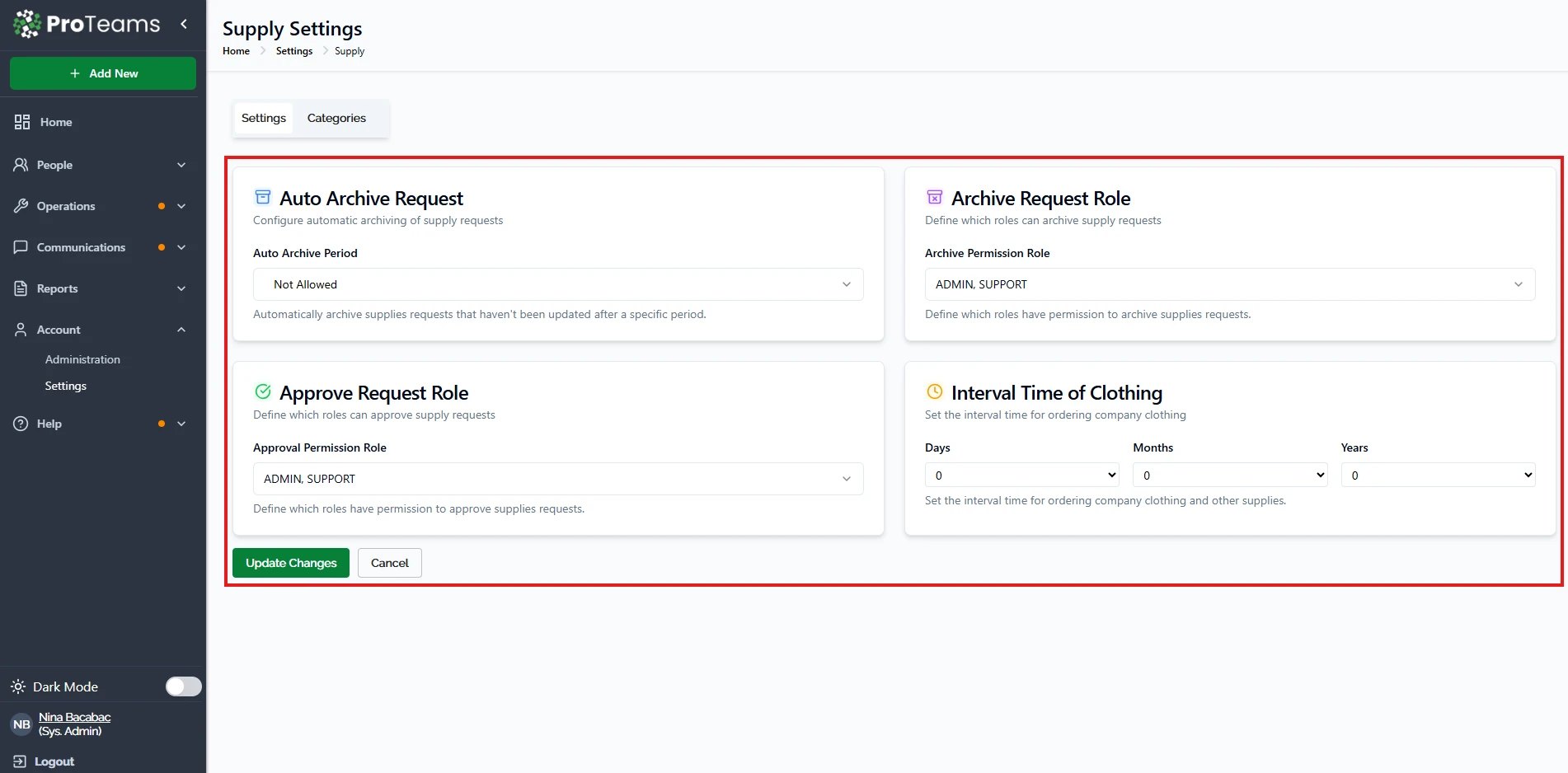
Auto Archive Request
This setting controls whether supply requests are automatically archived after a period of inactivity.
Available Options
- Not Allowed – Requests remain active until manually archived
- 15 / 30 / 60 / 90 Days – Requests are automatically archived after the selected period of inactivity
How It Works
If a request is not updated within the selected timeframe, it will be automatically moved to archived status.
Best Practice
Enable auto-archiving to keep your request list clean and focused on active items.
Archive Request Role
Defines which user roles are allowed to archive supply requests.
How It Works
- Select roles (e.g., Admin, Support)
- Only selected roles can archive requests manually
Best Practice
Limit access to prevent accidental archiving of active requests.
Approve Request Role
How It Works
- Assign roles that can approve supply requests
- Only selected roles will have approval authority
Best Practice
Assign approval rights to supervisors or managers to maintain proper control.
Interval Time of Clothing
This setting defines how often employees can request company clothing or specific supply items.
Available Options
Set a time interval using:
- Days
- Months
- Years
How It Works
Once a request is made, the system restricts new requests for the same category until the defined time interval has passed.
Best Practice
Use this to control frequent requests and manage inventory effectively.
Categories
The Categories tab allows you to organize supplies into groups and manage individual items.
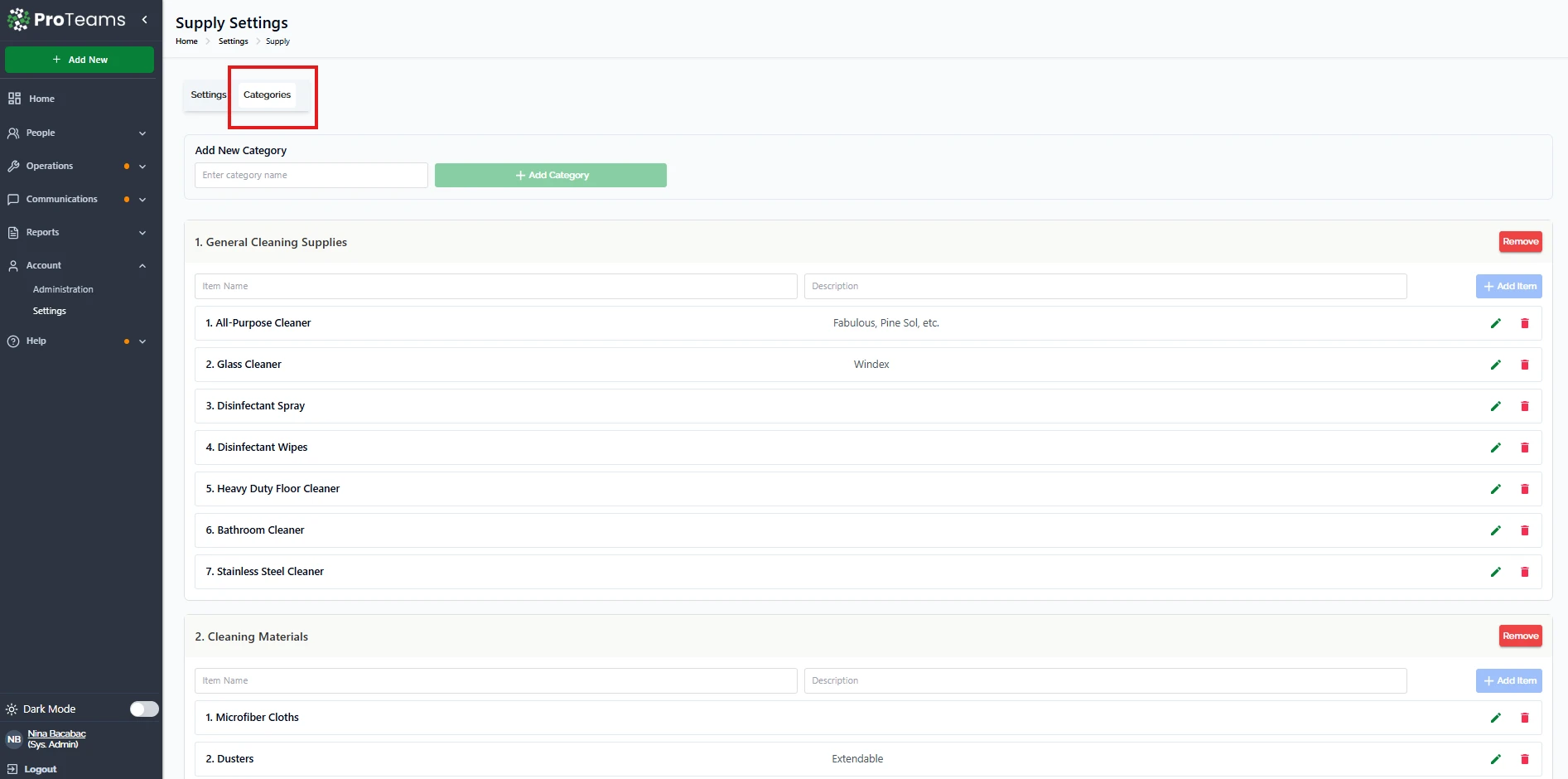
Managing Categories
Add a Category
- Enter a category name
- Click Add Category
Remove a Category
- Click Remove next to the category
Managing Items
Each category can contain multiple supply items.
Add an Item
- Enter the item name
- Add a description (optional)
- Click Add Item
Edit an Item
- Click the edit icon next to the item
Delete an Item
- Click the delete icon next to the item
Example Categories
You can organize supplies like:
- Cleaning Supplies
- Cleaning Materials
- PPE (Personal Protective Equipment)
Each category can include specific items such as cleaners, gloves, masks, and tools.
Recommendations
- Organize supplies into clear categories for easy access
- Set approval roles to maintain control over requests
- Use time intervals to prevent over-requesting
- Regularly review and update supply items
Summary
The Supplies feature in ProTeams helps you manage inventory requests in a structured and controlled way. With proper setup, you can streamline approvals, reduce waste, and keep your operations running smoothly.
Organize categories the way your crew thinks about supplies. If your team thinks in terms of ‘bathroom supplies’ and ‘floor supplies,’ name your categories that way.