My Company Settings is where ProTeams learns about your business. Your company name, logo, pay period, industry, and service types all live here — and they flow through to reports, client-facing documents, and your scheduling configuration.
The My Company settings allow you to manage your organization’s core details, reporting preferences, branding, and service structure. These settings help standardize how your business operates across ProTeams.
To access: Account → Settings → My Company
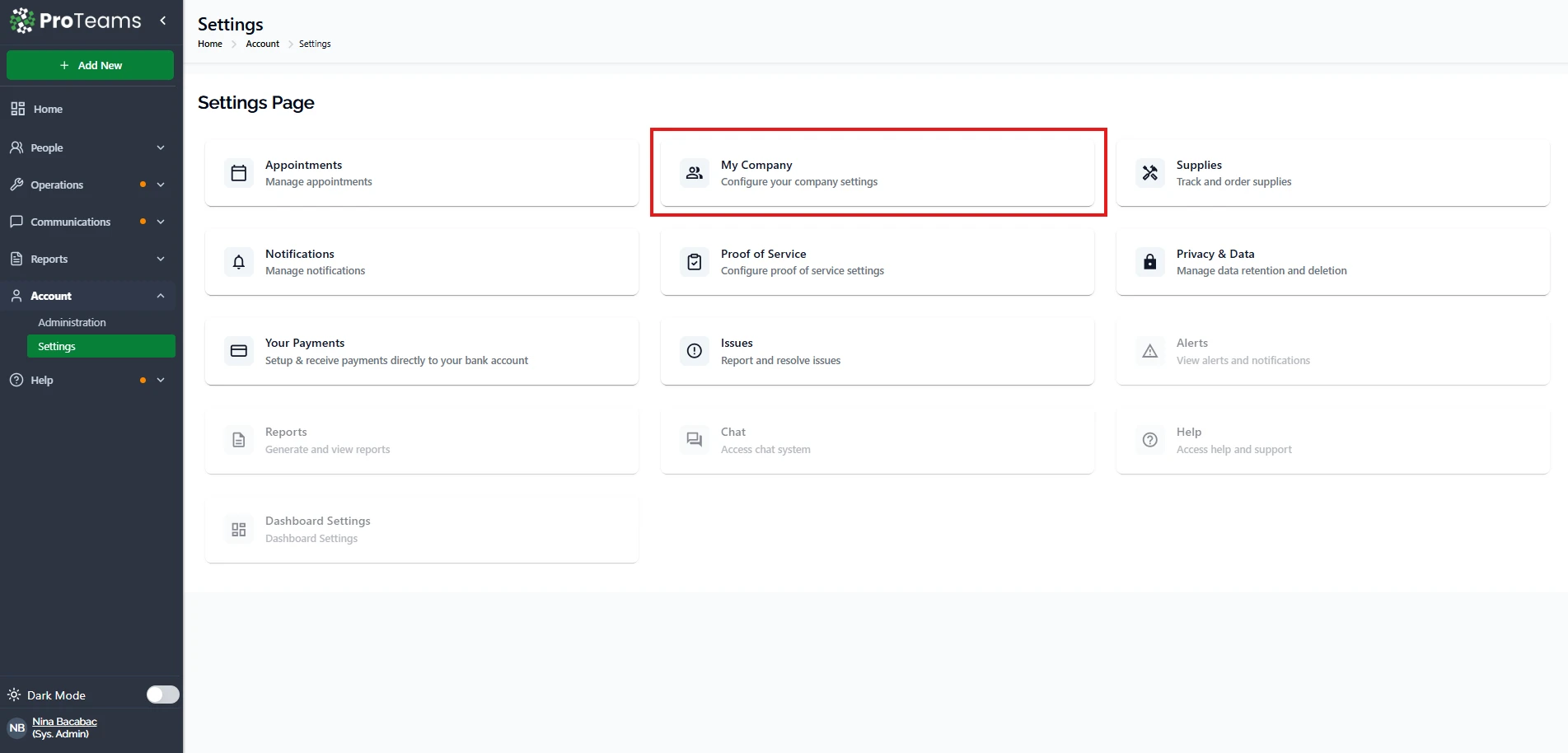
Sections in My Company
The My Company page is divided into two main tabs:
- Industry Settings
- Services
Each tab controls a different part of your company configuration.
Industry Settings
The Industry Settings tab allows you to define your company profile, reporting behavior, and operational defaults.
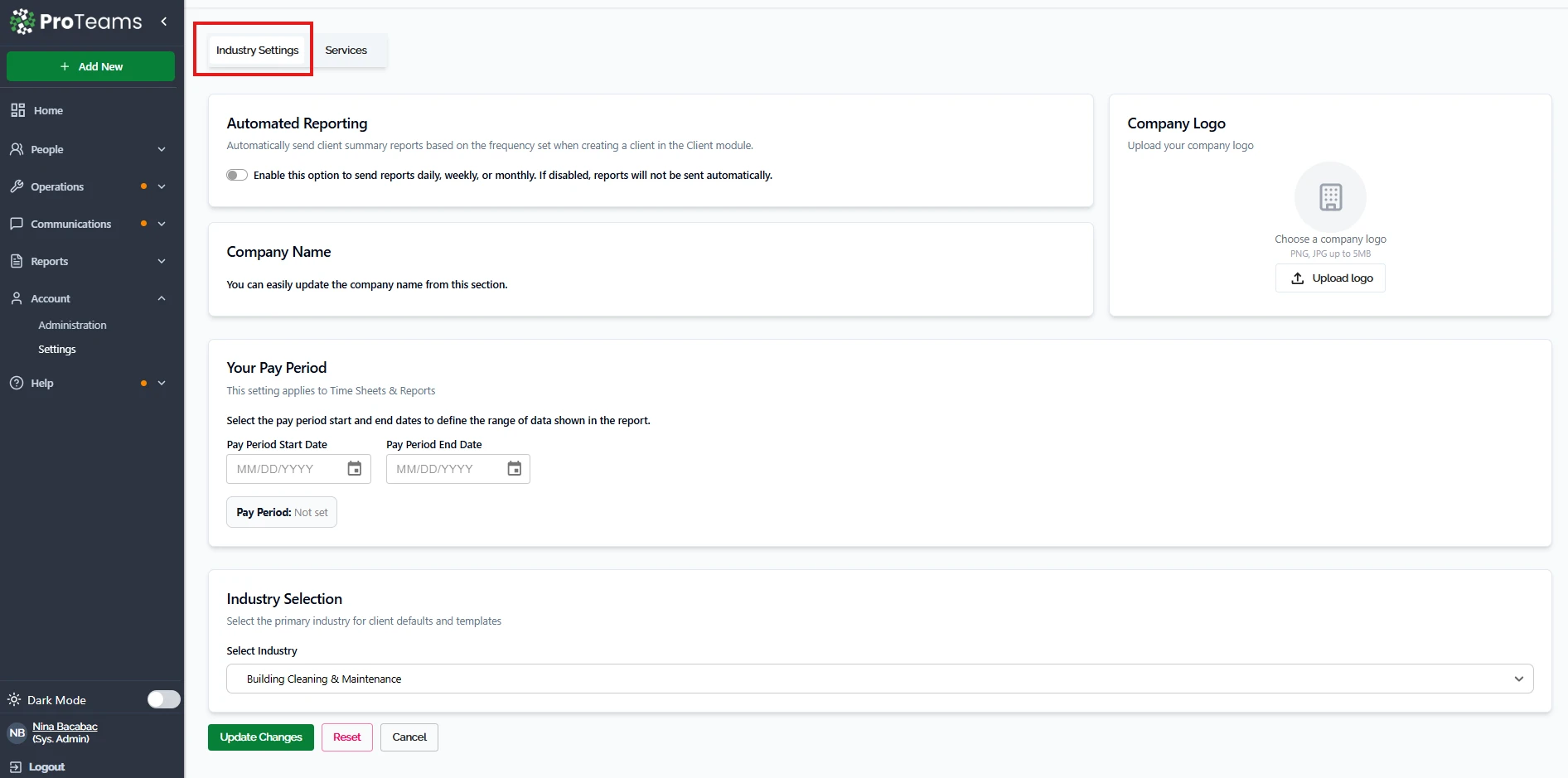
Automated Reporting
This setting allows ProTeams to automatically send client summary reports based on a defined schedule.
How It Works
- Enable the option to send reports automatically
- Reports can be sent daily, weekly, or monthly (based on client setup)
- If disabled, reports must be sent manually
Best Practice
Enable this feature to maintain consistent communication with clients.
Company Name
Displays and allows updates to your company’s name within the system.
How It Works
- Edit your company name directly in this section
- Changes will reflect across the platform
Company Logo
Upload and manage your company logo for branding purposes.
Supported Format
- PNG or JPG (up to 5MB)
How It Works
- Click Upload Logo
- Select your file
- Save changes
Best Practice
Use a clear, high-resolution logo for better presentation in reports and documents.
Pay Period
Defines the date range used for timesheets and reports.
How It Works
- Set a Start Date and End Date
- This determines how data is grouped in reports
Best Practice
Align your pay period with your payroll schedule for accurate reporting.
Industry Selection
Select your primary industry to apply default templates and configurations.
How It Works
- Choose an industry from the dropdown
- This may influence available services and system defaults
Services
The Services tab allows you to define the types of services your company offers and the tasks included in each service.
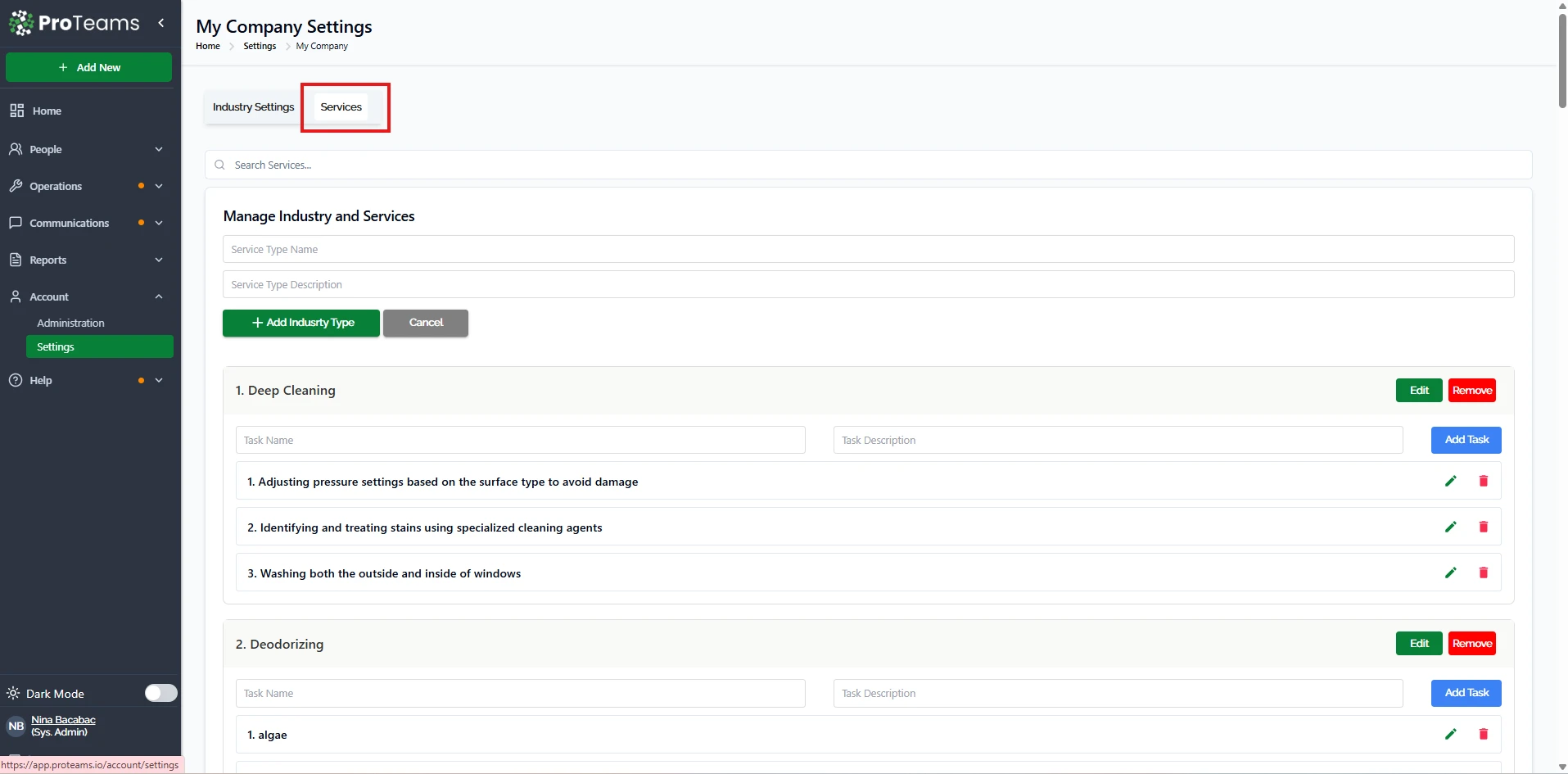
Manage Industry and Services
Add a Service Type
- Enter a Service Type Name
- Add a description (optional)
- Click Add Industry Type
Manage Tasks Within a Service
Each service can include multiple tasks.
Add a Task
- Enter a Task Name
- Add a Task Description
- Click Add Task
Edit a Task
- Click the edit icon next to the task
Delete a Task
- Click the delete icon next to the task
Example Services
You can organize services such as:
- Deep Cleaning
- Deodorizing
- Maintenance
Each service can include specific tasks like cleaning methods, inspections, or specialized procedures.
Summary
The My Company settings allow you to define how your business is represented and how it operates within ProTeams. Proper setup ensures consistency, improves reporting accuracy, and helps your team deliver services efficiently.
Enable Automated Reporting from day one. Clients who receive consistent, automatic reports are far less likely to question your service quality.