Invoice Settings is where you connect your payment processor, set how your invoices look to clients, and configure automated payment reminders. Get this right before you send your first invoice — it’s much harder to fix after a client has already seen inconsistent billing.
Overview
Invoice Settings let you manage how your invoices look, how payments are processed, and how reminders are sent to clients. This includes connecting your payment provider, customizing invoice details, and automating follow-ups.
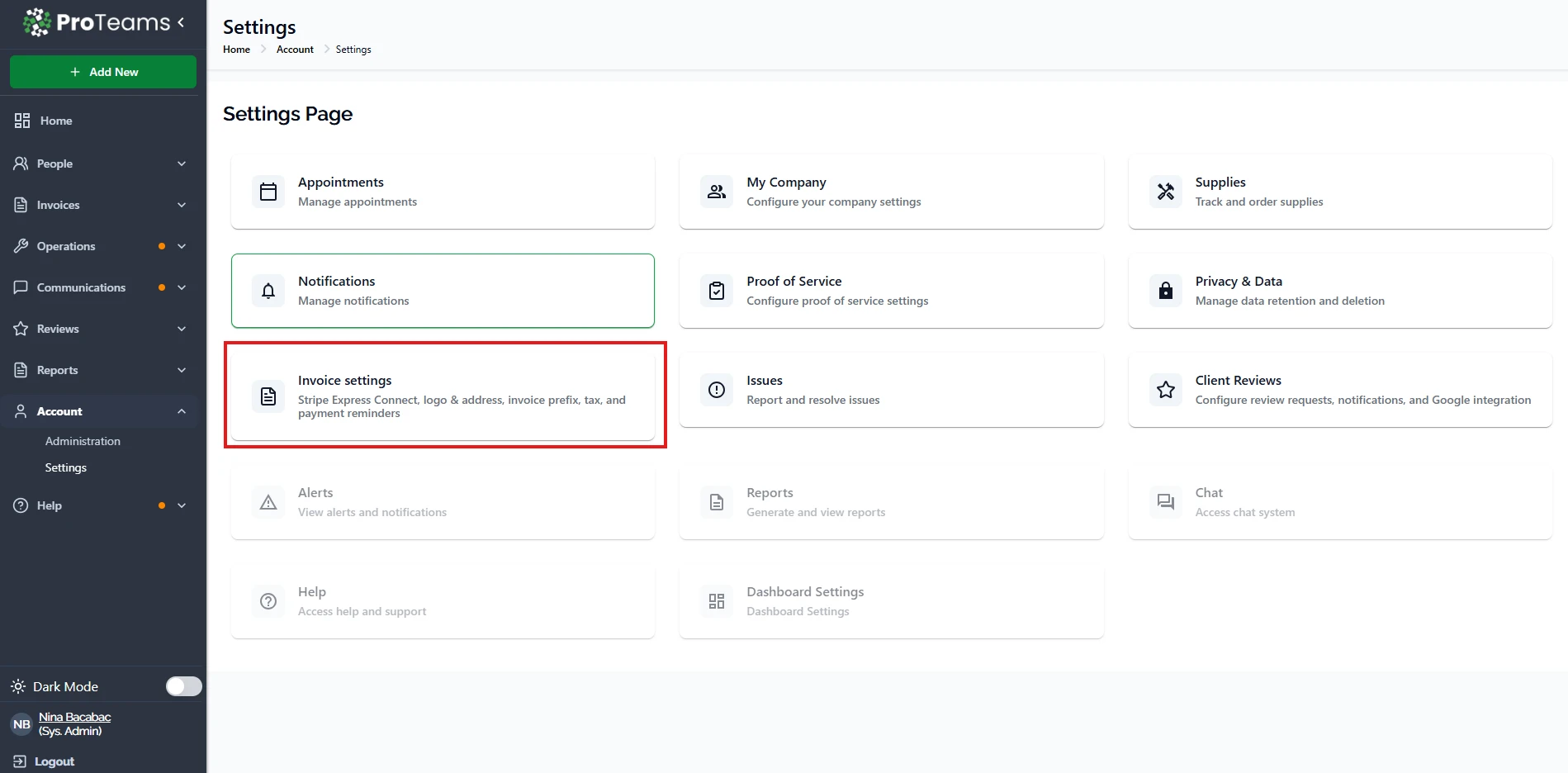
How to Access Invoice Settings
- Go to Account
- Click Settings
- Select Invoice Settings
Stripe Express Connect
This section allows you to connect your account to Stripe so you can receive payments.
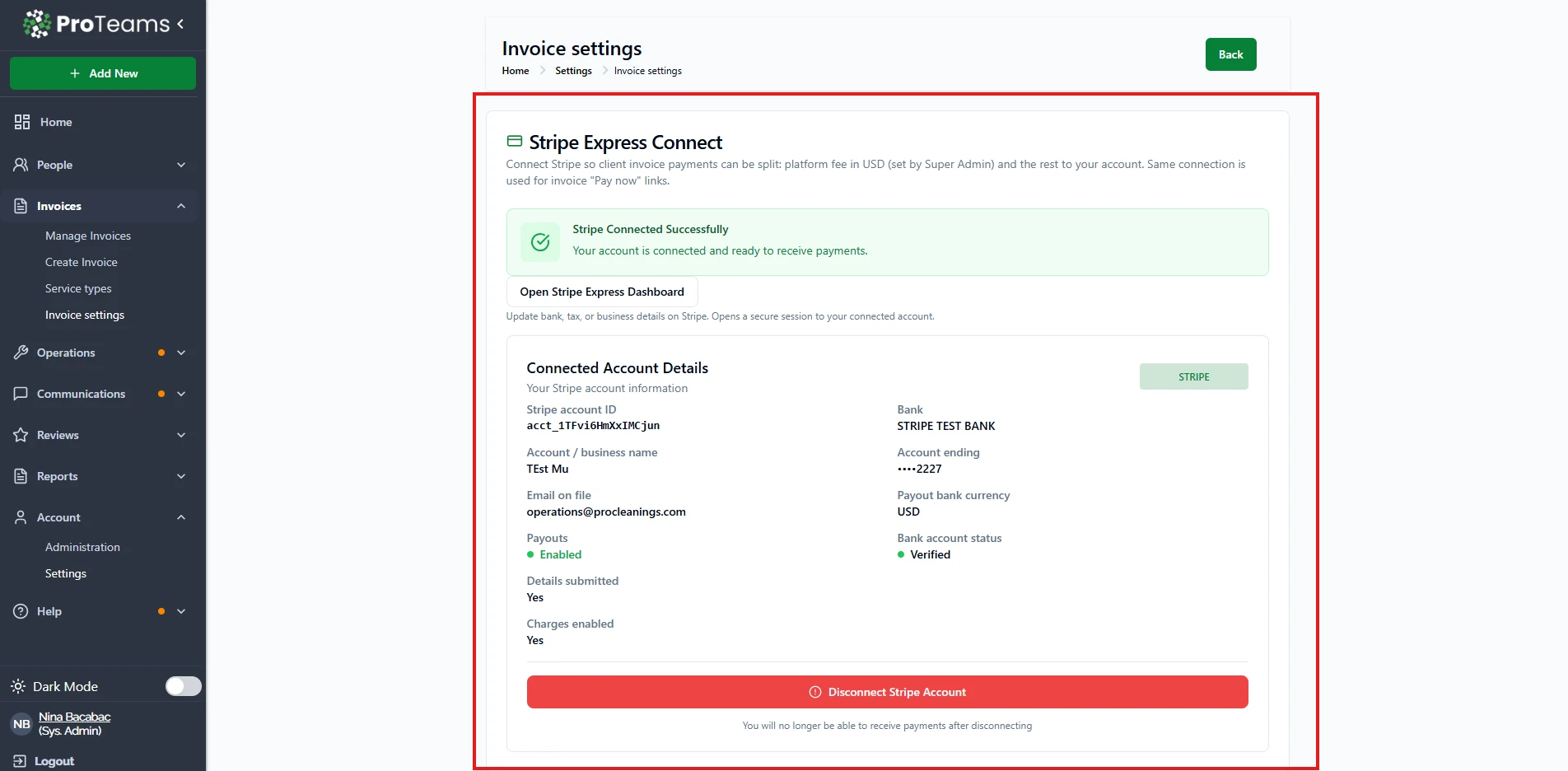
What you can do:
- Connect your Stripe account
- View connection status
- Access your Stripe dashboard
- Disconnect your account if needed
How to use it:
- Click Connect and follow the setup steps
- Once connected, you can start accepting payments
- Use Open Stripe Express Dashboard to manage payouts
Important:
- Payments will not work unless Stripe is connected
- Make sure your account is verified to receive funds
Default Invoice Appearance
This section controls how your invoices look to clients.
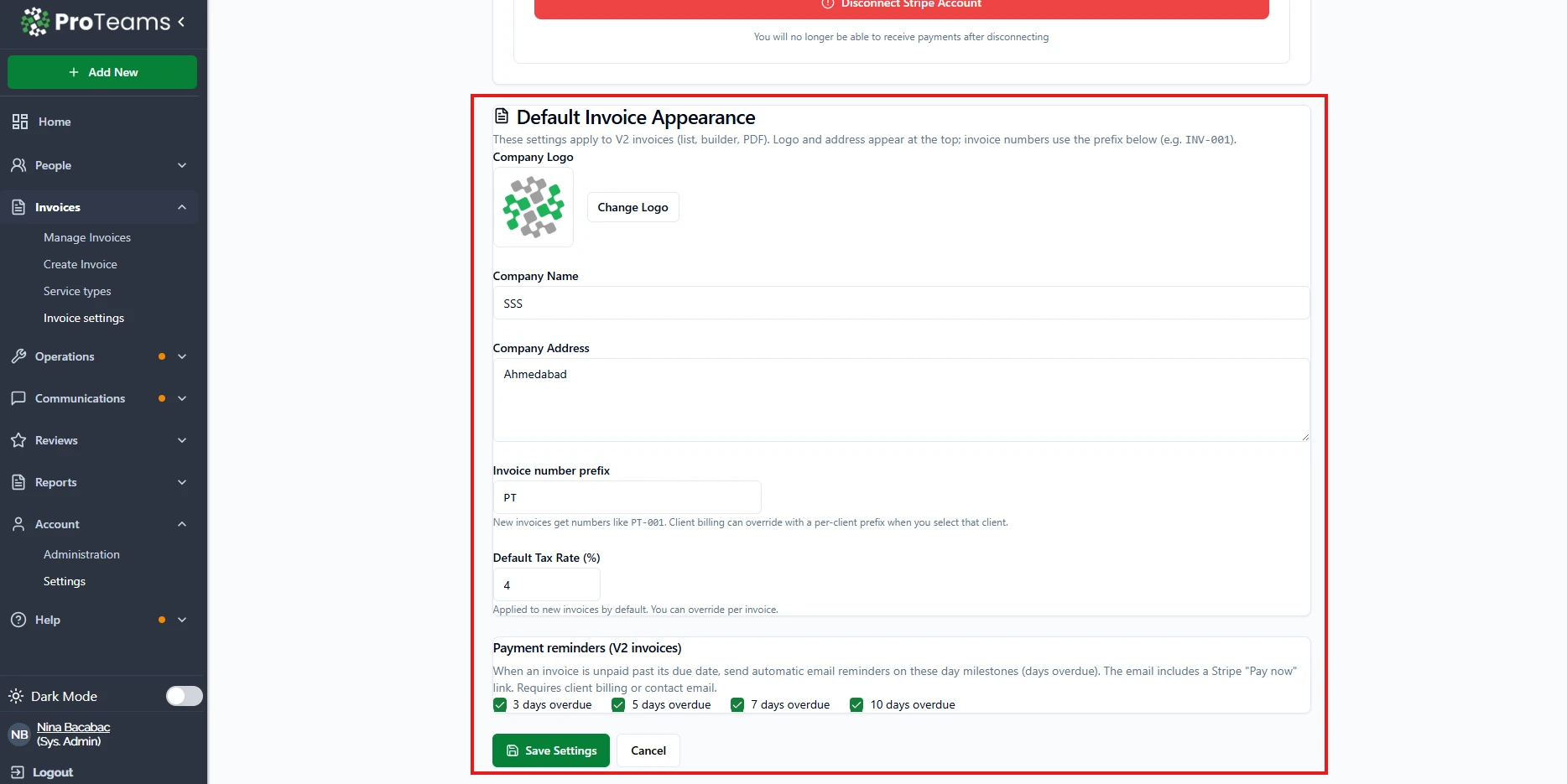
What you can customize:
- Company Logo – Displayed on invoices
- Company Name – Your business name
- Company Address – Shown on invoices
- Invoice Number Prefix – Custom prefix for invoice numbers
- Default Tax Rate (%) – Applied automatically to invoices
How to use it:
- Upload or update your logo
- Enter your company details
- Set a clear invoice prefix (e.g., INV-001)
- Define your default tax rate
- Save your changes
Payment Reminders
This section helps you automate follow-ups for unpaid invoices.
How it works:
- The system sends email reminders when invoices are overdue
- Reminders include a payment link for easy checkout
Available options:
- 3 days overdue
- 5 days overdue
- 7 days overdue
- 10 days overdue
How to use it:
- Select when reminders should be sent
- Choose multiple options if needed
- Save your settings
Saving Your Changes
- Click Save Settings to apply updates
- Click Cancel to discard changes
When to Use Invoice Settings
Use this section when you need to:
- Set up or update payment processing
- Customize how invoices appear to clients
- Automate payment reminders
- Keep billing consistent and professional
Pro Tip
Set your invoice prefix and tax rate early. This keeps your billing clean and avoids manual edits later.
Payments won’t work until your Stripe account is fully verified. Complete the verification process before sending invoices with payment links.