Issue Settings controls the rules around how issues move through your system — when they get archived automatically, who can archive or escalate them, and which roles get notified. Configure these once and your issue workflow runs on its own.
Overview
The Issues feature in ProTeams allows your team to report, track, manage, and resolve problems efficiently. It helps ensure that no issue is missed, while keeping communication organized across your organization.
You can configure how issues are handled by going to: Account → Settings → Issues
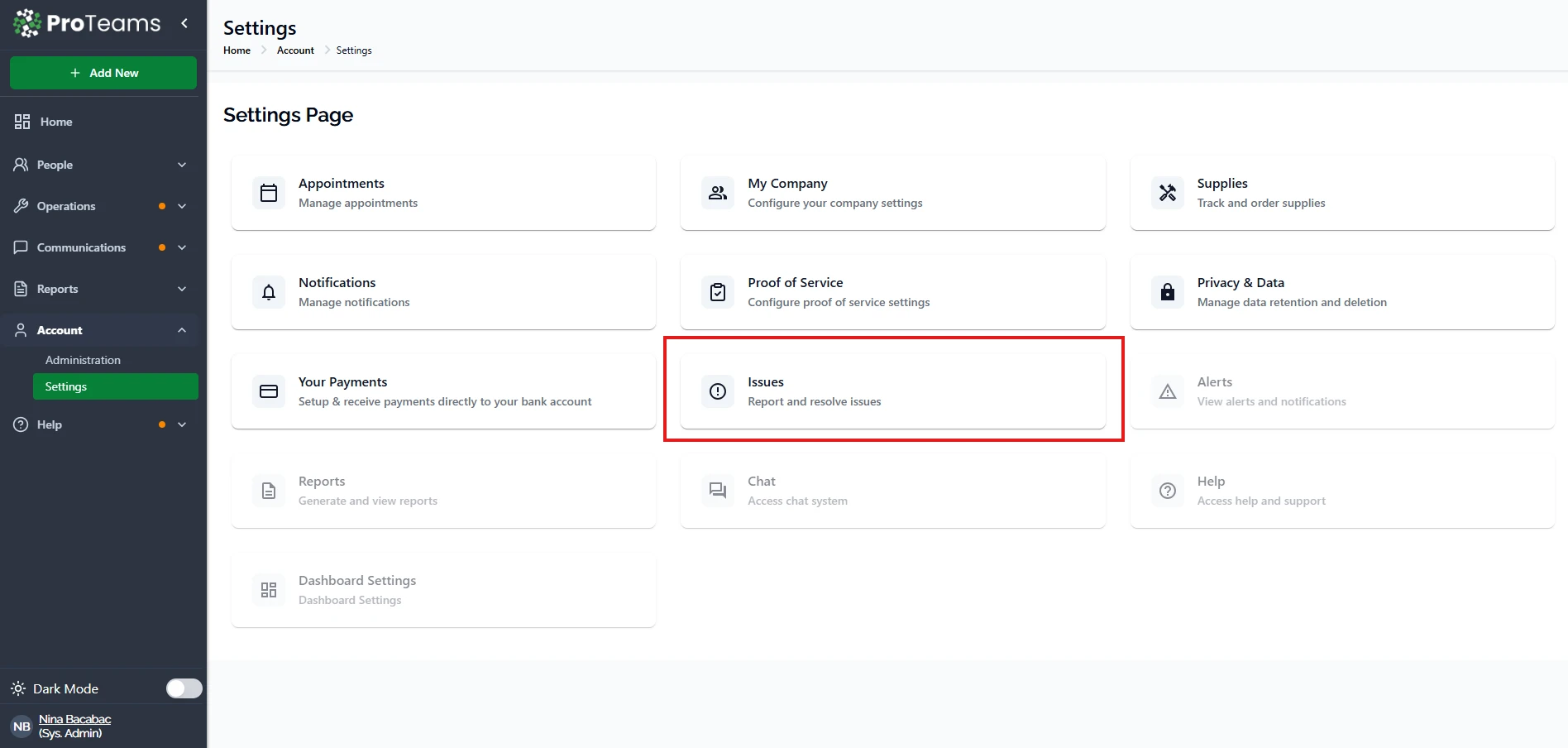
Issue Settings
The Issue Settings page allows you to define how issues are managed, who has permissions, and how they are handled over time.
Auto Archive Request
This setting controls whether issues are automatically archived after a period of inactivity.
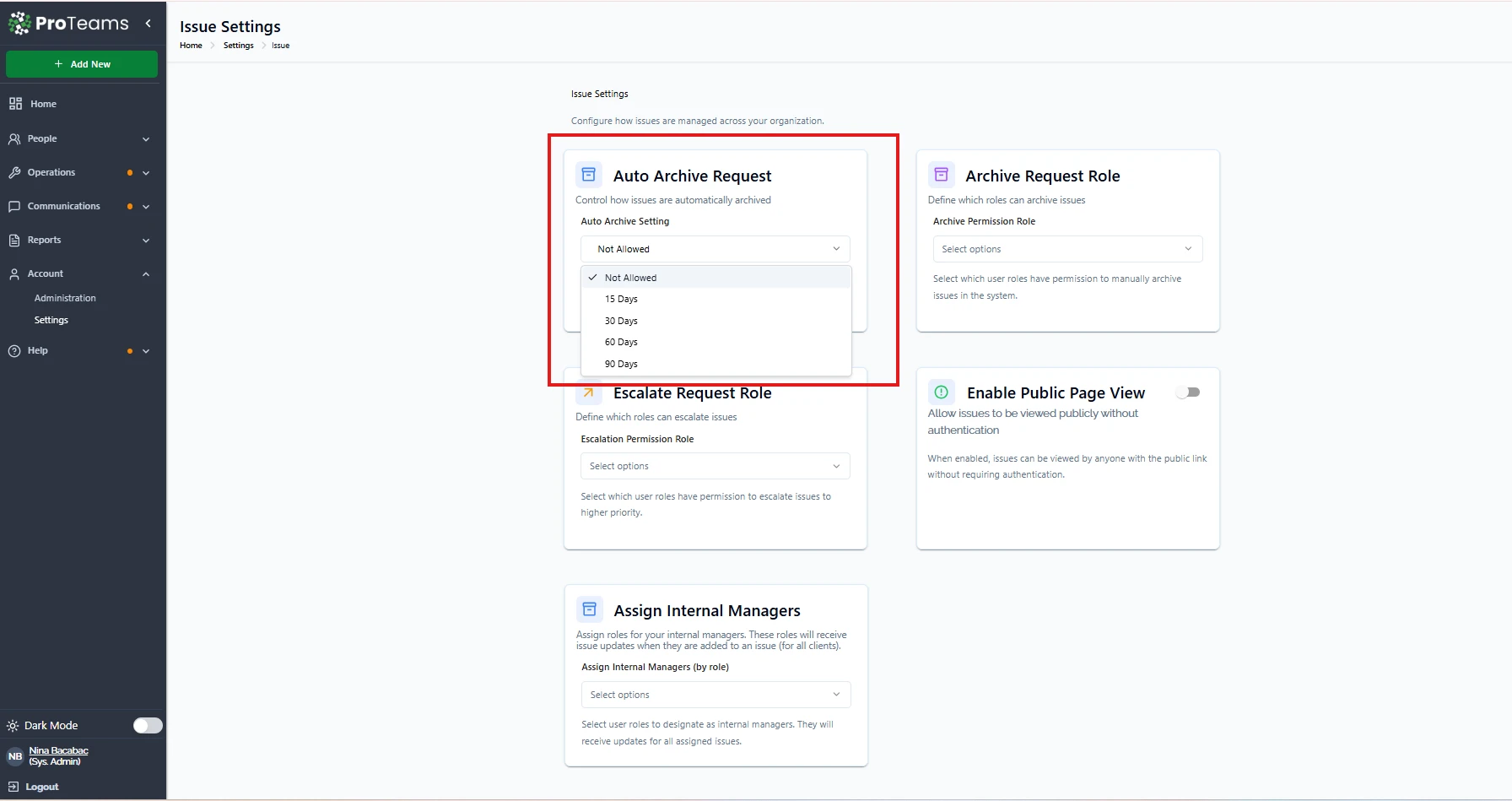
Available Options
- Not Allowed – Issues will remain active until manually archived
- 15 / 30 / 60 / 90 Days – Issues will be archived automatically after the selected number of inactive days
How It Works
When enabled, the system tracks inactivity. If no updates are made within the selected timeframe, the issue is automatically archived.
Archive Request Role
This setting defines which user roles can manually archive issues.
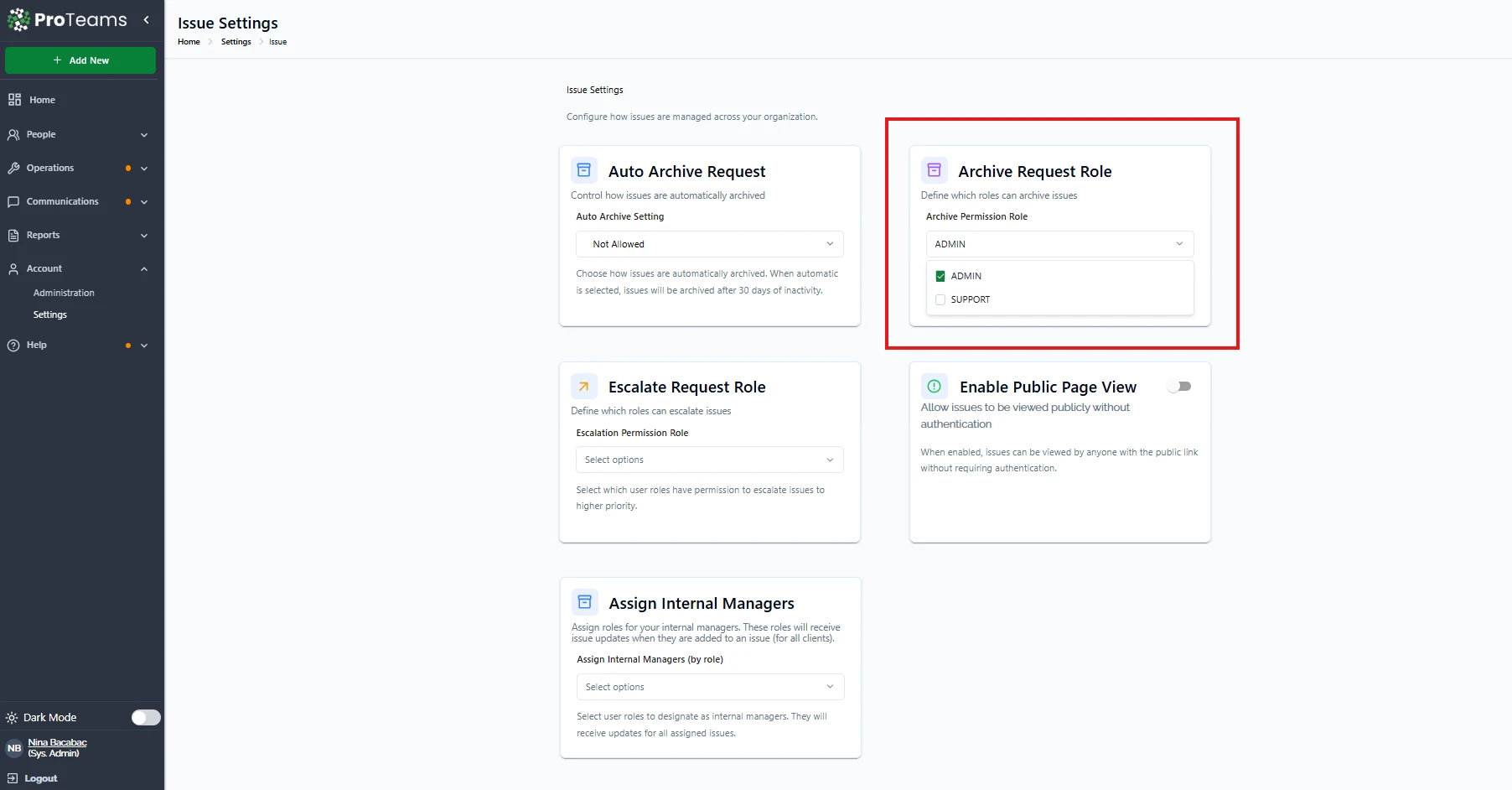
How It Works
- Select one or more roles (e.g., Admin, Support)
- Only selected roles will have permission to archive issues
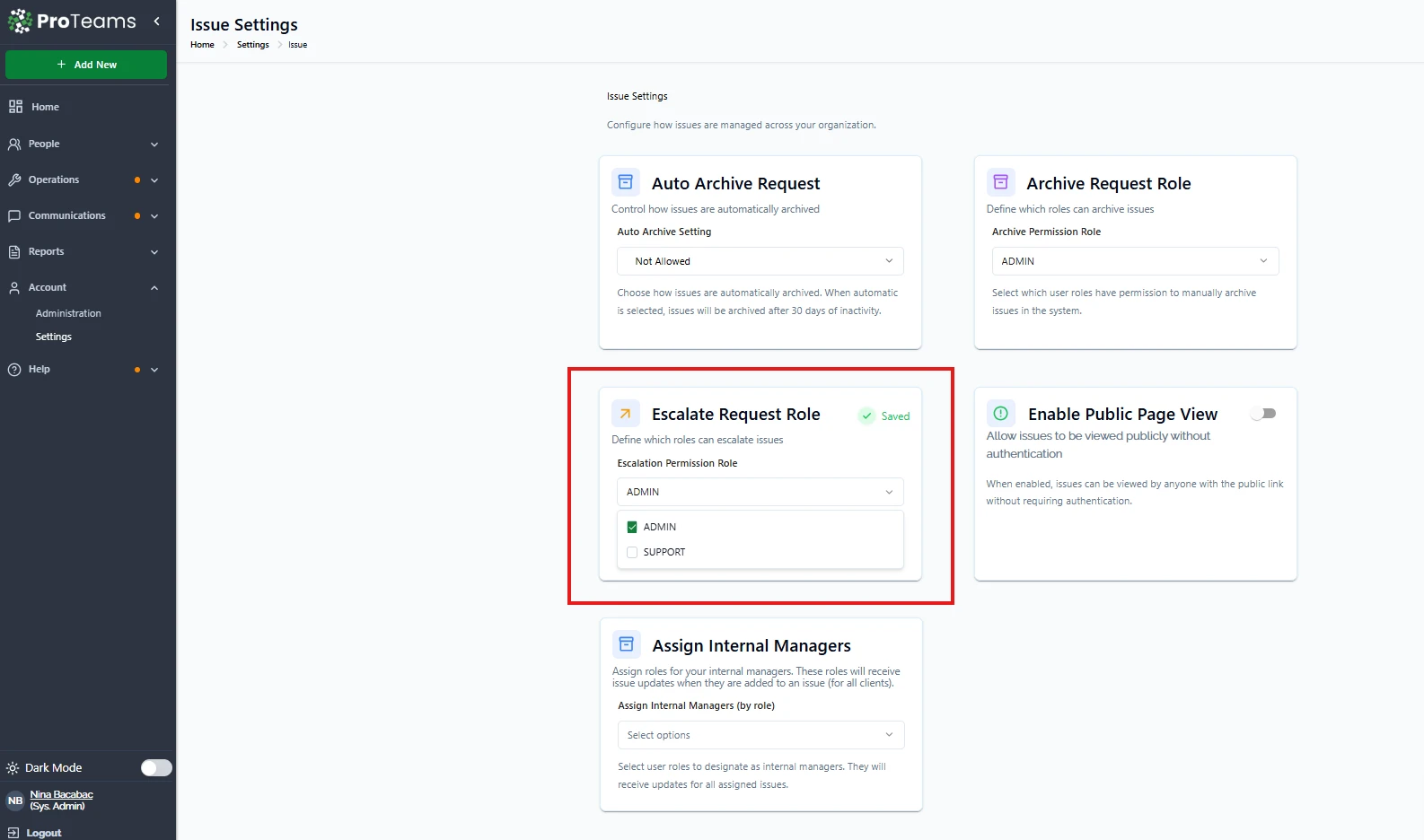
Escalate Request Role
This setting determines which roles can escalate issues to a higher priority.
How It Works
- Select roles that are allowed to escalate issues
- These users can increase urgency or move issues to higher-level attention
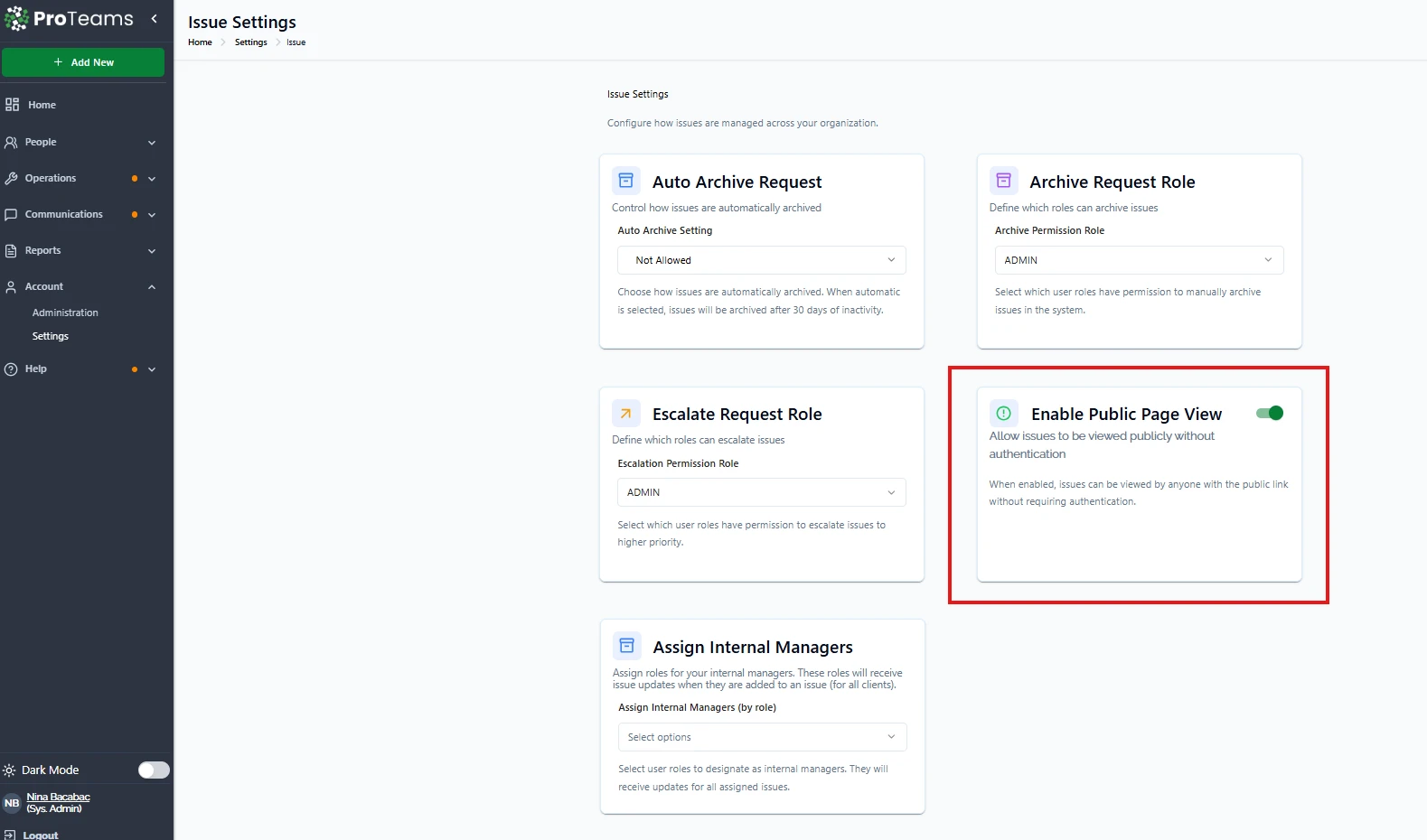
Enable Public Page View
This option allows issues to be viewed publicly without requiring login.
How It Works
- When enabled, issues can be accessed via a public link
- No authentication is required to view the issue
Important Notes
- Only enable this if sharing issues externally is necessary
- Be mindful of sensitive information
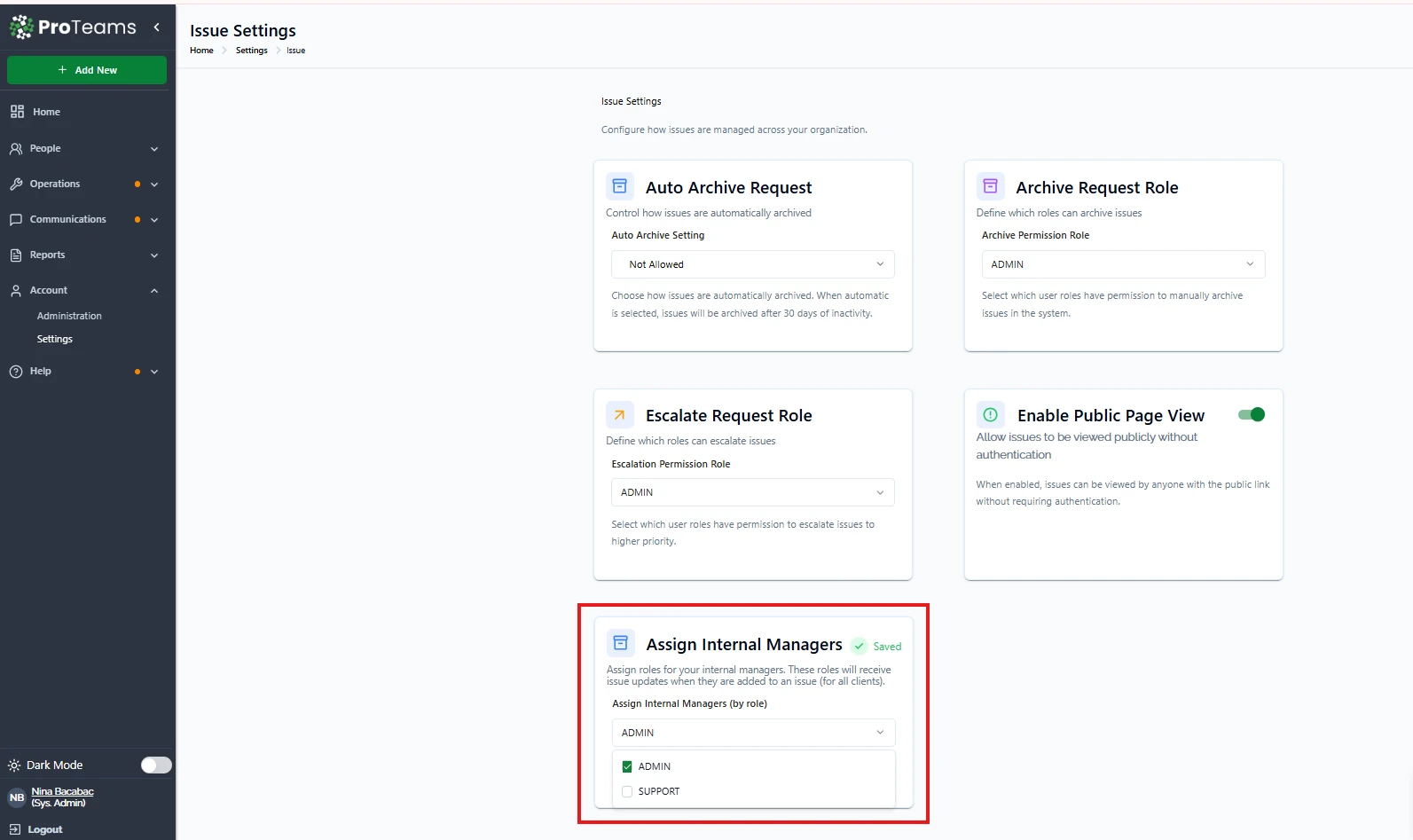
Assign Internal Managers
This setting allows you to assign specific roles as internal managers for issues.
How It Works
- Select roles (e.g., Admin, Support)
- Assigned users will receive updates when they are linked to an issue
Benefits
- Improves visibility and accountability
- Ensures the right people are notified and involved
Recommendations
- Enable auto-archive to reduce clutter from inactive issues
- Restrict archive and escalation permissions to key roles
- Use internal managers to keep issues organized and monitored
- Be cautious when enabling public access to protect sensitive data
Summary
The Issues feature in ProTeams helps your team stay organized, respond faster, and maintain accountability. By configuring these settings properly, you can create a structured and efficient issue management workflow.
Enable auto-archiving. A clean active issues list is worth more than the marginal risk of accidentally archiving something still in progress.