This is the global on/off switch and frequency default for Proof of Service across your entire platform. Per-client settings can override it, but this is where the baseline lives.
Overview
Proof of Service lets you verify that a job was completed by requiring employees to submit photo evidence during visits. It helps ensure quality, accountability, and transparency across your operations.
You can control how often proof is required and enable or disable it across the entire system.
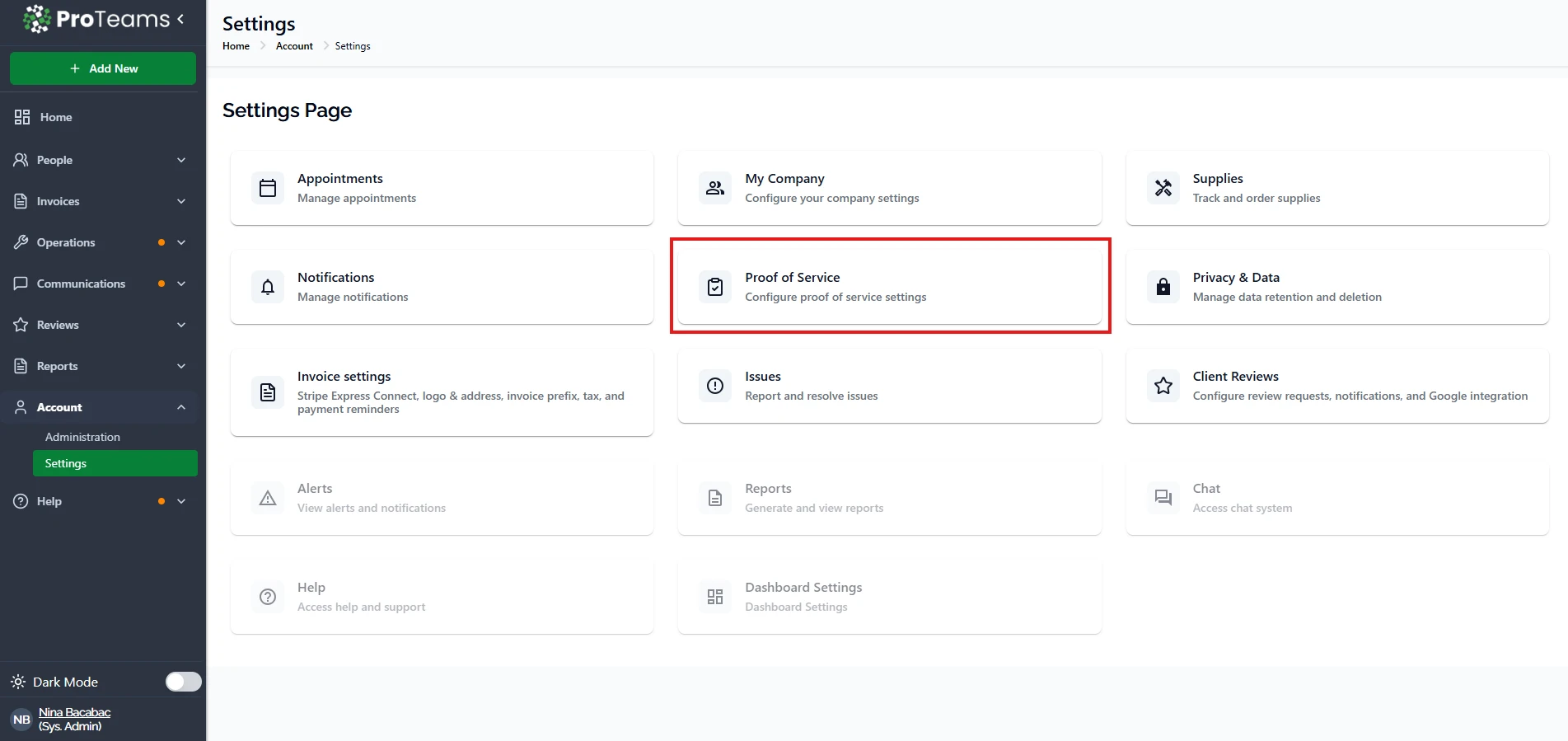
How to Access Proof of Service
- Go to Account
- Click Settings
- Select Proof of Service
Global Proof of Service
This setting controls whether Proof of Service is active across the platform.
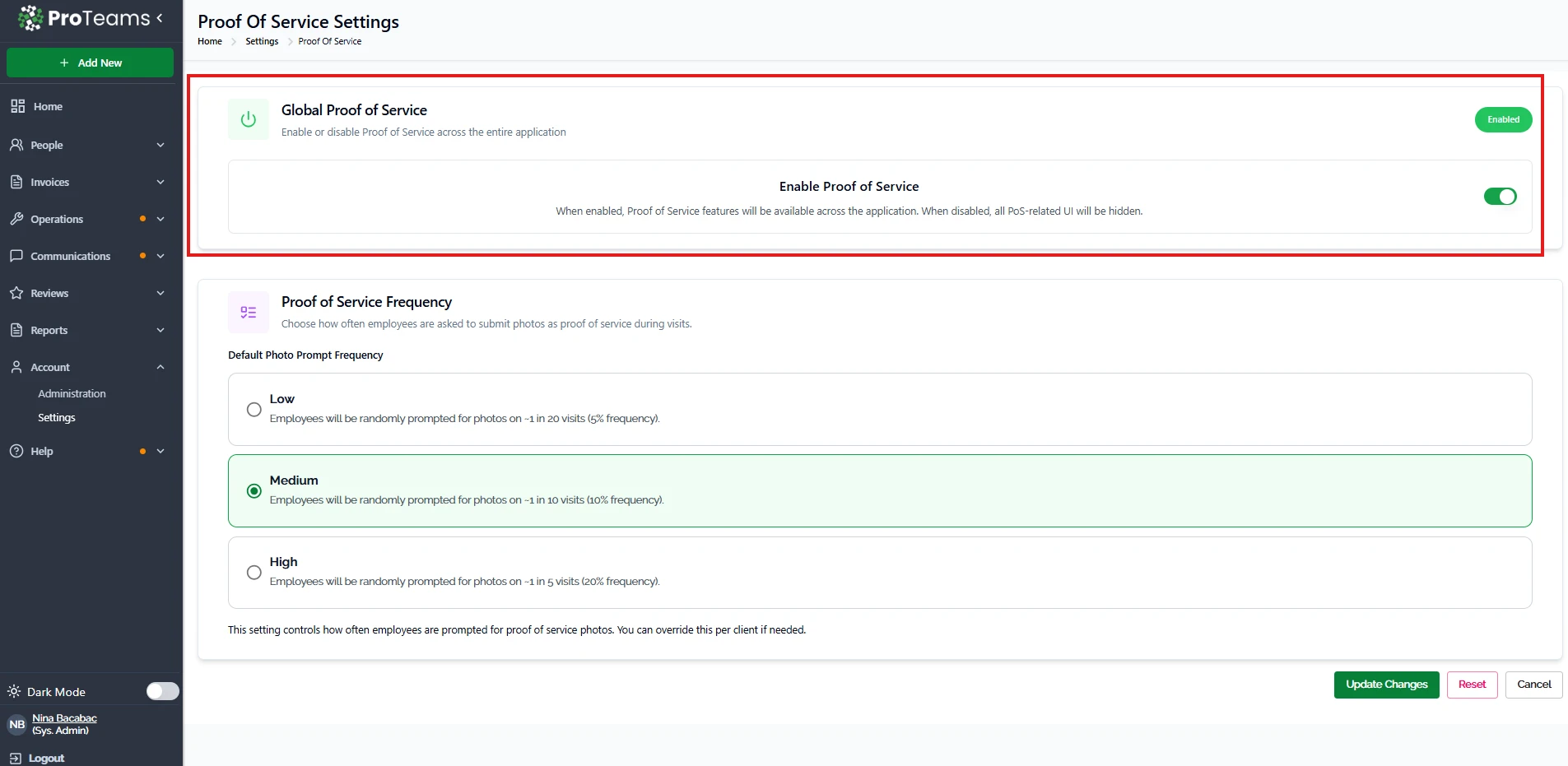
What it does:
- When enabled, employees will be prompted to submit proof (photos) during jobs
- When disabled, all Proof of Service features are hidden
How to use it:
- Turn it ON to start collecting job verification
- Turn it OFF if you don’t need proof tracking
Proof of Service Frequency
This setting controls how often employees are asked to submit photos.
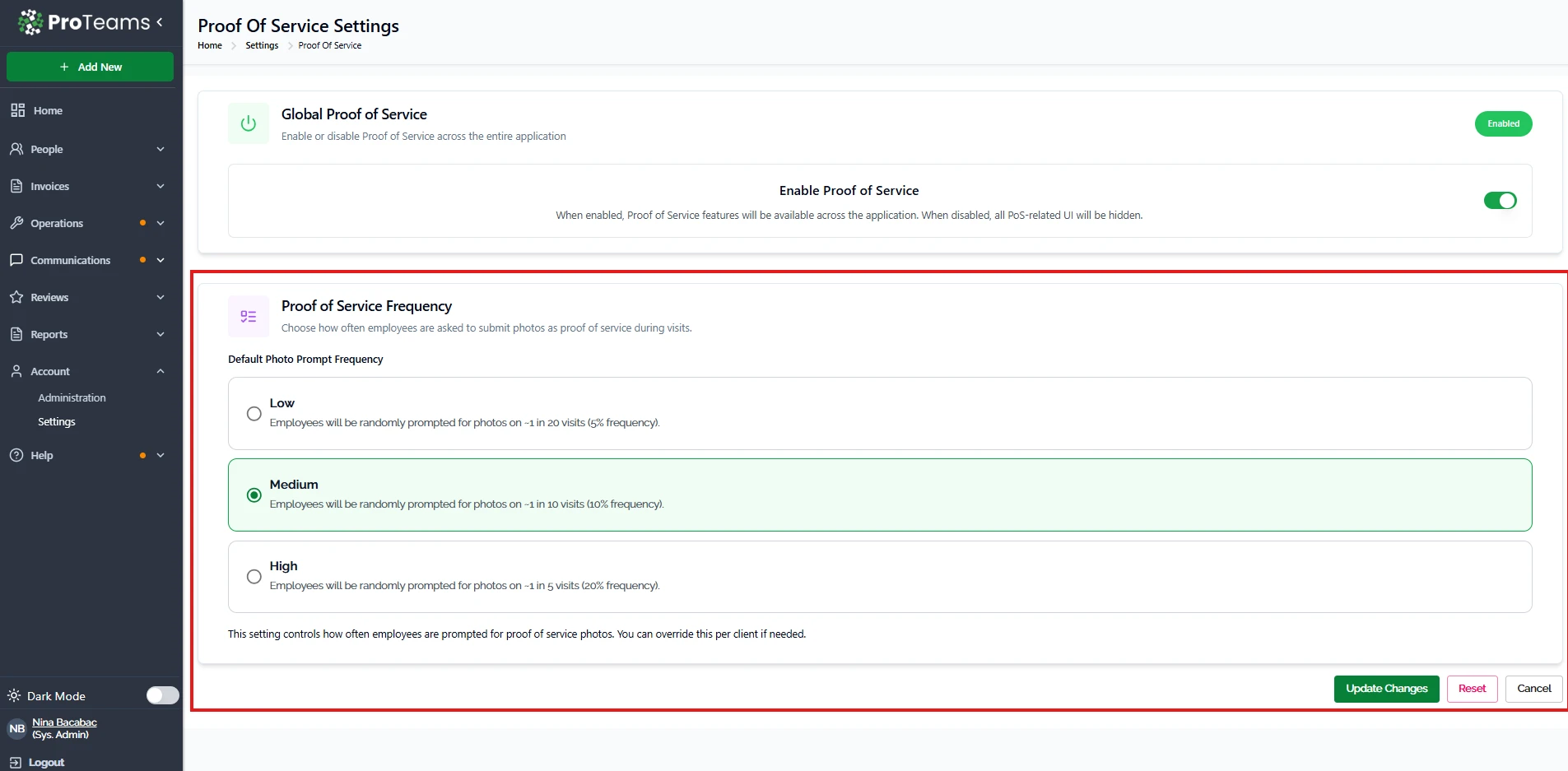
Available options:
- Low (5%) Employees are prompted on about 1 in 20 visits Best for light monitoring
- Medium (10%) Employees are prompted on about 1 in 10 visits Balanced option for most teams
- High (20%) Employees are prompted on about 1 in 5 visits Best for strict quality control
How It Works
- The system randomly selects visits based on your chosen frequency
- When selected, employees are prompted to upload photos during the job
- Submitted photos act as proof that the service was completed
Saving Your Changes
After updating your settings:
- Click Update Changes to apply
- Click Reset to undo changes
- Click Cancel to exit without saving
When to Use Proof of Service
Use this feature when you need to:
- Verify that jobs are completed properly
- Maintain service quality across teams
- Provide visual records for clients
- Reduce disputes or missed work claims
Individual clients can be set to Always (100%) from their Shifts tab — that overrides this global default for those specific accounts.